



If you have followed our research or attended our conference sessions over the past two years, you have seen how rapidly Oracle Analytics AI Assistant has matured. From early explorations to optimizing domain-specific metadata, our team at Pythian has been deeply involved in implementing these AI capabilities across enterprise client environments.
For additional context on how this journey began, you can check out my previous articles covering my initial explorations of this feature:
- Oracle Analytics AI Assistant: An Exploration: My first look at what the AI Assistant can do. (October 2024)
- Optimising Oracle Analytics AI Assistant: Bring the Intelligence to Life: How to configure and tune it to get better results. (February 2025)
- Beyond Dashboards: The Future of Oracle Analytics Is AI-Powered: A look across Oracle Analytics’ AI capabilities, and how AI-ready metadata helps the AI Assistant deliver accurate, trustworthy answers. (October 2025)
While much of our recent delivery work has focused on implementing AI Assistant capabilities to meet real-world customer requirements, what has been especially compelling is watching the tool evolve at breakneck speed.
It has transitioned from a conversational chat capability into a smart, intelligent, and sophisticated analytics companion—one that not only lets users talk to their data (enterprise or beyond) and generate insights in the form of reports or charts, but also applies business intelligence and context, with great control over the consumer experience.
Under the hood, advanced LLMs do the heavy lifting, and you can choose from the available options, plus apply your own business domain knowledge through RAG. It has been an exciting exploration so far!
Where it began, and how far it has come
When the AI Assistant debuted at Oracle CloudWorld 2024, it was a basic chat feature with limited scope to control the context or shape the consumer experience. It worked only on datasets, was available only to authors, supported just 150 columns and English, and required a 10+ OCPU environment.
What followed was remarkably fast. Within months, it gained subject area support, synonyms, and third-party LLM integration. By summer 2025, it had added consumer access, ad-hoc calculations, smart filters, LLM-generated narratives, and support for 8 languages, with column limits growing to 2000 along the way. And the journey continues. Embedded AI Assistant, AI Agents, Supplemental Instructions, Document Knowledge, and AI descriptions have already raised the bar, and the next chapter, Deep Insights Agents, about to be announced at AI World 2026, marks a leap that goes well beyond everything we have seen so far!
OAC Deep Insight Agents turn Oracle Analytics data into actionable guidance by uncovering patterns, exploring business drivers, and recommending next steps. They combine in-depth reasoning capability with extensive built-in calculation libraries to investigate complex questions and move beyond what dashboards alone can reveal.
By drawing directly on OAC Semantic Layer or datasets, they ground their analysis in business definitions, relationships, and user context while respecting all existing security controls. Business users can now easily design and tailor these agents directly in OAC with only a few clicks, bringing their expertise into the analysis without needing specialist coding skills.
Thanks to the product team, I have had early access to the feature for prototyping, and with this article, I am eager to share my explorations so far.
How to access the Deep Insights Agents?
If you have tried creating the AI Agents (a Data Agent) in Oracle Analytics Cloud, the enablement of the DI Agent is right within the same interface! Let's take a look here.
Navigate to the Home page of the Oracle Analytics Cloud application and click on the Create > AI Agent option.
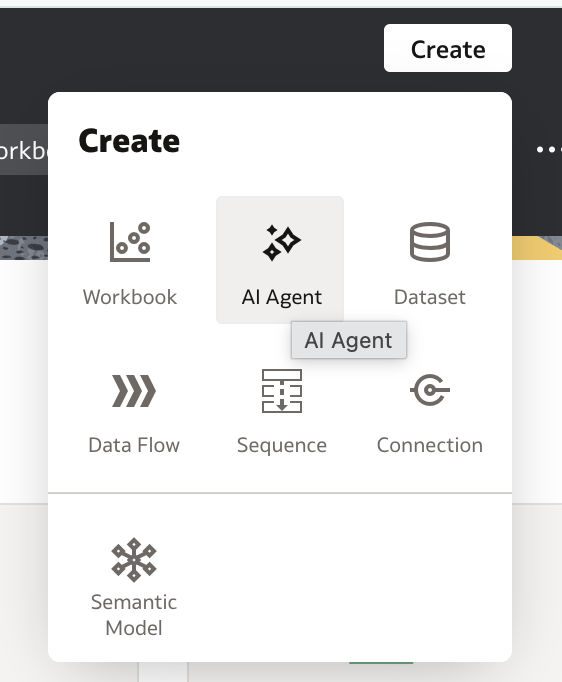
The very first step in creating an AI Agent is always adding the foundational data source that sets the context for the LLM.
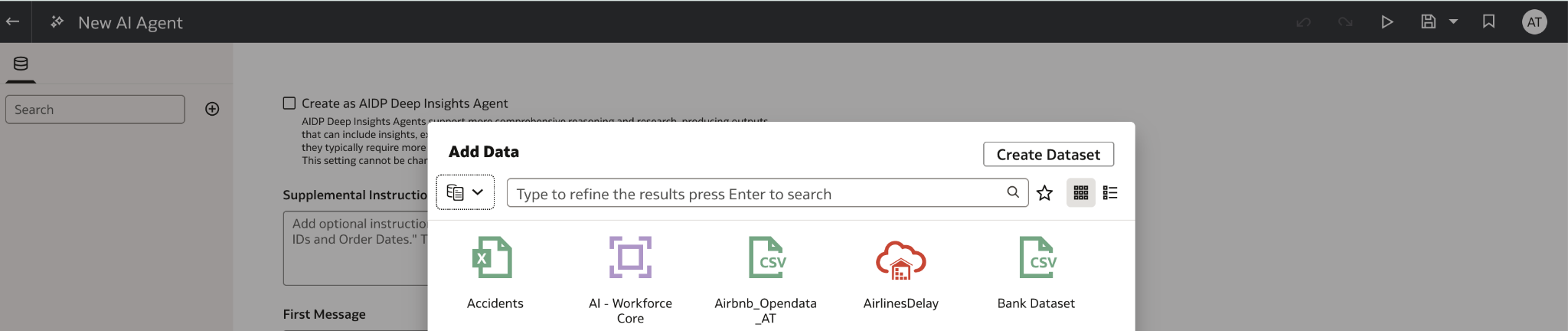
The datasets can be from a DB connection, flat files, or subject areas - with no restriction on the type. However, note that only those datasets enabled for AI Assistant can be selected during AI Agent creation.
For our exploration in this article, I have picked an existing dataset created from an Oracle Autonomous AI Lakehouse, called ‘AirlinesDelay’ - storing airline information focused around flights, routes, distance, delay, etc.
If you want to confirm/modify the AI Assistant configurations at this point, you can right-click the dataset and choose Inspect and route to Search.
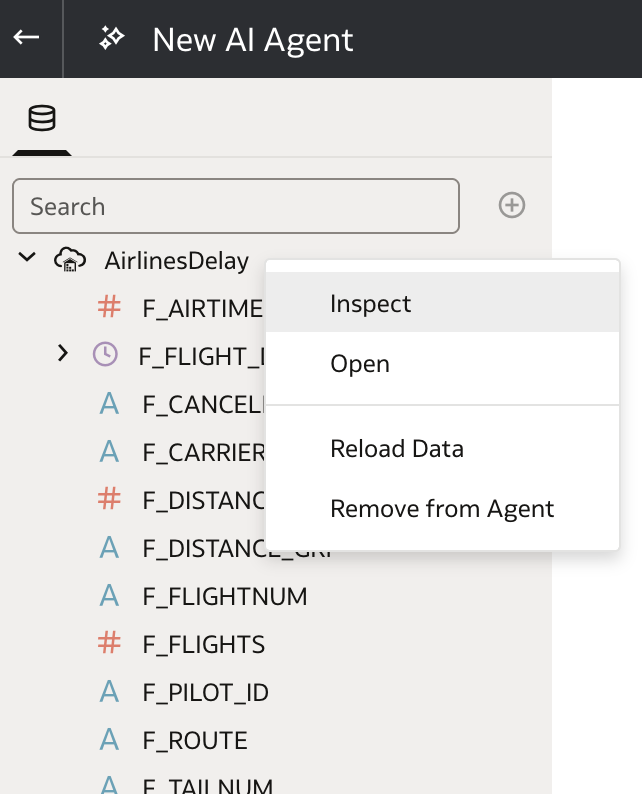
More information about the best practices around these configurations can be found in the article I previously shared.
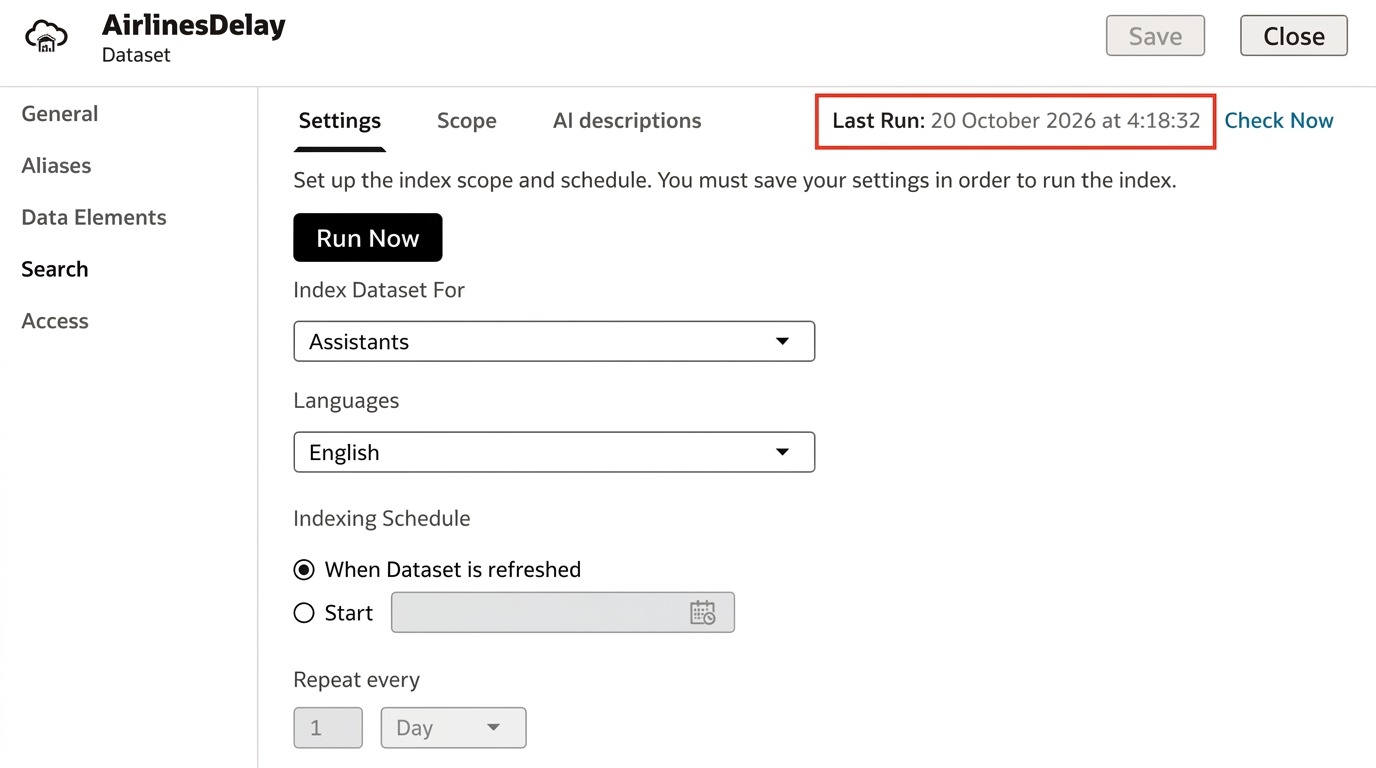
Let us assume that the configurations are all in order, and by clicking the Check Now option, we can also verify when exactly the LLM was last trained (screenshot below).
Coming back to the AI Agent Creation page, right on top (highlighted below), we have a new section now that allows us to enable/ disable the AIDP Deep Insights Agent - as the official name goes.
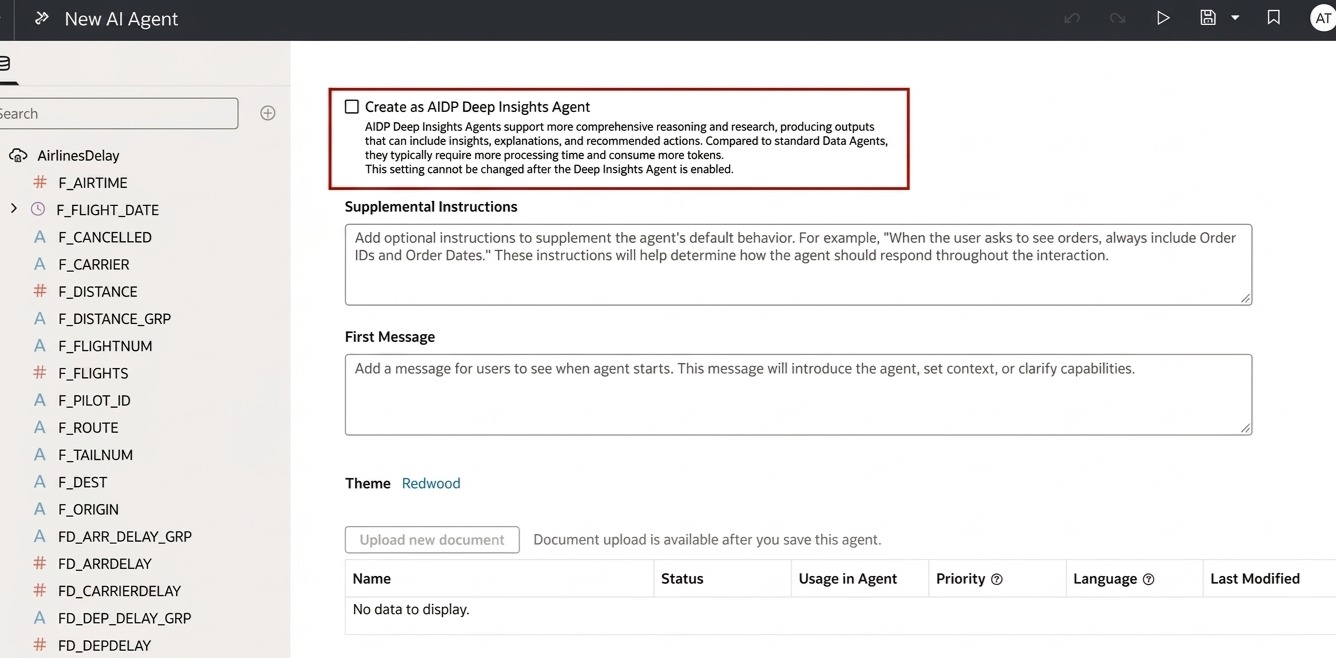
As the description states, it is worth noting that “AIDP DI agents support more comprehensive reasoning and research, producing outputs that can include insights, explanations, and recommended actions.
Compared to standard Data Agents, they typically require more processing time and consume more tokens. This setting cannot be changed after the Deep Insights Agent is created.”
And true to the description, once the AIDP DI Agent option was enabled, it was locked in. Even clicking Undo before Save did not revoke the setting! Something to be mindful of.
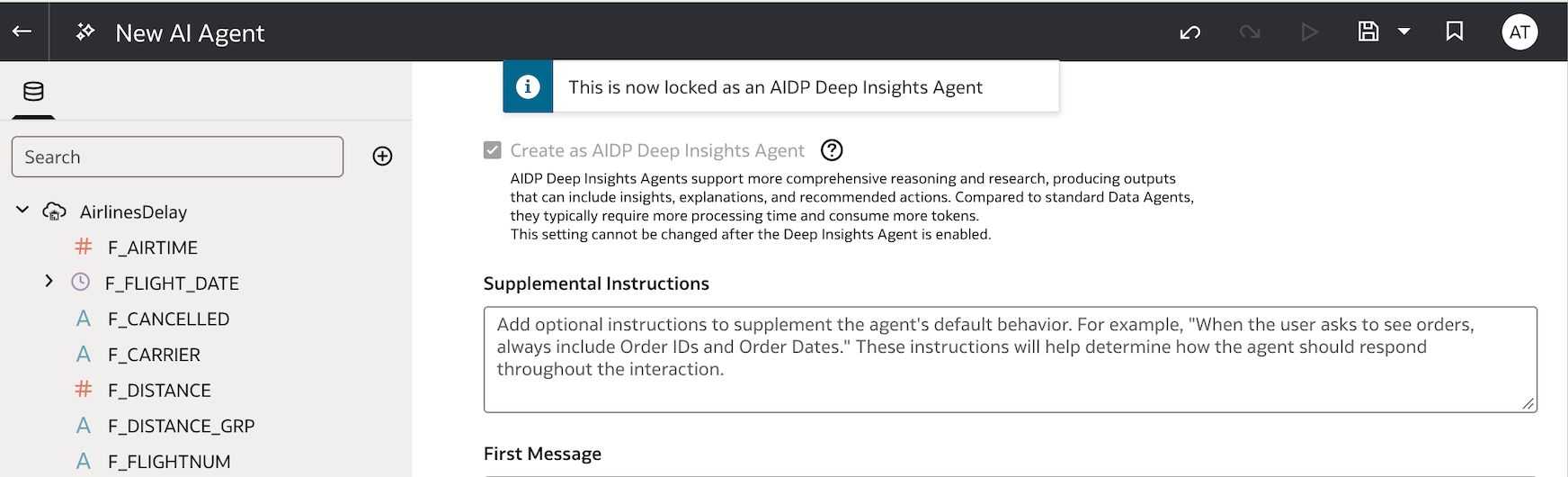
If you are new to creating the AI Agents in general, it is worth understanding the sections in this interface.
- Supplemental Instructions
From an application point of view and based on my own project experience, this is the right place to set priority logical conditions that tailor the consumer experience to specific business requirements. As of now, we can add up to 6000 characters of supplemental instructions. In my discussions with the product team, I also learned that if there is a specific need for a higher limit, it can be handled on request at the back end, through proper channels. Worth noting, just in case! For our example, I have added a simple default filter condition that limits responses to rows with Flight Dates from 2018 onwards.

- First Message
The First Message section should contain the introductory text that greets users as they start interacting with the agent. Use it to describe the agent’s purpose and set clear expectations, which also helps users ask better questions. You can also apply font formatting to this section, to fine-tune its look.

- Knowledge Documents
Knowledge documents keep the agent grounded in your organisation’s own policies and business rules. The agent consults them, along with the dataset, via RAG before responding, so answers are more accurate and business-consistent.
To enable the ‘Upload New Document’ option to apply knowledge documentation that can give the LLM additional organisational domain context, you should first save the AI Agent as shown below.
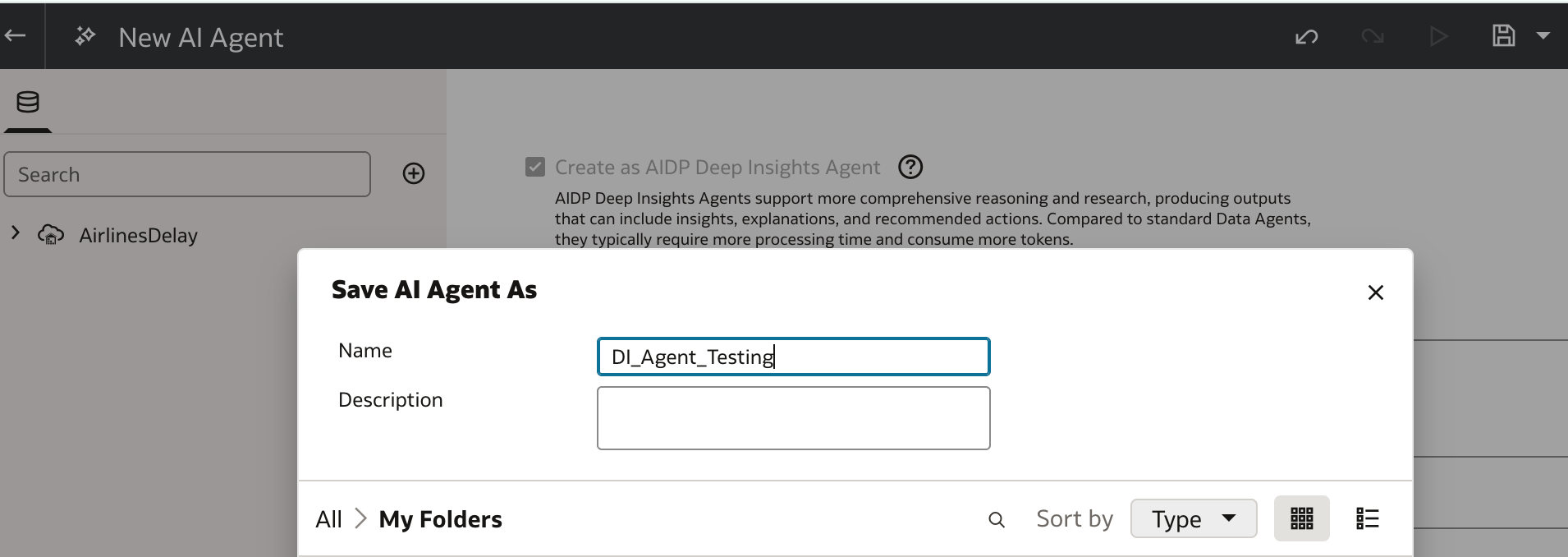
Now you will see the Upload New Document button enabled. Click it, and you can search and upload up to 10 PDF or TXT files with a size limit of 5MB. Also, images inside the documents are not supported and are ignored. You don’t have to reformat the files and can upload them as is.

I have now uploaded The Air Travel Consumer Report as a sample Knowledge Document, which is a monthly product of the Department of Transportation’s Office of Aviation Consumer Protection (OACP) and designed to assist consumers with information on the quality of services provided by the airlines.
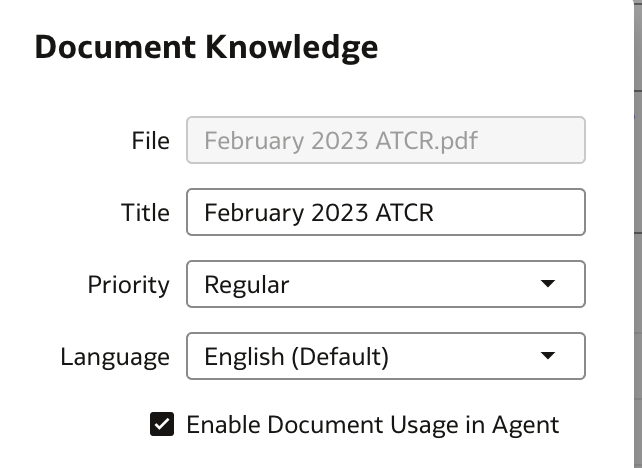
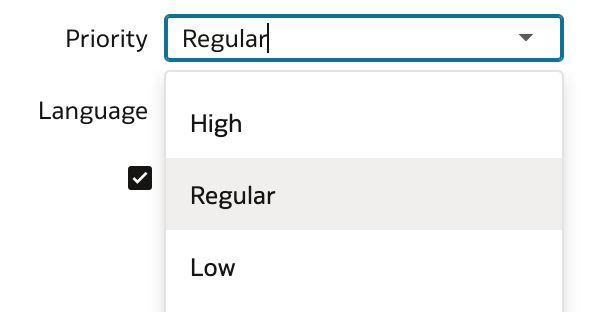
Priority control is a useful setting in scenarios where guidance overlaps. You can set it as High, Regular or Low - based on the requirement.
The Language option sets the language in which the agent responds to users, with 16 languages to choose from, so it can match your consumer’s language preference.
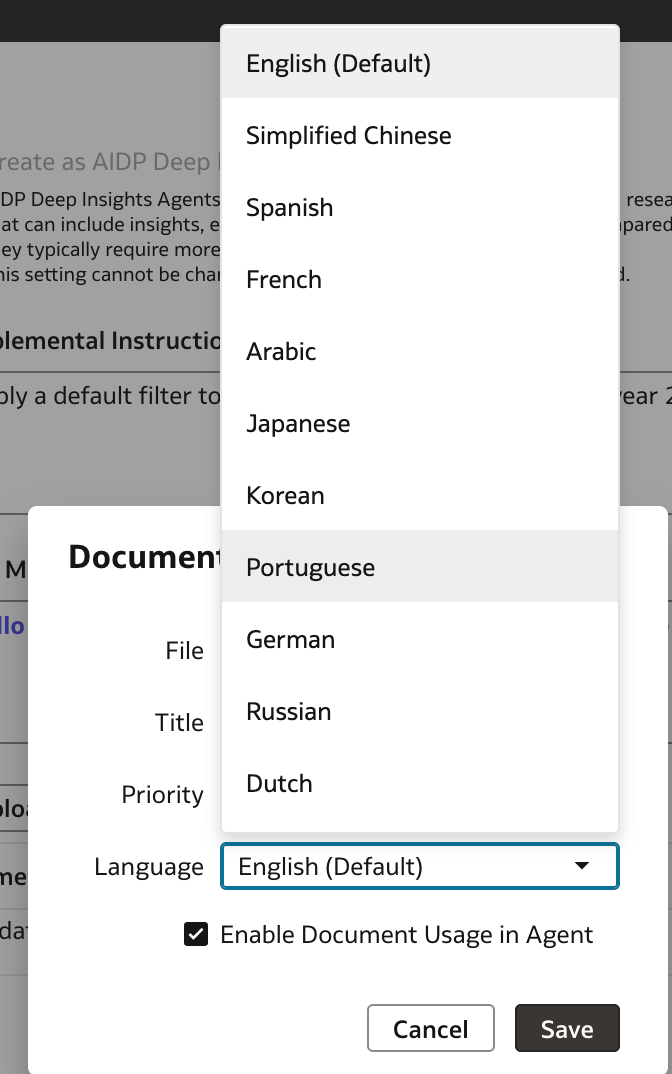
Here is how it looks once the Knowledge Document upload is completed.

- Scope
The final tab in the bottom right of the interface allows you to verify the AI Agent configuration scope and lets you adjust the scope of columns included, verify the index type, and the synonyms added.
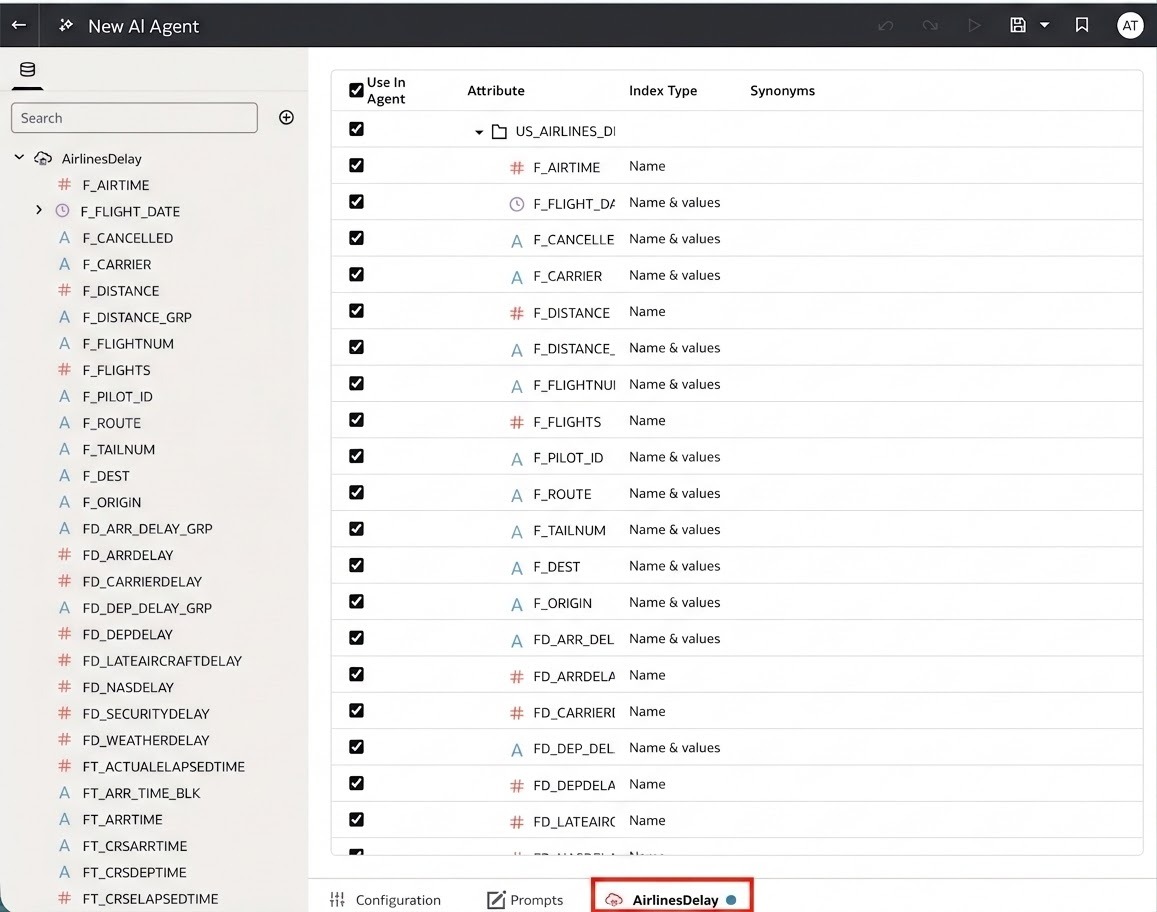
Now that we have configured both the AIDP DI Agent and the Data Agent settings, we can Save the changes and test the experience!
If you'd like to learn more about Pythian's customer story with UMass - From AI Assistant to AI Agents, you can find the link to the Analytics and Data Oracle User Community (AnDOUC) TechCast here.
The Deep Insight Agent in action
Click on the play button (highlighted in red) to launch the Preview.

The Preview page lets you test the consumer experience thoroughly. You will notice that the welcome message addresses the user by name, and the First Message appears below it with all your formatting changes applied.
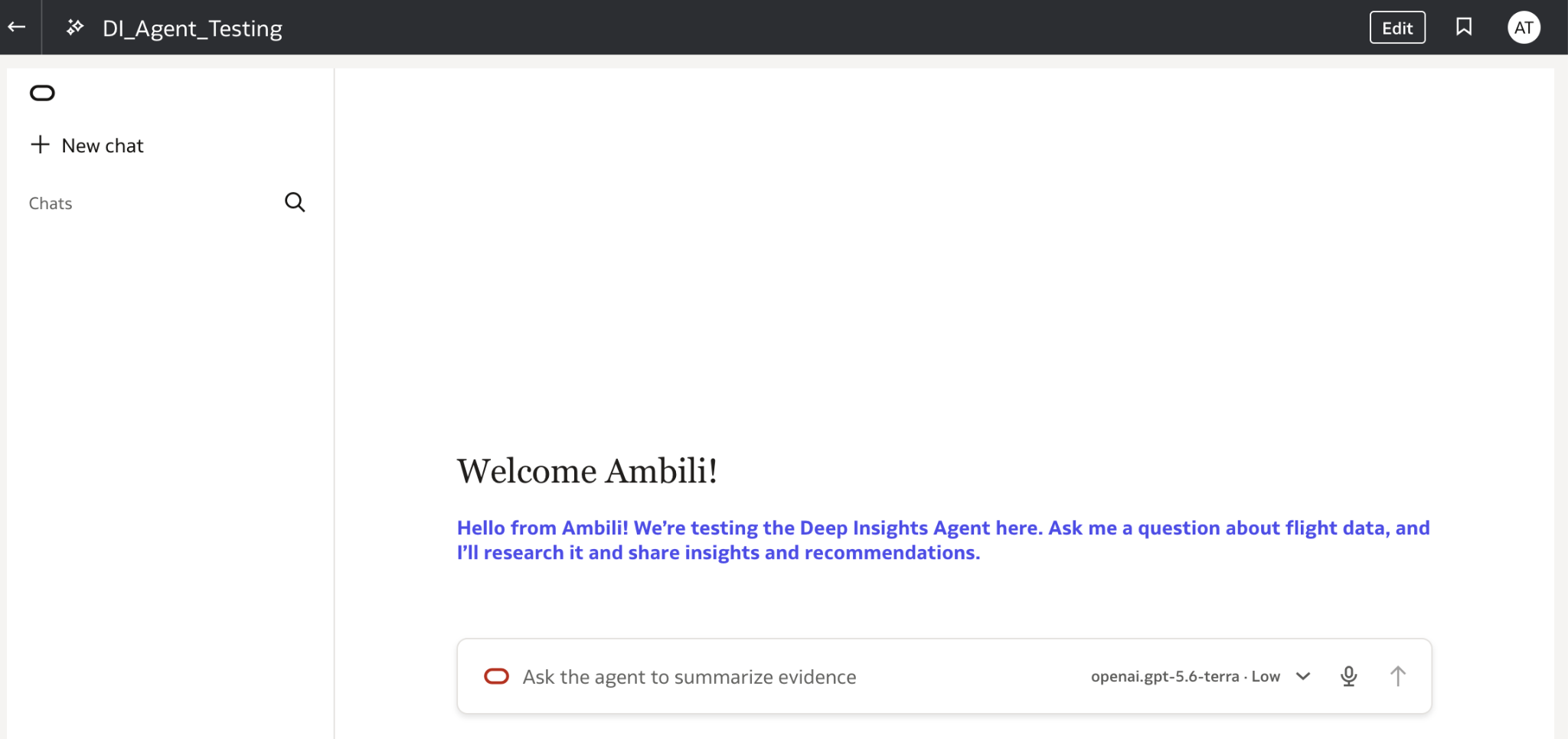
Compared to the AI Agent preview experience before the introduction of the DI Agent, this page has some new interesting changes now.
You will see a new ‘Chat Section’ on the left side that will display the list of user prompts so far.
Advantage: You don’t have to execute the prompts again and again to verify the results. The saved prompt, when selected, will also display the previous user response with no additional token usage.
In the user prompt section, there is an additional drop-down that allows you to make a selection for:
-
Model Type: Currently, we have the following available options:
-
-
- Openai.gpt-5.6-terra
- Openai.gpt-5.6-sol
- Openai.gpt-5.5
- Openai.gpt-5.4
-
Sol is the flagship for the most demanding analysis, while Terra offers a balance of reasoning strength and cost, so you can match the model to the complexity of your use case.
Advantage: Flexibility - authors aren’t locked into one model, and they can weigh depth against processing time and token consumption.
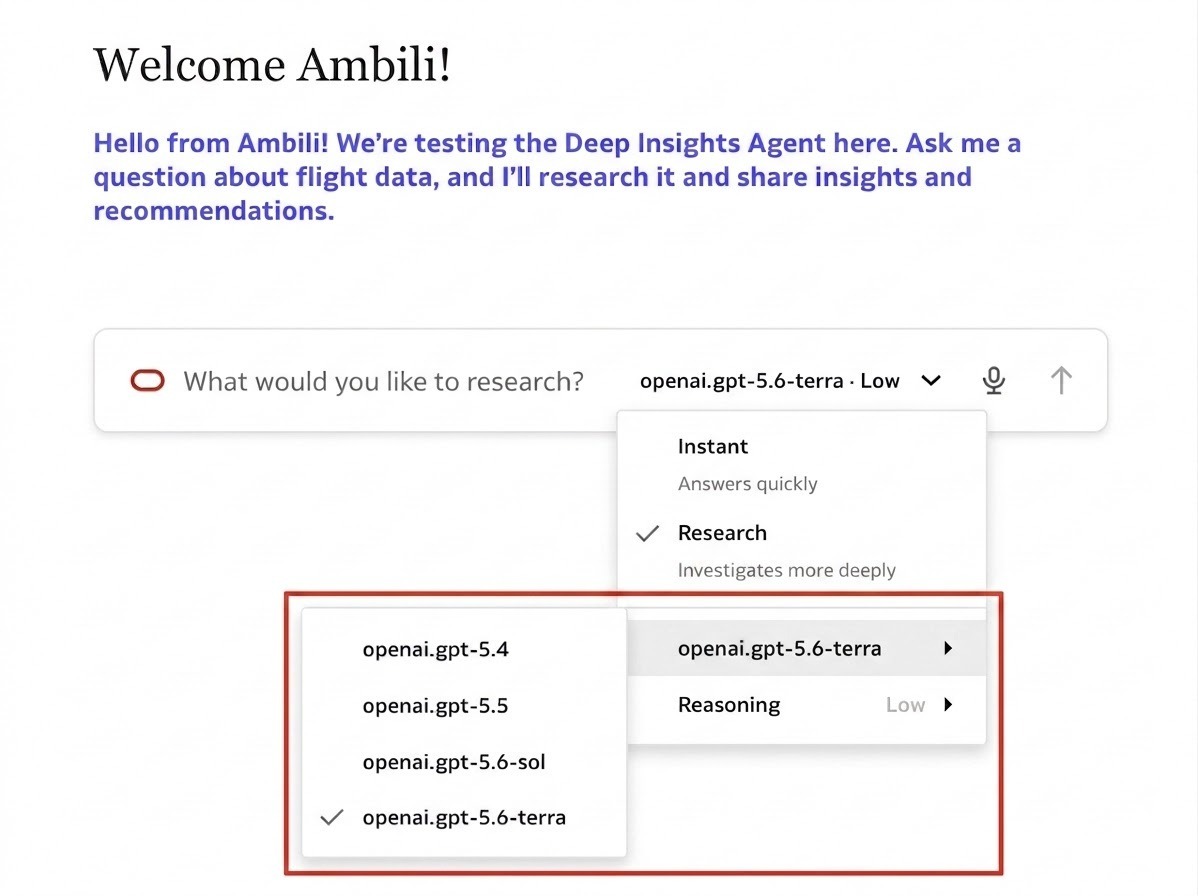
- Reasoning Type: Reasoning Type determines how the agent works through a question. Options available are: Instant / Research.
-
- Instant is built for speed: the agent responds quickly and directly, which suits straightforward questions and quick lookups.
- Research is built for depth: the agent takes more time to reason through the question, explore the data, and produce richer outputs, including insights, explanations, and recommended actions. This takes longer and consumes more tokens, so it is best reserved for complex, open-ended questions.
-
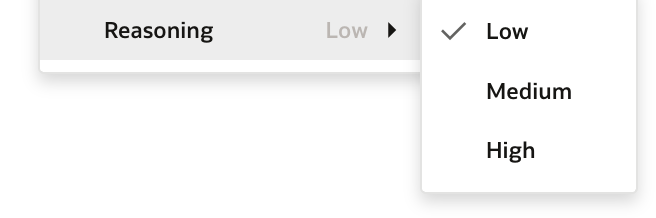
Reasoning Level controls how much effort the model puts into thinking before it answers. Options are: Low / Medium / High.
-
- Low keeps responses quick and light, which suits simple questions.
- Medium balances speed and depth for everyday analysis.
- High lets the model reason through the question thoroughly, which suits complex, multi-step analysis, but takes longer and uses more tokens.
Now for the real test: let’s throw some complex queries at the DI Agent and see how it responds.
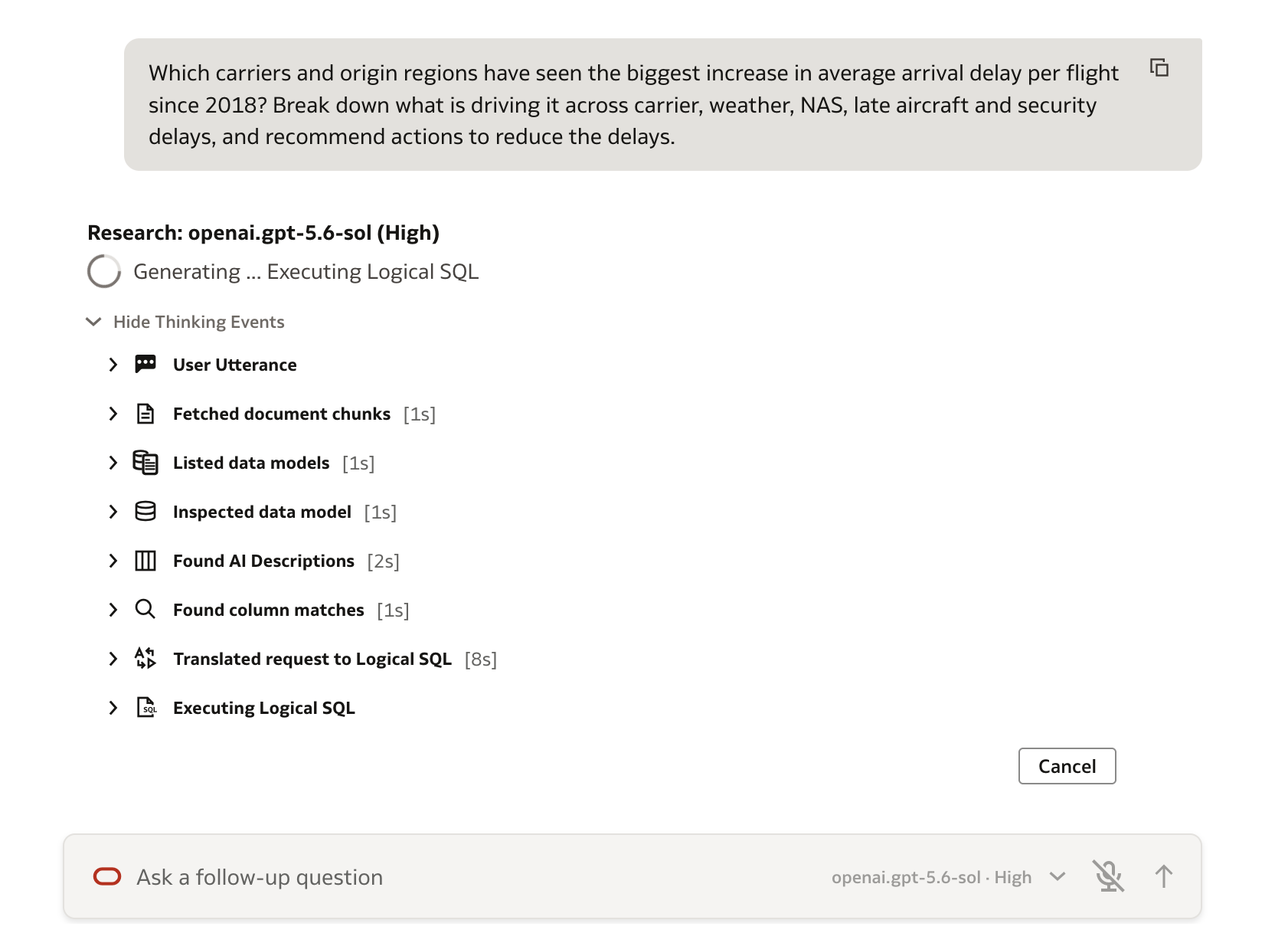
Query Tested: Which carriers and origin regions have seen the biggest increase in average arrival delay per flight since 2018? Break down what is driving it across carrier, weather, NAS, late aircraft, and security delays, and recommend actions to reduce the delays.
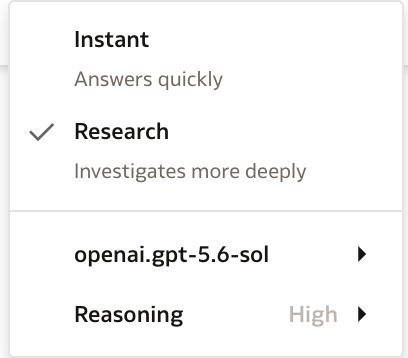
Model Configurations: Based on the complex nature of this query, the settings applied are as below. Research - for deeper investigation, openai.gpt-5.6-sol - the flagship tier built for tasks where correctness matters more than cost, and High Reasoning - for thorough multi-step reasoning.
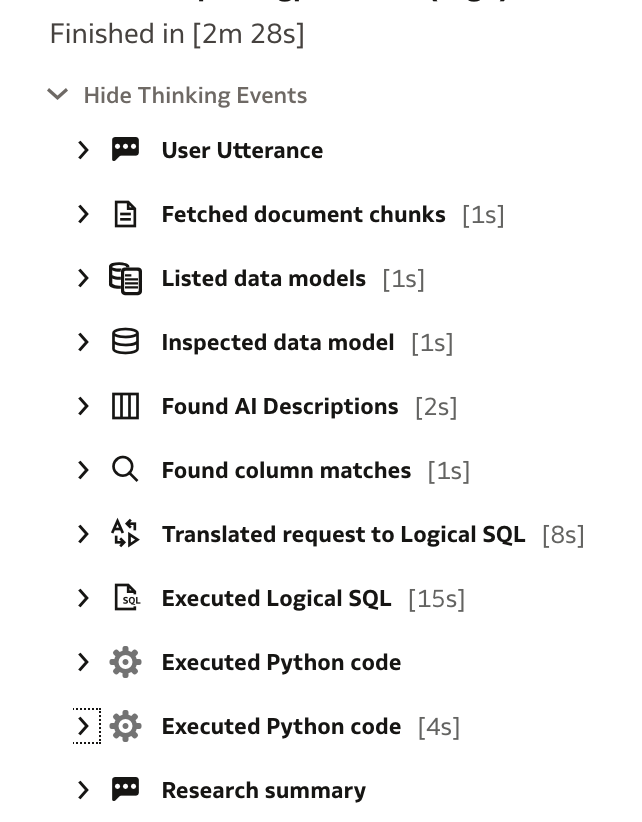
Execution Steps: As the DI Agent works on its magic, we can verify and validate the steps invoked and running as shown below.
On completion, the agent displays a detailed Research Summary, the execution time, and the steps it triggered.
The Thinking Events reveal how the agent got there. It begins by gathering context, then inspects the data model, picks up the AI Descriptions, and matches columns to the question. It translates the request into Logical SQL, runs it, and uses Python to carry out the calculations before writing the Research Summary, all in 2 minutes 28 seconds. Every step is visible and timed, so you can see exactly how the answer was built.
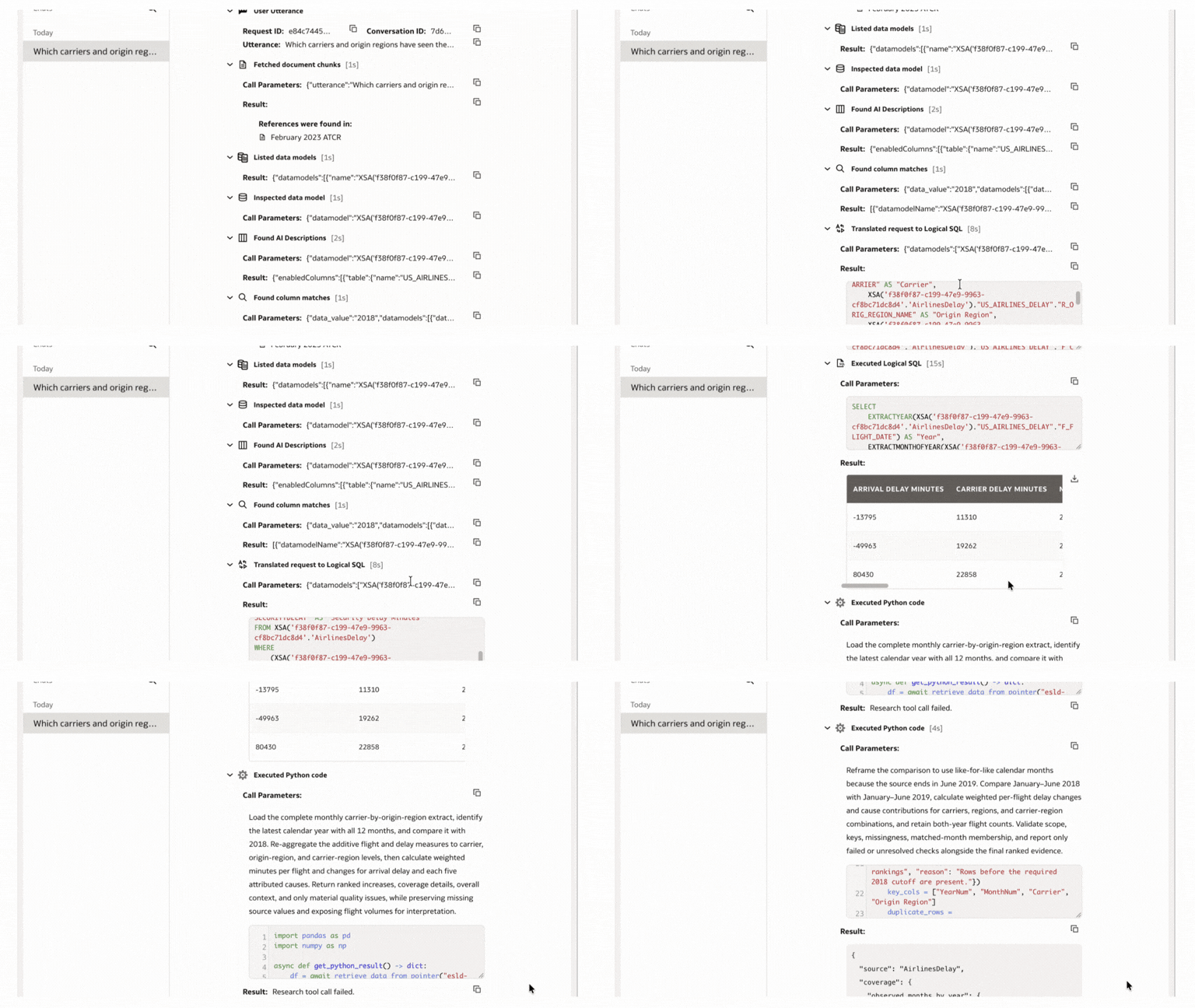
Here is a quick look at the details in some of the key steps:
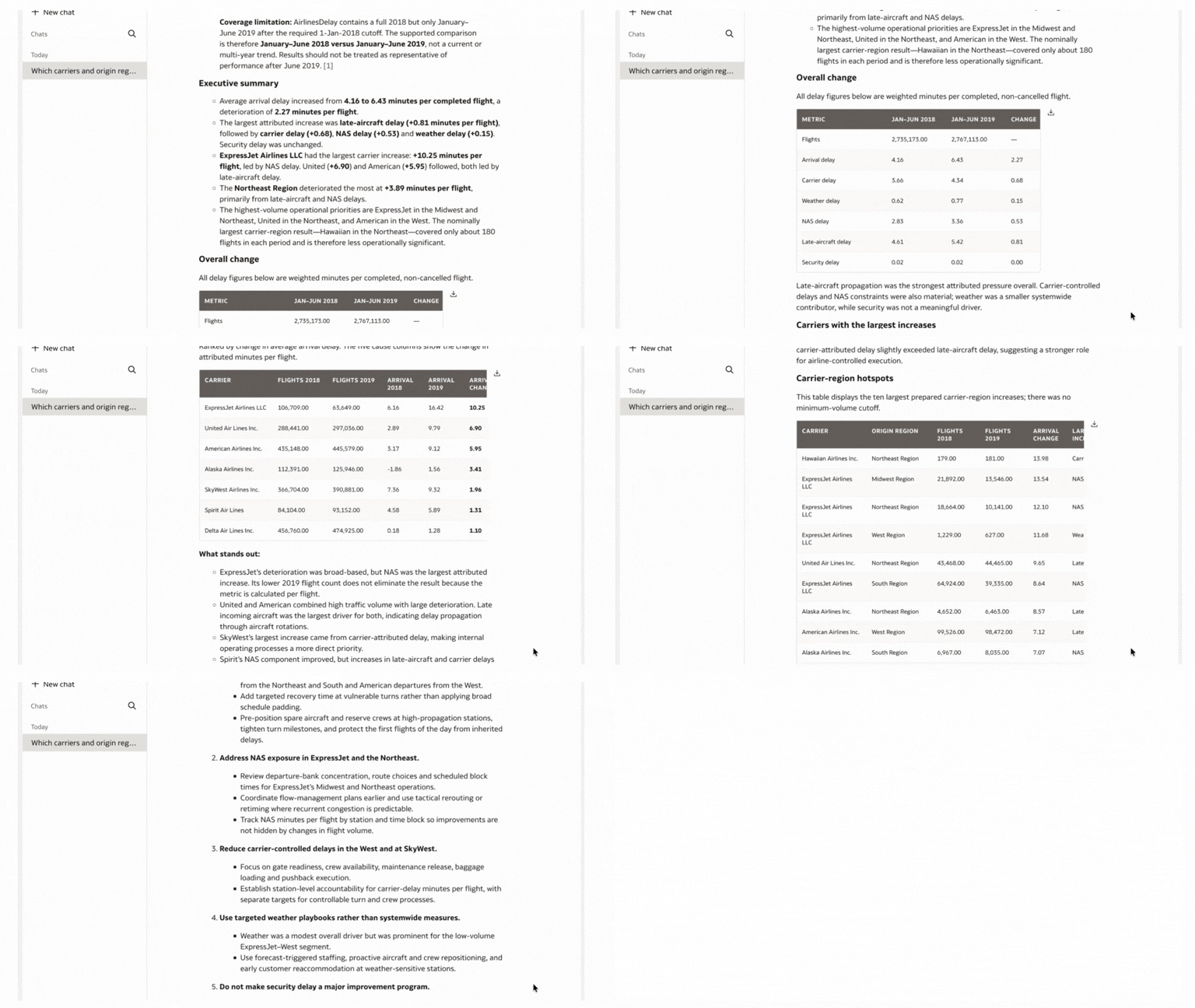
What stands out in the Research Summary is not just the detailed logical analysis, but the judgement behind it. The DI Agent noticed that the data covered only January to June of 2019 and, instead of presenting a misleading multi-year trend, compared matching six-month periods and said so upfront. It calculated delay per flight correctly from summed minutes and flight counts, split the change across all five delay causes, and drilled from carriers to regions to individual carrier-region pairs.
It also flagged that the biggest carrier-region result, Hawaiian in the Northeast, rested on only about 180 flights, and it prioritised higher-volume hotspots instead. It then closed with practical recommendations, including a clear call not to invest in security delay, which was flat. This is the kind of reasoning that takes an analyst hours, delivered with the method and caveats stated.
You can download the Research Summary Report in three formats using the icons at the bottom of the response:

- Markdown (.md): a plain-text version of the report
- HTML: a formatted version you can open in any browser
- JSON: a file for conversation debugging
Beyond a single dataset: connecting the dots
The agent isn’t limited to one data source. Multiple sources, including disjoint datasets, can be added to the same agent, and the DI Agent can cross-reference them within a single question.
For instance, with a customer complaints dataset added alongside the airline delay data, you could ask:
“Which carriers saw the biggest increase in arrival delay per flight since 2018, and did customer complaints rise for the same carriers over that period?”
Instead of analysing each dataset separately and stitching the findings together by hand, the agent can bring both together to connect operational delays with customer impact, a link that would otherwise take several separate analyses.
When you get your hands on the DI Agent, it’s your turn to try this magic out! Add a second dataset to your agent, ask a question that spans both, and see what the DI Agent uncovers. I’d love to hear what you find.
Is there more?
If your heart craves more, here is one more enhancement that I feel can make a real difference: a dedicated section to save prompts.
Prompts can be distinct and detailed, tailored to the needs of individual businesses, departments, or teams, and shared with users for reuse.
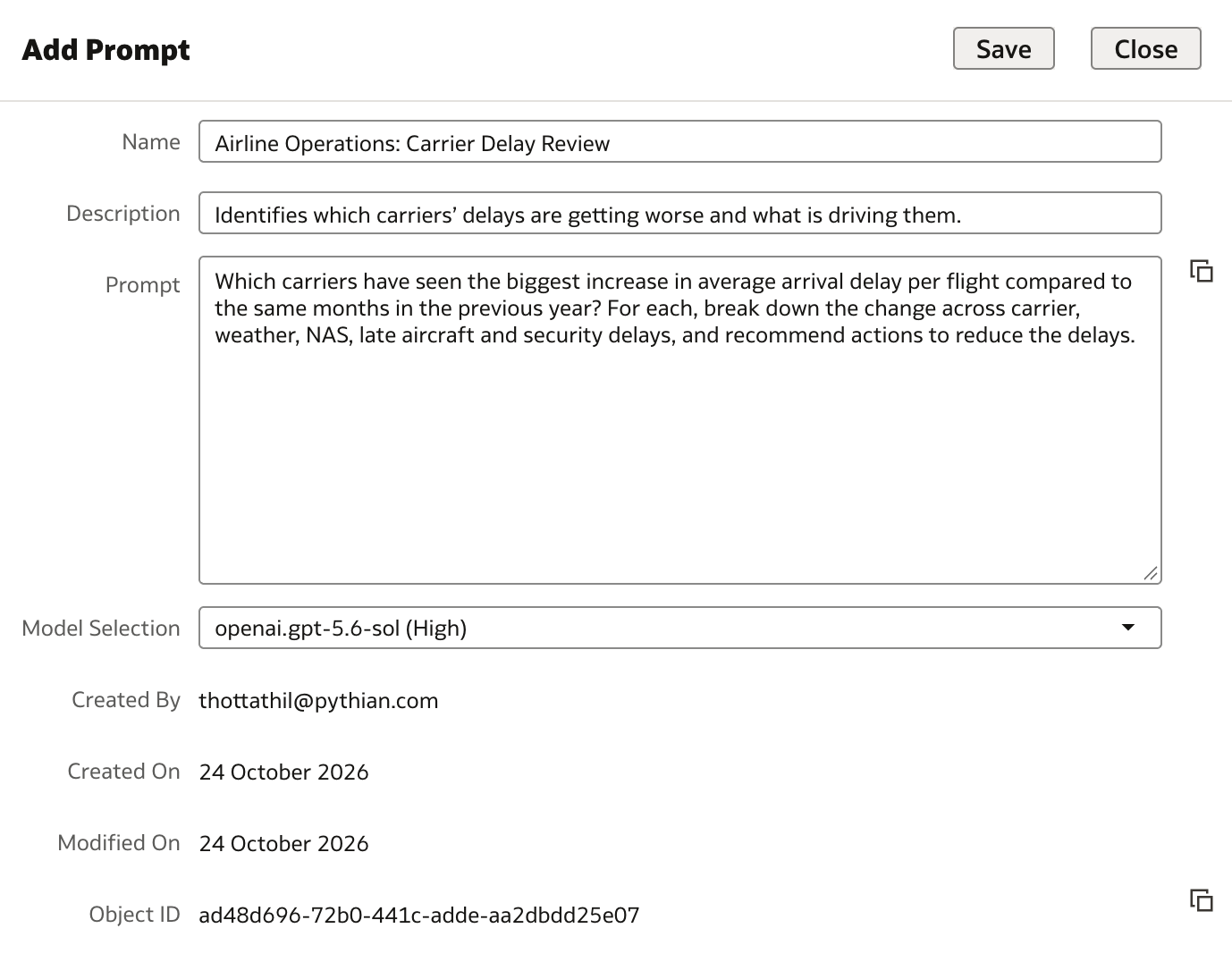
Each prompt has a name and description for easy discovery, and its own model selection, so a quick everyday prompt can run on a lighter setting while a deeper analytical one uses a more powerful model - accessed by clicking on Add new prompt (highlighted below)
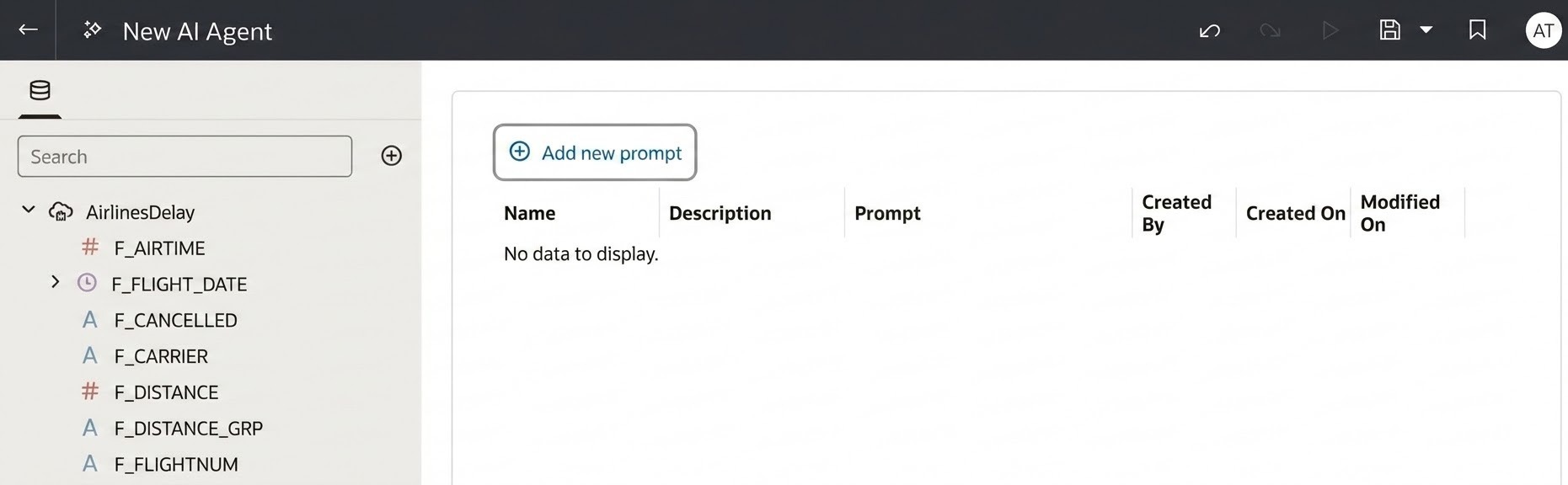
Here is an example of how a prompt can be created.
I went ahead and created 4 prompts that can be reused in the future, as below:
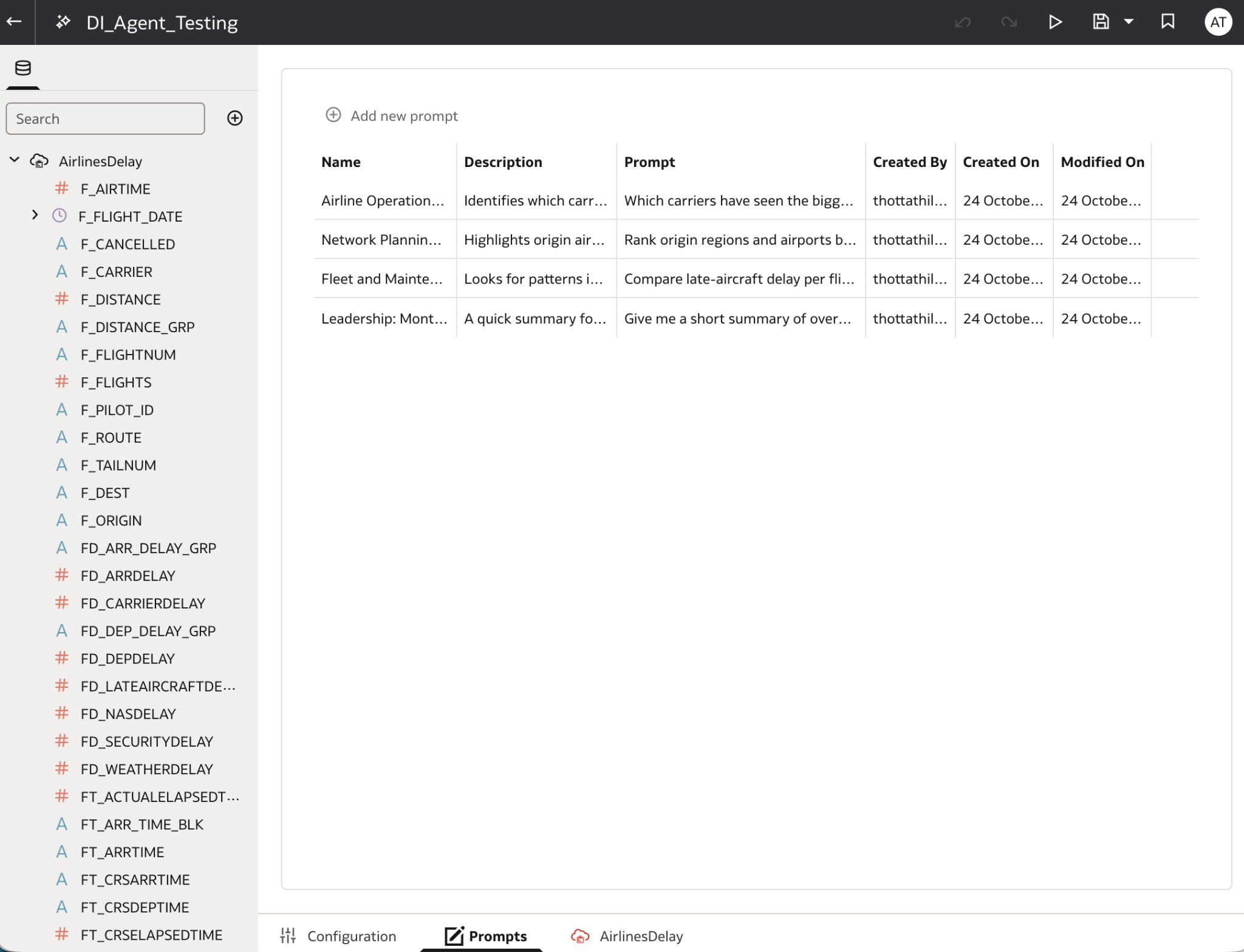
Make sure you hit the SAVE button for the AI Agent to be able to access the new Prompts in the Preview, as below. Now you just need to select the Featured Prompt and hit Enter to trigger the Deep Reasoning.
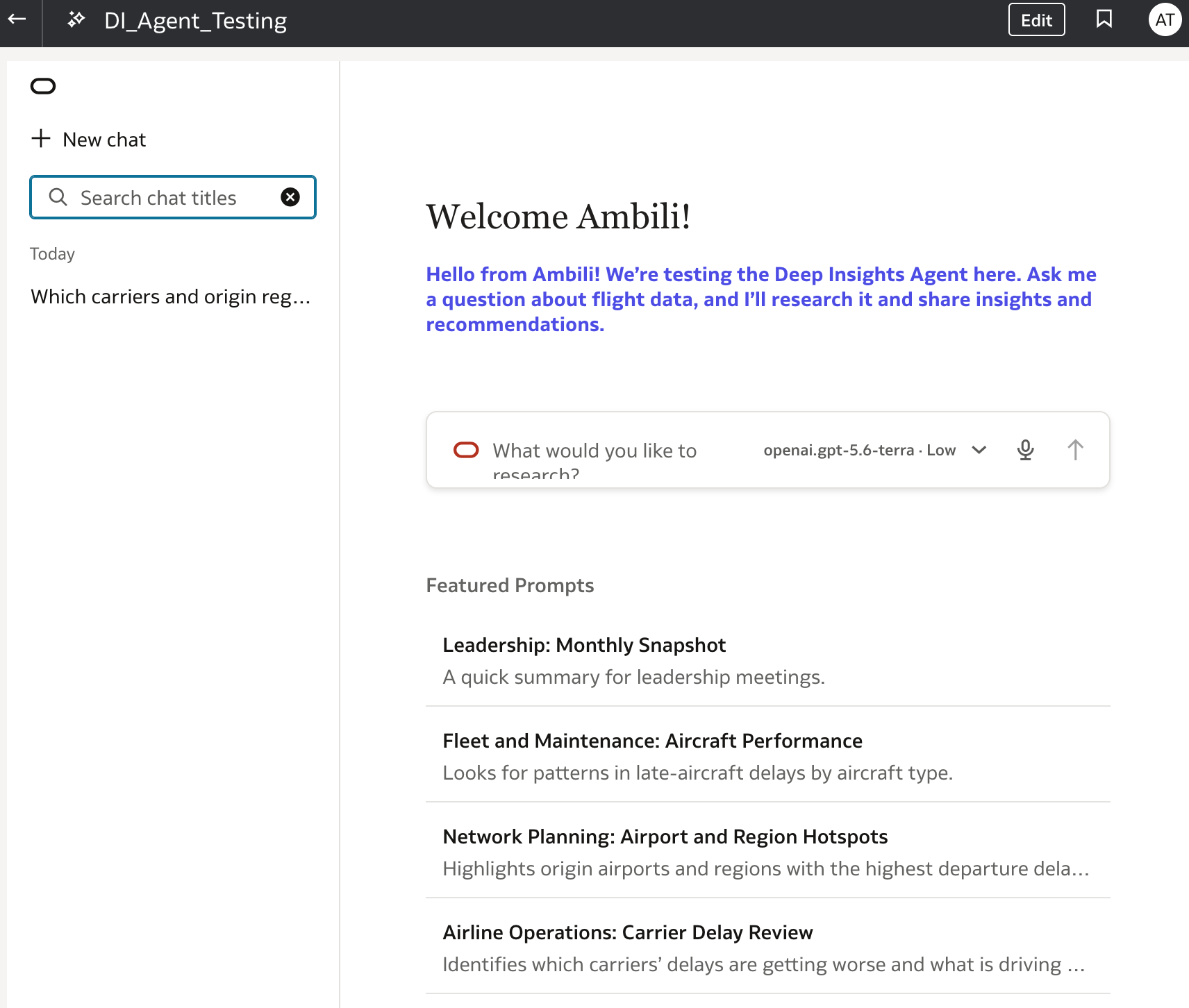
You are in control!
You surely did not miss the warning that the DI Agent will use more tokens. The good news is that usage can be tracked and limits applied, so users and administrators can stay within their organisation’s allowance and budget.
More details about this in a blog to follow.
This is only the beginning!
The AI Assistant has come a long way, from a basic chat feature to an agent that researches, reasons, and recommends, with transparency and control built in. This is just the first look and the beginning. There is much more to explore, from combining multiple data sources to getting the most out of reusable prompts, and I’ll be sharing more in the blogs to follow. Until then, wait for the key announcement at the AI World - take a look at the cool demos, and when you are ready, try it for yourself!
Share this
Share this

Next-Gen Data Intelligence: How SQL Server 2025 Redefines the Modern Database

From Spreadsheets to Strategy: Gemini for Modern Finance Teams


.svg)
.svg)