


Oracle’s Database Security Assessment Tool (DBSAT) is a nice and powerful free tool that performs Database and OS Security Audits and provides recommendations based on the findings. The tool and documentation can be downloaded from the following Oracle link (although an account with CSI will be required for the download): Oracle Database Security Assessment Tool (DBSAT) (Doc ID 2138254.1)
The Core Components of DBSAT
DBSAT has three components:
- The Collector: Executes SQL queries and runs operating system commands to collect data from the system to be assessed.
- The Reporter: Analyzes the collected data and generates a Database Security Assessment Report in HTML, Excel, JSON and text formats. The Reporter can run on any machine: PC, laptop, or server (same or different than where the Collector ran).
- The Discoverer: Executes SQL queries and collects data from the system to be assessed, based on the settings specified in configuration files. The collected data is then used to generate a Database Sensitive Data Assessment Report in HTML and CSV formats. The Discoverer can run on any machine: PC, laptop, or server.
Deep Dive: The DBSAT Discoverer
The scope of this blog is mainly to look at the third component, the Discoverer.
Prerequisites and Java Configuration
The Discoverer is a Java program and requires the Java Runtime Environment (JRE) 1.8 (jdk8-u172) or later to run. Also, JAVA_HOME needs to be set in the environment variables, otherwise you may face an error like: Error: Java version 1.6 or later is required
During testing on my VM I had some issues even the Java version was correct:
oracle@localhost:~/DBSAT$ java -fullversion java full version "1.7.0_03-b04" oracle@localhost:~/DBSAT$ echo $JAVA_HOME /usr/bin/java Setting JAVA_HOME without the "java" folder resolved the problem: oracle@localhost:~/DBSAT$ export JAVA_HOME=/usr
Later on, while working in a Windows environment, I had to set the JAVA_HOME with the full path: set JAVA_HOME=C:\Program Files\Java\jre1.8.0_141
Configuration and Pattern Matching
The Discoverer executes SQL queries and collects data from the system to be assessed, based on the settings specified in the configuration and pattern files:
.../DBSAT/Discover/conf/sample_dbsat.config.../DBSAT/Discover/conf/sensitive_en.ini
Setting Connection Parameters
The .config file needs to be edited to specify the connectivity. For example the Database Listener Port and Hostname, Schemas to be Audited or All and any tables or even specific columns to exclude from the scan.
Example config file:
Ini, TOMLDB_HOSTNAME = localhost DB_PORT = #### DB_SERVICE_NAME = SCHEMAS_SCOPE = ALL EXCLUSION_LIST_FILE = Defining Sensitive Data Categories
You will see some default Sensitive Categories are provided. Your own customized can also be added:
[Sensitive Categories] PII = High Risk PII - Address = High Risk PII - IDs = High Risk PII - IT Data = High Risk PII-Linked = Medium Risk PII-Linked - Birth Details = Medium Risk Job Data = Medium Risk Financial Data - PCI = High Risk Financial Data - Banking = Medium Risk Health Data = Medium Risk Pattern Matching for Compliance (GDPR)
The second file, sensitive_en.ini, has a number of predetermined patterns to search for. This way, the DBSAT Discoverer helps you to verify your sensitive data (especially for GDPR compliance), assuming of course your columns are properly named or at least properly documented.
If your columns do not have human-readable names, but they have appropriate comments in the metadata, DBSAT Discoverer still will report them if they contain sensitive data. Also, you can add your own custom patterns for it to scan for if required.
Example Pattern:
[LAST_NAME] COL_NAME_PATTERN = (^LNAME$)|((LAST|FAMILY|SUR|PATERNAL).*NAME$) COL_COMMENT_PATTERN = (Last|Family|Sur|Paternal).*Name SENSITIVE_CATEGORY = PII [STREET] COL_NAME_PATTERN = STREET|^ST$|AVENUE|ROAD|ALLEY|BOULEVARD|PARKWAY|PLAZA|POINT|VALLEY COL_COMMENT_PATTERN = Street.*(Address)? SENSITIVE_CATEGORY = PII - Address Executing the Assessment and Viewing Reports
For those looking to audit and verify compliance with GDPR, DBSAT Discoverer can help. DBSAT reports are helpful for identifying tables containing personal and sensitive data which need to be protected, audited, masked, encrypted, etc.
Running the Discoverer
A sample for running usage? See below: ./dbsat discover -c ./Discover/conf/Test12c_dbsat.config Test12c_dbsat_SensitiveData
The -c option is to point to our configuration file (sample_dbsat.config => Test12c_dbsat.config). Also, by not including the -n parameter, the output report will be encrypted (which is recommended as this is all about sensitive data!).
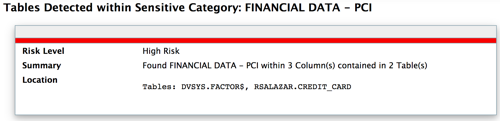
The resulting Output Report is named Test12c_dbsat_SensitiveData, and the output file will be dbsat_test12c_report.zip which will contain .html and .csv versions of the report. A couple of samples of findings on my test:

Conclusion
Note the default categories captured columns in my table named "Credit_Card". I also added a customized category named "Custom2" to test. It captures specifically my column "Card_Number" (mostly to test that the additional categories and pattern matching added to the"Test12c_dbsat.config" file worked as expected). Learn more about the DBSAT Tool here. See the full DBSAT guide.
Oracle Database Consulting Services
Ready to optimize your Oracle Database for the future?

.svg)
.svg)