



Identifying SPN registration and authentication failures
It’s not uncommon to have authentication issues with Microsoft SQL Server. Not only with users trying to access the server, but problems related to the connection between instances, like AlwaysOn Availability Groups. The traditional way to solve it is well known, but not simple, as you need to work with the “setspn” command, and its syntax is not that intuitive. Here's an example: setspn –A MSSQLSvc/<SQL Server computer name>:1433 <Domain\Account>
This week I was working on a SQL Server AG build, and guess what? I was not able to connect from one replica to another. The error message is not very intuitive: “The target principal name is incorrect. Cannot generate SSPI context. (Microsoft SQL Server)” This message could mean a lot of things, but there’s one thing that may help us: the target instance ERRORLOG.
Analyzing the sql server errorlog for sspi errors
If you find the following messages, you have a SPN registration problem: The SQL Server Network Interface library could not register the Service Principal Name (SPN) [ MSSQLSvc/abc. domain:<Instance> ] for the SQL Server service. Windows return code: 0x2098, state: 20. Failure to register a SPN might cause integrated authentication to use NTLM instead of Kerberos. This is an informational message. Further action is only required if Kerberos authentication is required by authentication policies and if the SPN has not been manually registered.
Resolving issues with kerberos configuration manager
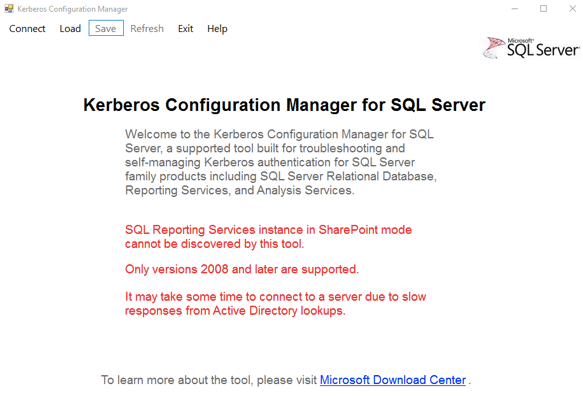
Ok, so let’s solve it… Fortunately, Microsoft has a tool called “Kerberos Configuration Manager”, that makes everything easier. The “Kerberos Configuration Manager” is a diagnostic tool, to be used with SQL Server, that helps troubleshooting Kerberos related issues. You can download the tool here. After the installation, go the application folder and execute “KerberosConfigMgr.exe” binary. Once the application is opened, click on connect, on the right top corner:
Connecting to local and remote instances
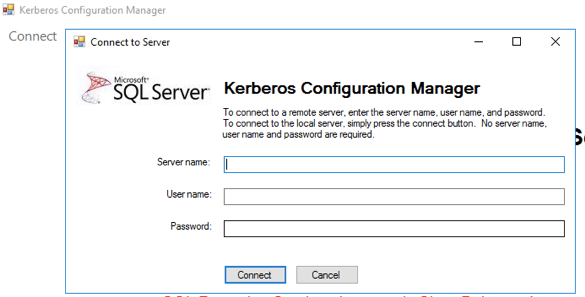
Connect to the desired SQL Server instance. Note: for the local instance, just leave all the fields empty and click on connect.
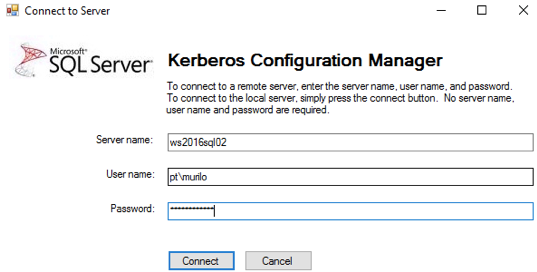
If you want to connect to a remote instance, to like the following (you can leave the “User Name” and “Password” fields empty for Windows Authentication:
Diagnosing and fixing misplaced spns
After successfully connecting to the instance, all the related SPN will be shown. You can use the checkboxes on the top to filter the results. For the following case, I’m just showing the SQL Server related ones.
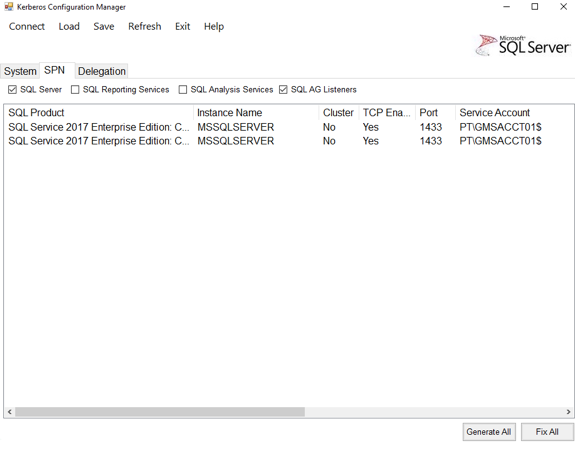
By scrolling right, you can see the status of each one of the registered SPNs. For the example below, both SPNs are “Misplaced”, so we need to fix it.
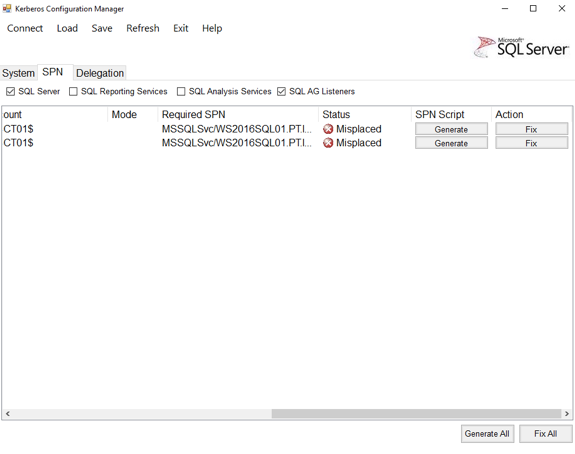
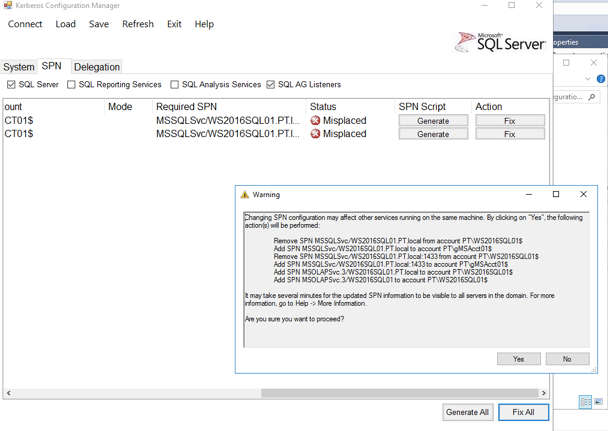
To have the situation corrected, just click on “Fix All” button, and confirm (click “yes”) on the pop-up:
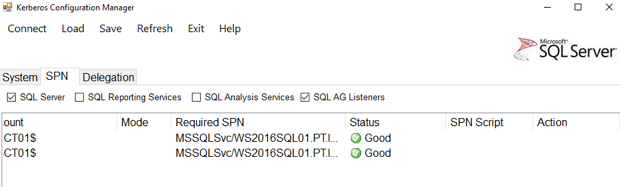
After that, the tool is going to refresh the SPN status: All good here!
Summary
That’s it! All you need to do is install the tool, run the SPN scan and fix the problematic ones. As soon as the situation is normal, you will be able to connect to remote instances without problems and without learning how to use with the “setspn” command.
MySQL Database Consulting
Looking to optimize your MySQL use?
Share this
Share this

How to Overcome the Top 10 SQL Server Performance Challenges
SQL Server: More light shed on "non-yielding scheduler" and Indexes stats


.svg)
.svg)