


Ready to take your machine learning models from a static notebook to a fully deployed production environment? We are diving deep into the Oracle Cloud Infrastructure (OCI) Data Science service to demonstrate exactly how to build, train, deploy, and schedule your ML projects with precision.
Getting started with OCI Data Science Service
The Oracle Cloud Infrastructure (OCI) Data Science service allows you to build, train and deploy Machine Learning (ML) models. Notebook Sessions are created on compute instances of the required shape, and allow you to work with a JupyterLab notebook interface. These Notebook Sessions have access to any open source libraries, Oracle pre-built environments, or you can create and share your own custom environments with other data science users on your OCI tenancy.
To get started you will need the following:
- An OCI tenancy - We assume you already have this;
- A Compartment - To group together data science resources, therefore allowing different groups of users to have different levels of control/access;
- A User group - For the data science team to have the same permissions/ policies on data science resources;
- A Dynamic group - Dynamically defines a group of services and resources, that can then be given permissions via policies to perform required tasks and access resources;
- Policies - A set of rules to allow the user groups and dynamic groups to access the required OCI services, such as Buckets and Vaults;
- Access to an OCI Storage Bucket - For the purpose of saving and sharing environments, data and other artifacts.
In this blog post we will concentrate on creating Data Science Projects and Notebook Sessions, installing and creating kernel environments, and sharing these environments via the OCI Storage Bucket.
Creating Projects and Notebooks
Before creating a data science project, first you need to ensure there is an OCI compartment created to contain your work. In the example below I am using a compartment called DataScience. You can use a pre-existing compartment or create a dedicated compartment for this. Creating a compartment can be done via Identity & Security → Compartments. Depending on your security / policy settings creating a new compartment might be the role of an admin on your OCI tenancy.
A data science project is a collaborative workspace to store your notebook sessions and models.
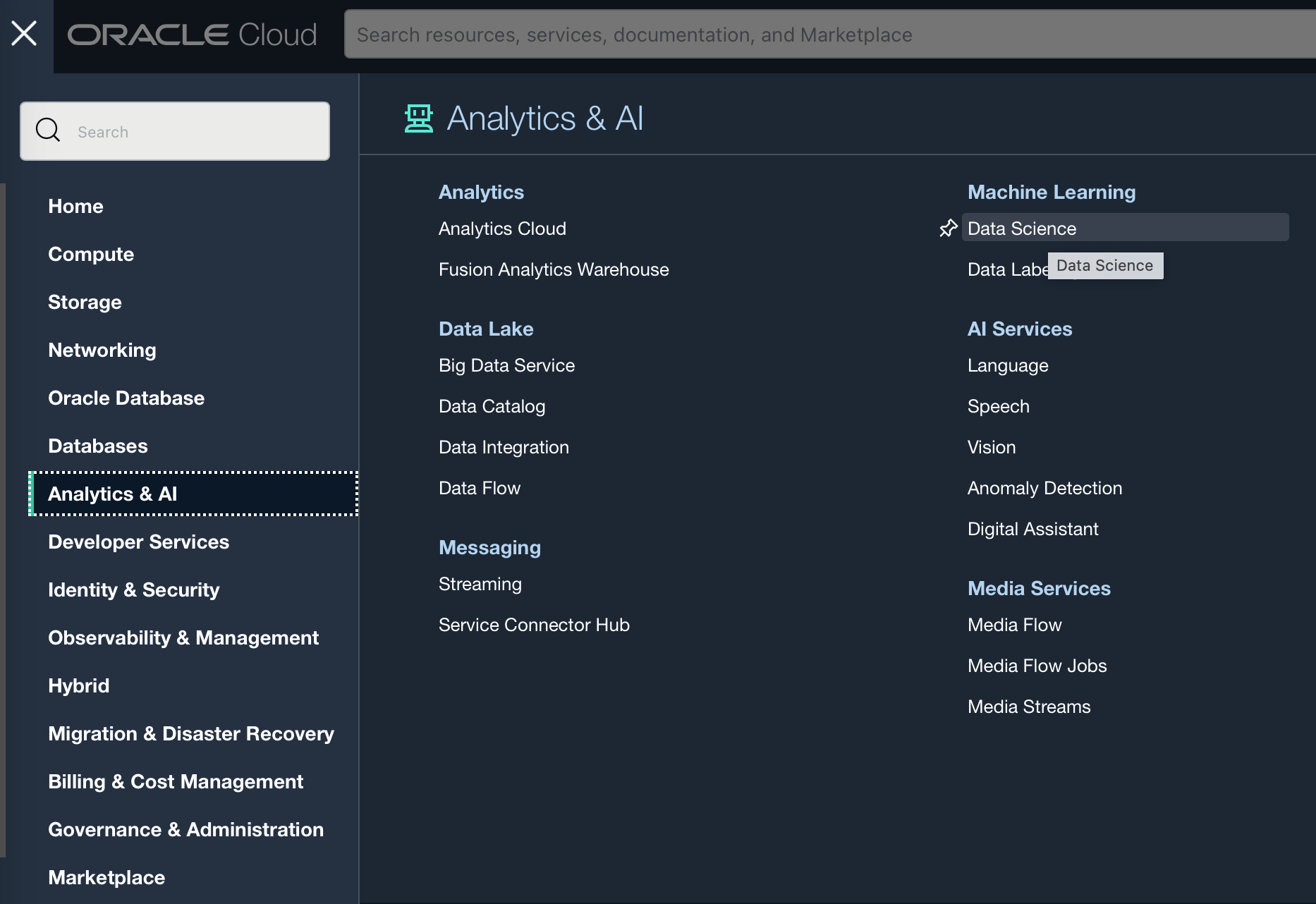
To create a project go to Analytics & AI → Data Science.
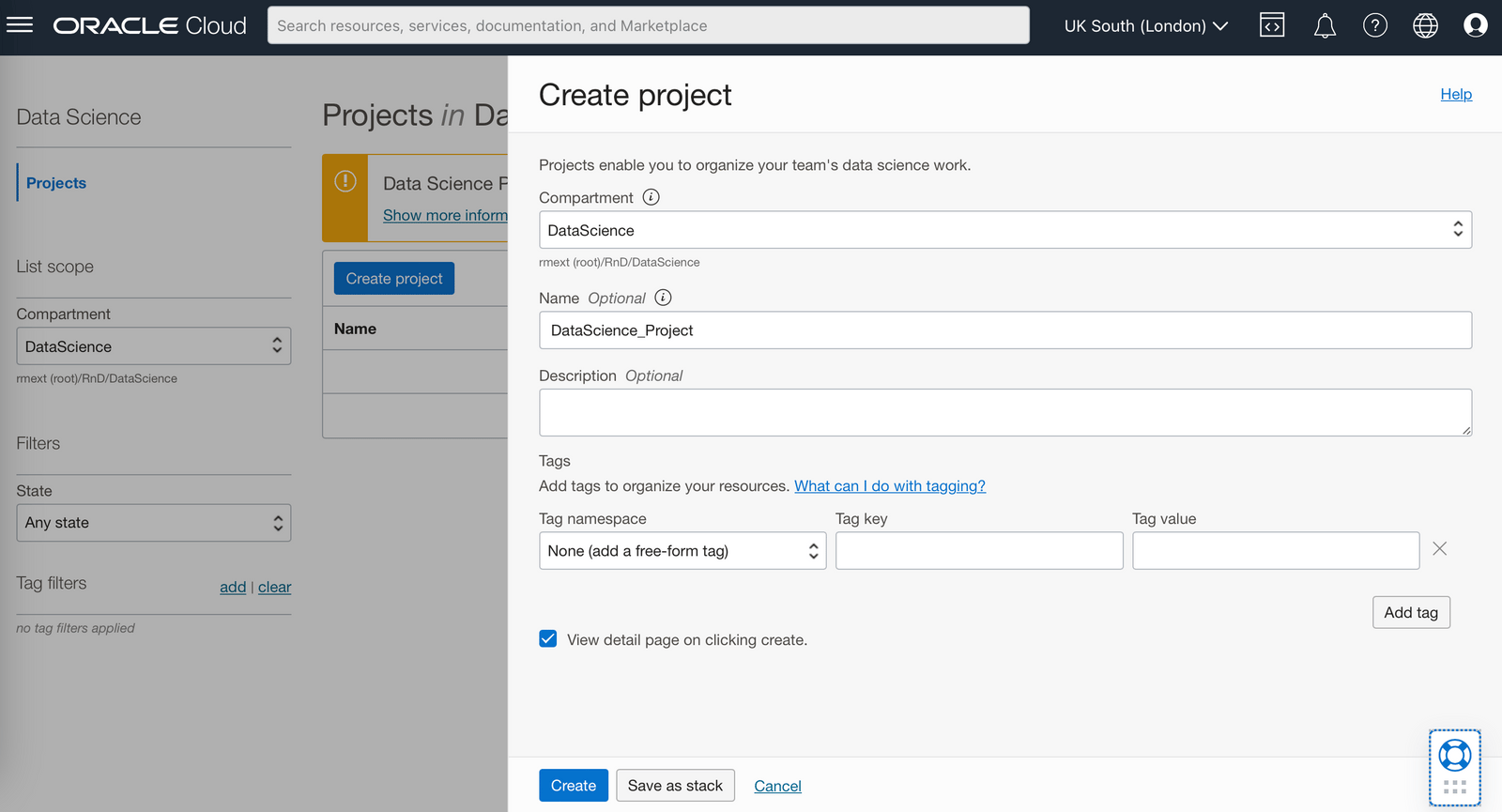
From within your desired compartment you can create a project, here I have created the project: DataScience_Project. You have the option of adding a description, which is useful if you have a range of different projects running concurrently. You can also add tags (e.g. Owner) which will let you keep track of similarly tagged items, for example the cost of items tagged with the same owner or to assign costs to different cost centers or departments.
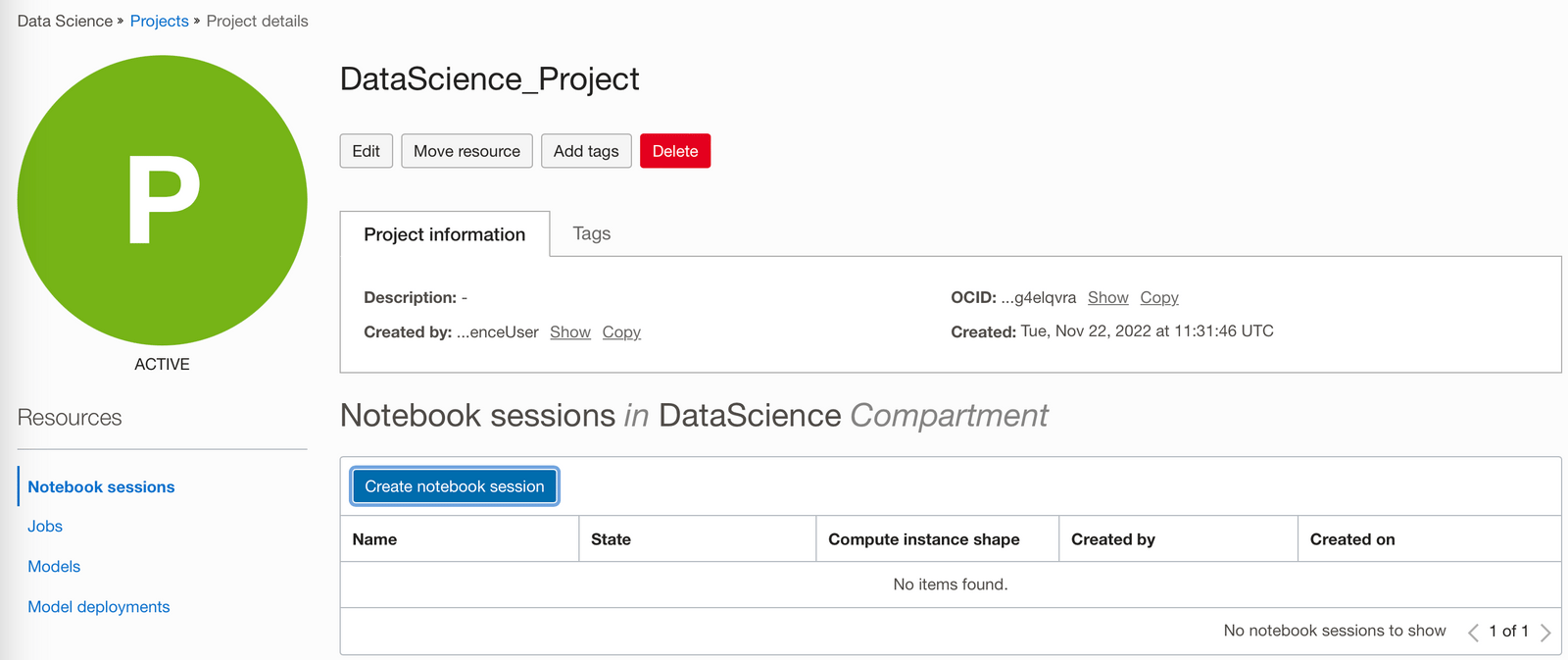
Create a notebook session from within your project. A notebook session creates a JupyterLab interface where you can work in an interactive coding environment to build and train models. Environments come with preinstalled open source libraries and the ability to add others.
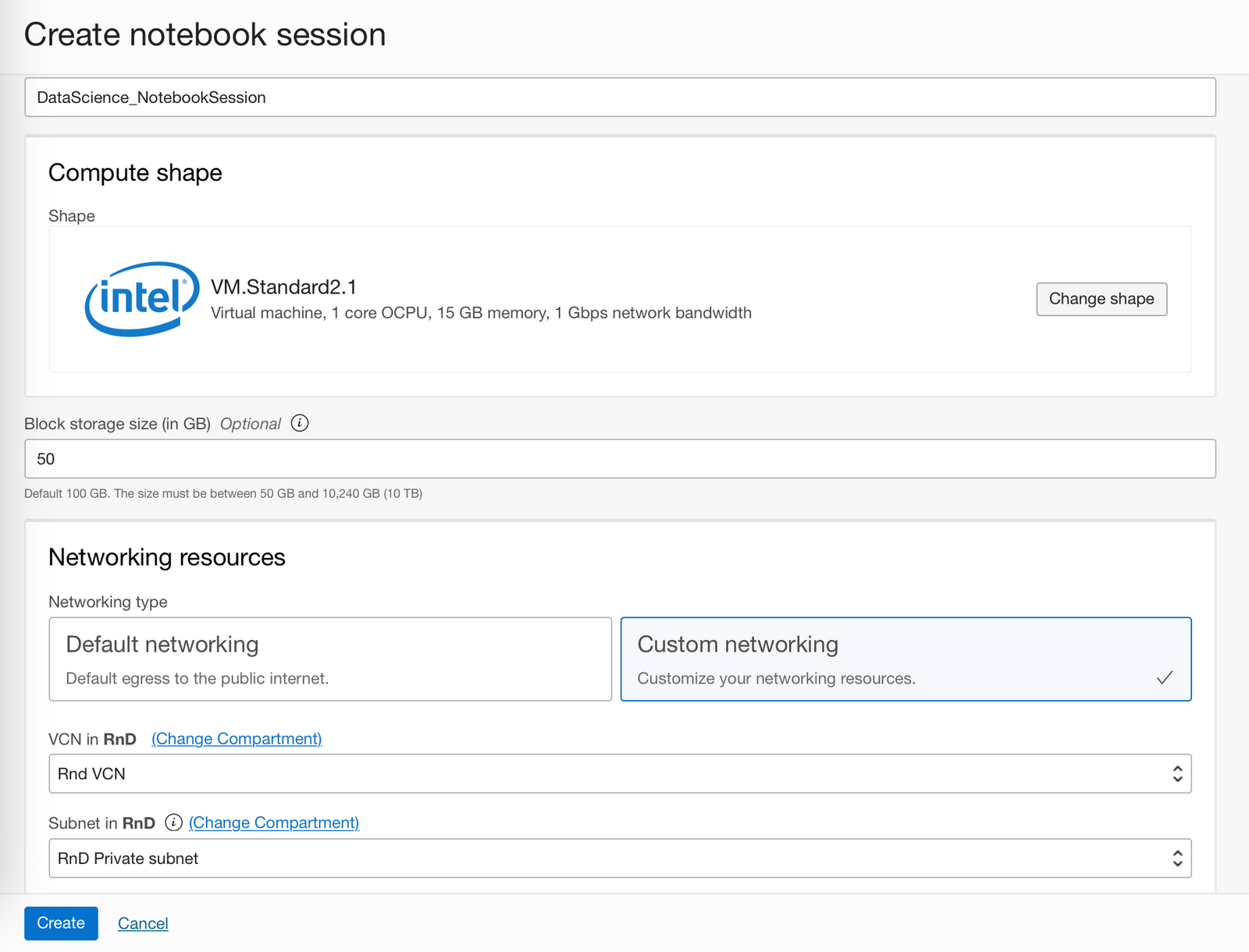
Notebook sessions run in a fully managed infrastructure. When you create a notebook session, you can select CPUs or GPUs, the compute shape, and the amount of storage. In the notebook session I have created I chose the default compute shape, however I chose custom networking, since the Oracle Autonomous Data Warehouse (ADW) I wish to connect to later is on a private subnet. If your ADS (Autonomous Database System), which includes either ADW or ATP (Autonomous Transaction Processing) is publicly accessible you can use the default networking settings.
If you want to change the compute shape of the notebook session after creation, you can do it by deactivating and reactivating it.
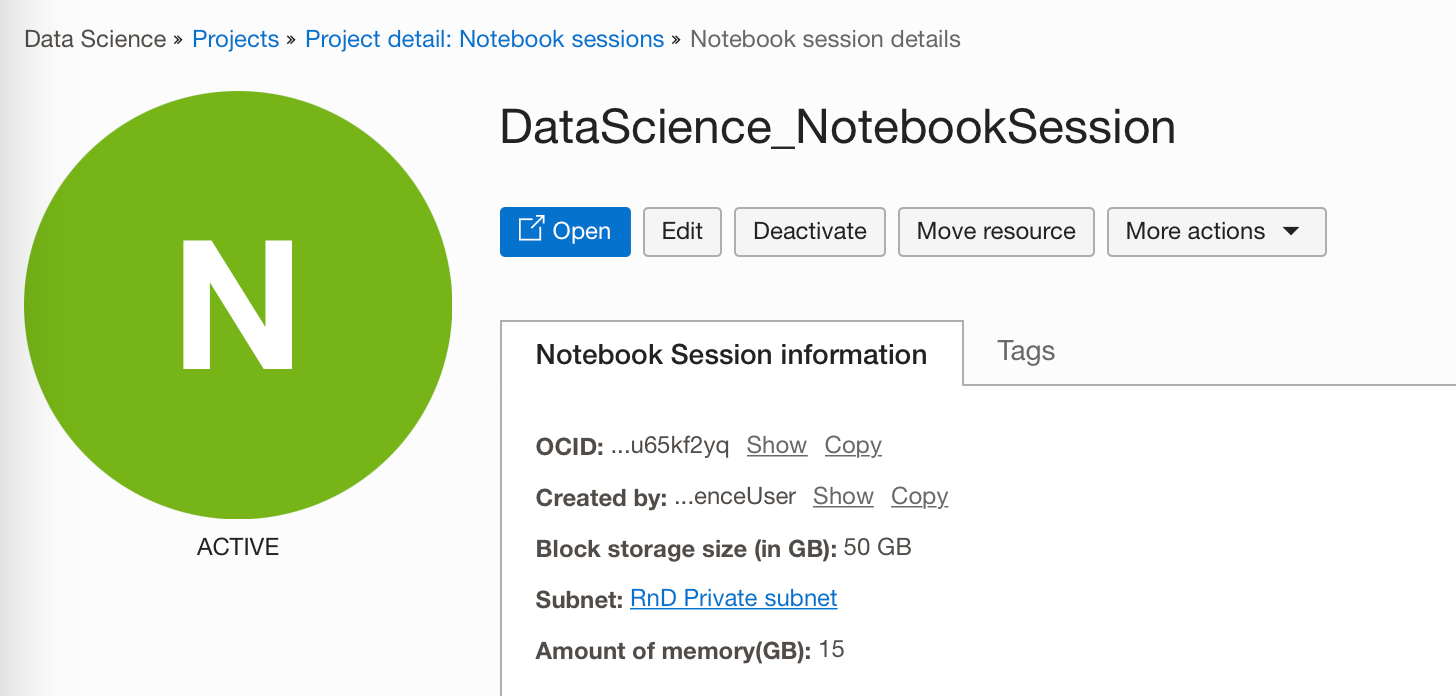
After your notebook session has been created (this will take a few minutes) you can then access the notebook session from within your browser by clicking on the "Open" button.
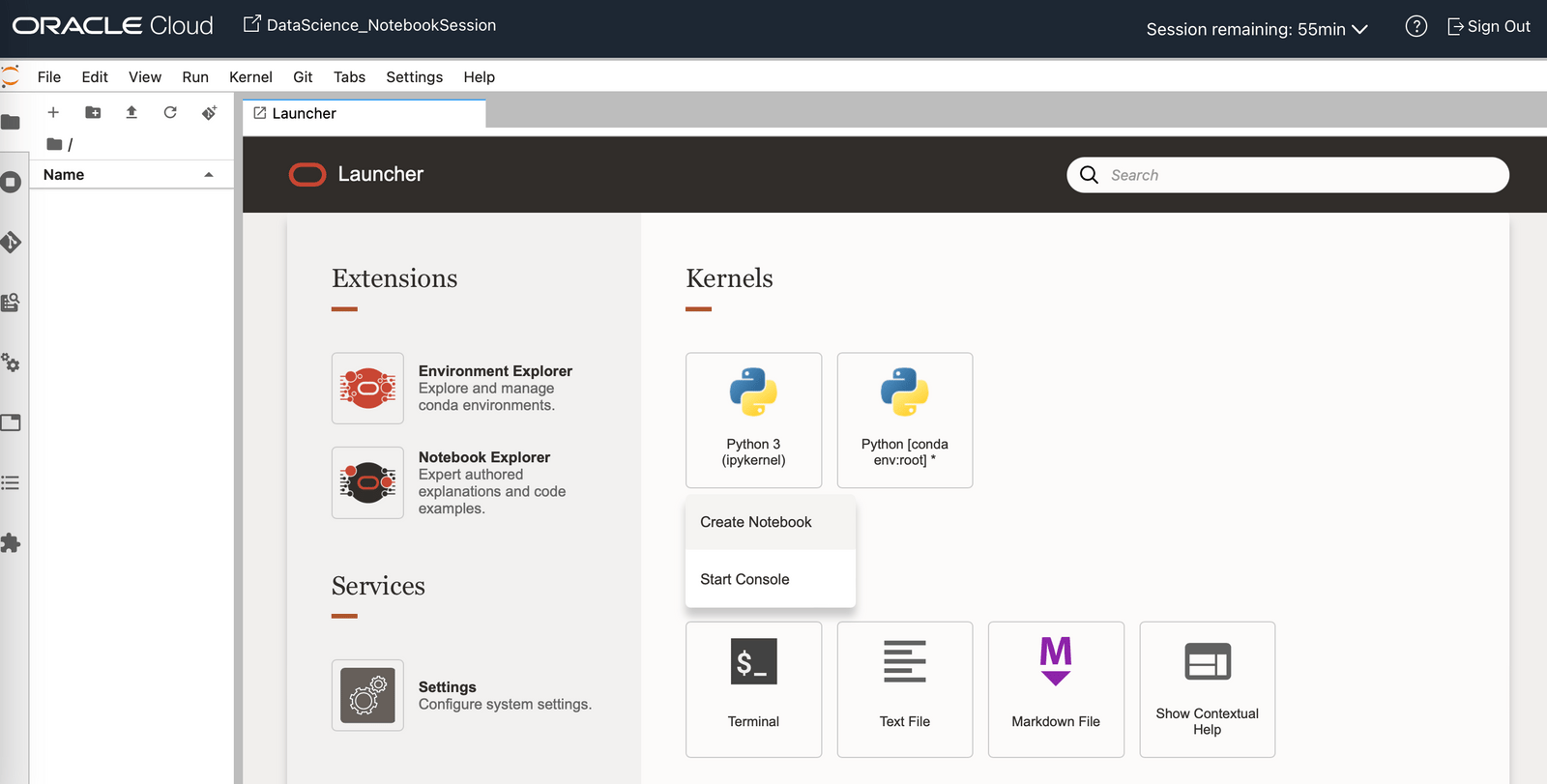
From the launcher tab on the new notebook session you can access a range of functions:
-
Create a notebook using the base Conda environment/ kernel;
-
Browse/install a Conda environment from the Environment Explorer button;
-
See example notebooks from the Notebook Explorer button;
-
Open a terminal window;
-
Create a text file.
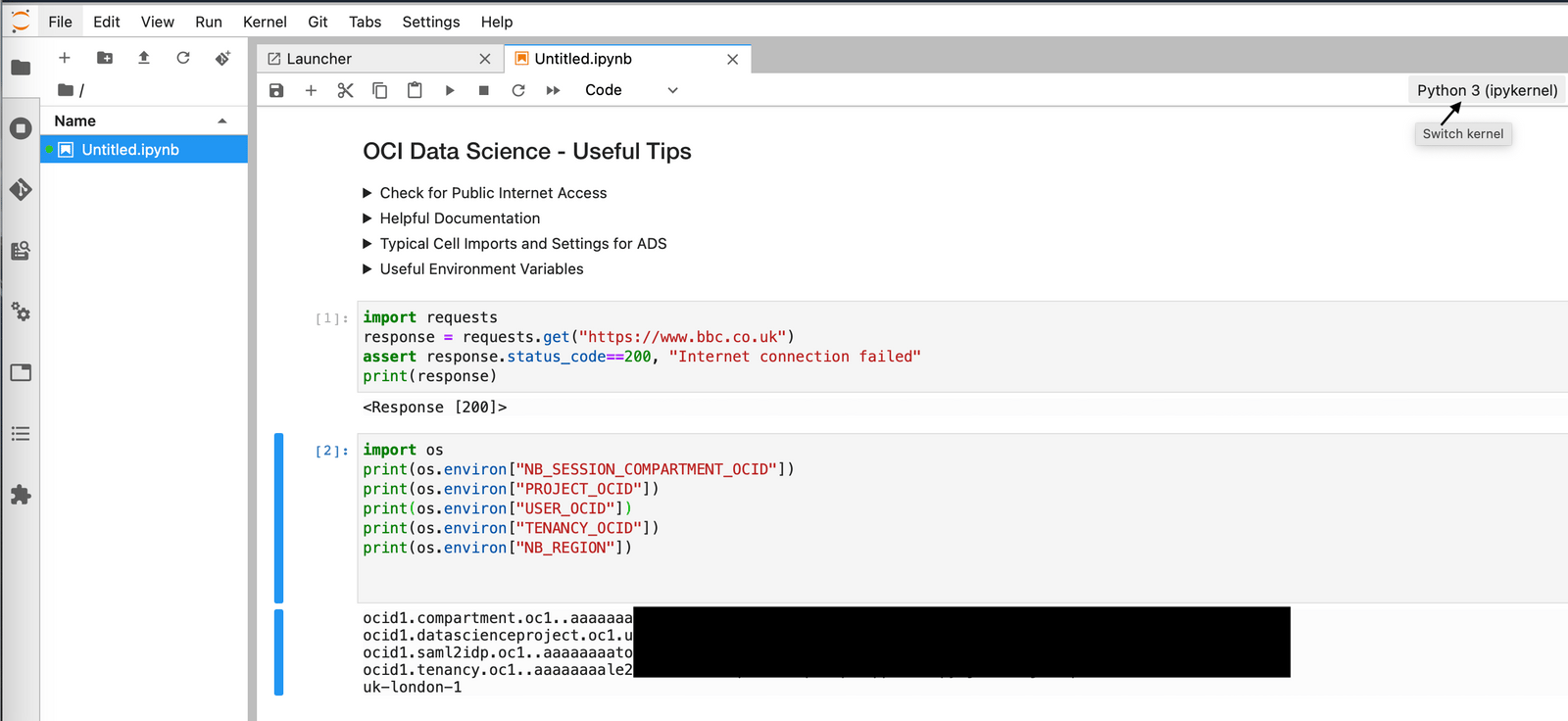
If you create a notebook you will then be able to see a new tab containing a Jupyter notebook. You can identify or change the kernel used in this notebook in the top right hand corner. Notebooks will allow you to execute cells, these cells can include Markdown, Code (Python), or Raw (content that should be included unmodified in nbconvert output for example LaTeX). They will also use the compute instance underneath as a machine, allowing you to read and write to it, create files etc. should you need to. From this first notebook the only python Kernel available will be the base Python 3 kernel, meaning you would only be able to use the libraries included in this base version.
The base Conda environment will only get you so far, and depending on what you would like to use these notebooks for you can either install a pre-made Oracle Conda environment, or create your own Conda environment. Both of these are detailed in the following sections.
Installing a pre-made Conda environment:
To install a pre-made Conda environment go to the Environment Explorer tab:
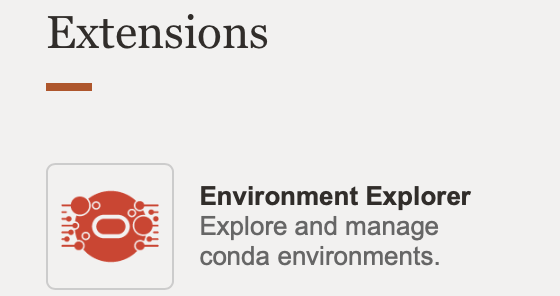
Here you can see a range of existing Data Science Conda environments which are managed by the OCI Data Science team. (You can identify the environments managed by Oracle as those with a Type "Data Science".)
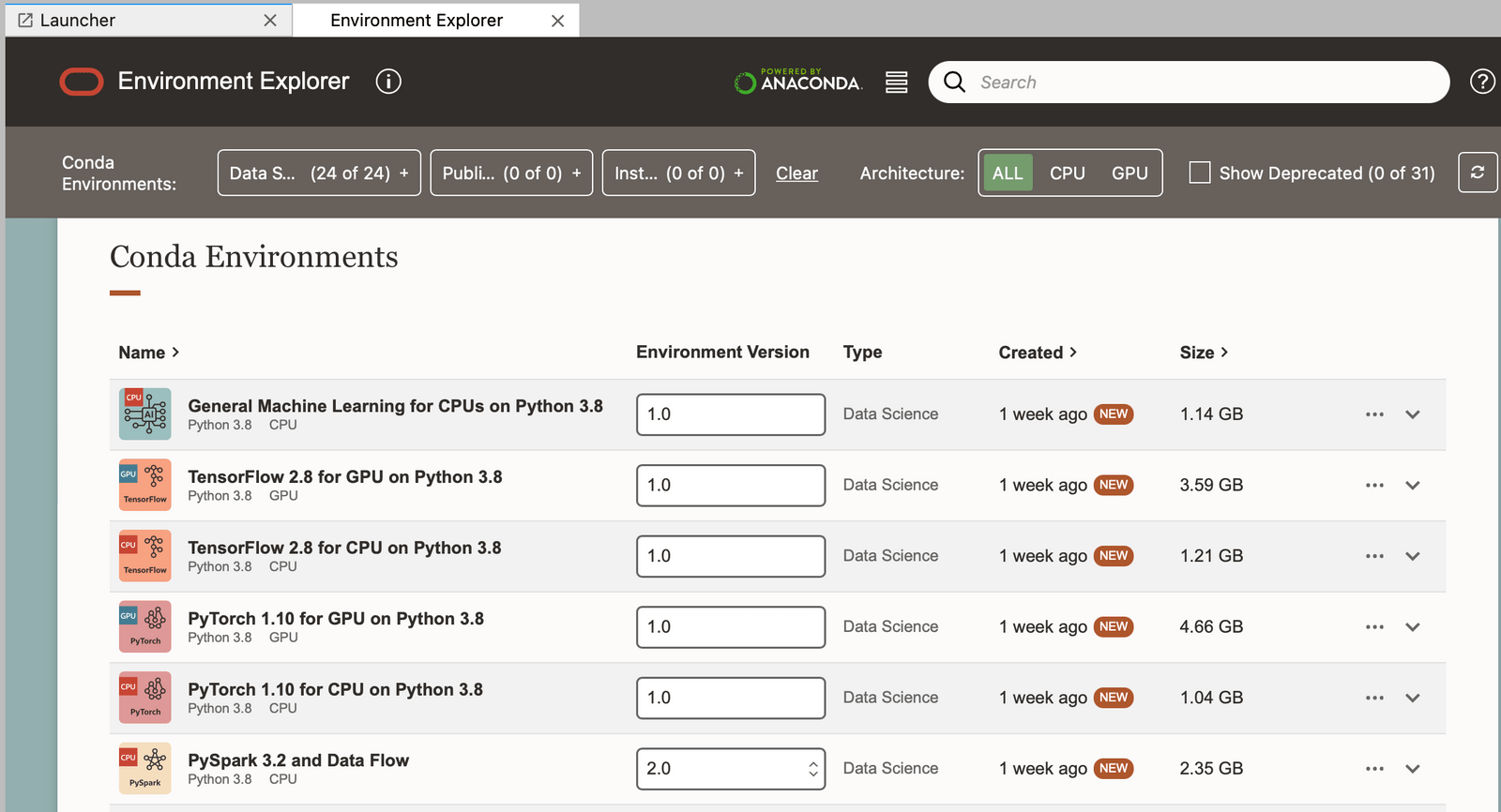
These can be installed using odsc conda install -s <slug_name> from a terminal tab, or from the ellipses on the right.
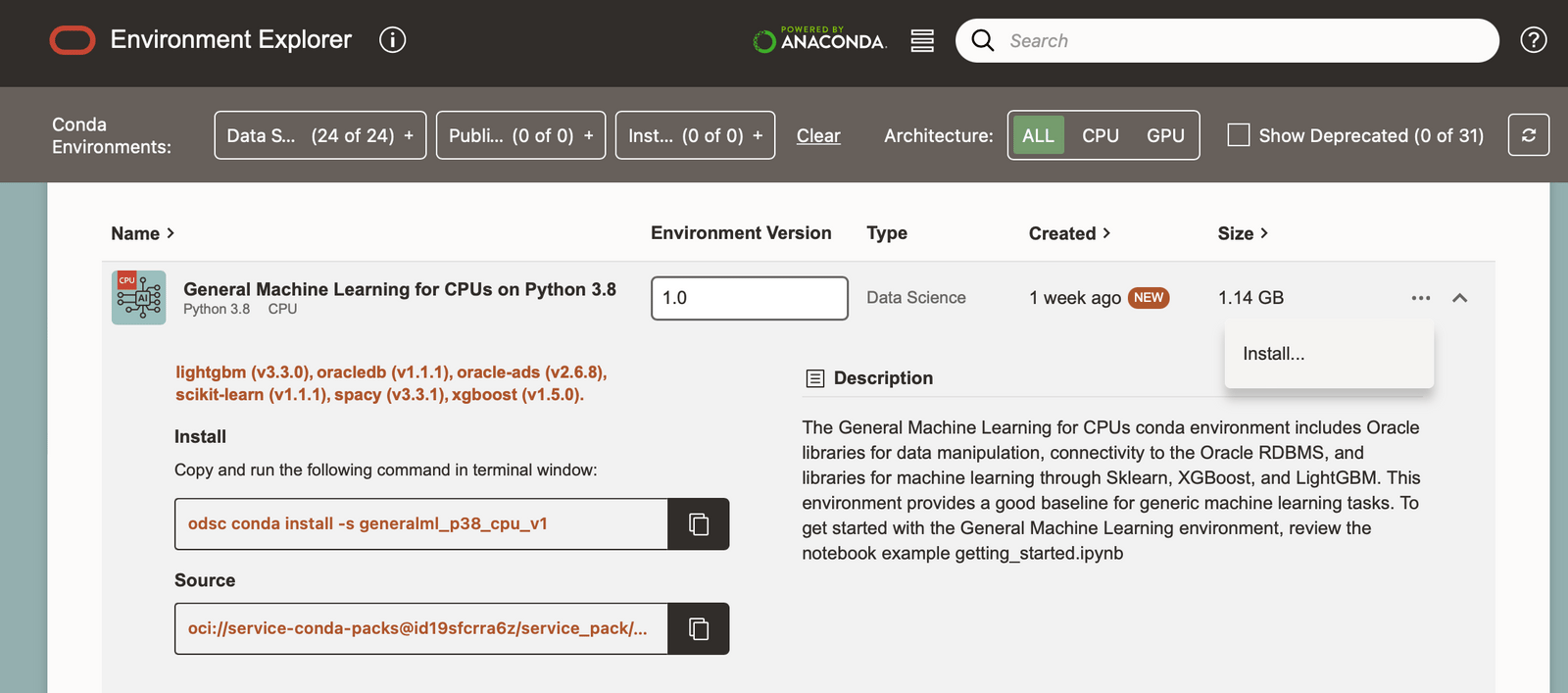
For example, odsc conda install -s generalml_p38_cpu_v1 , where generalml_p38_cpu_v1 is the slug name of the environment.
Once an environment has been installed you will be prompted to run a conda activate command.
conda activate /home/datascience/conda/generalml_p38_cpu_v1
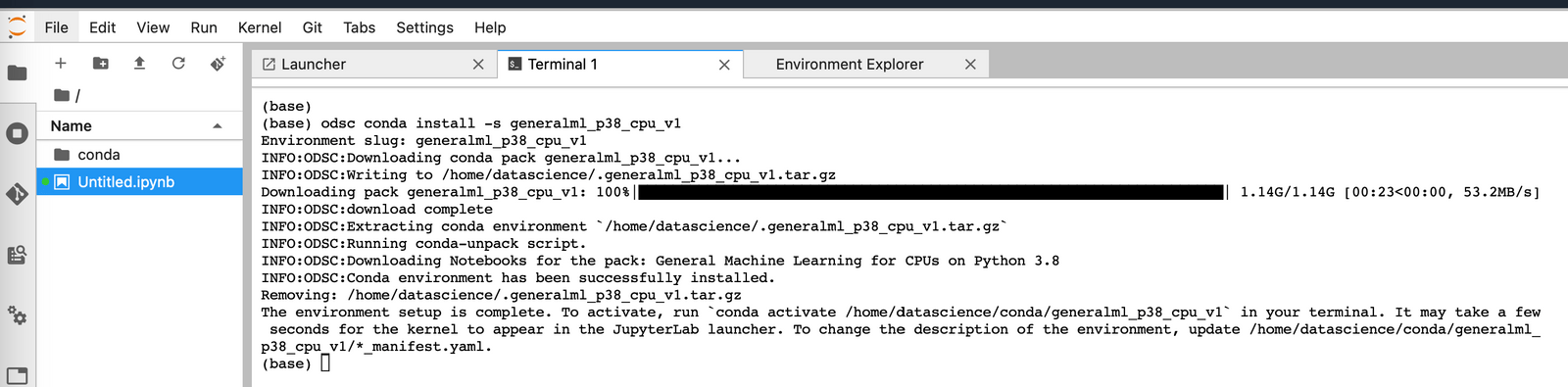
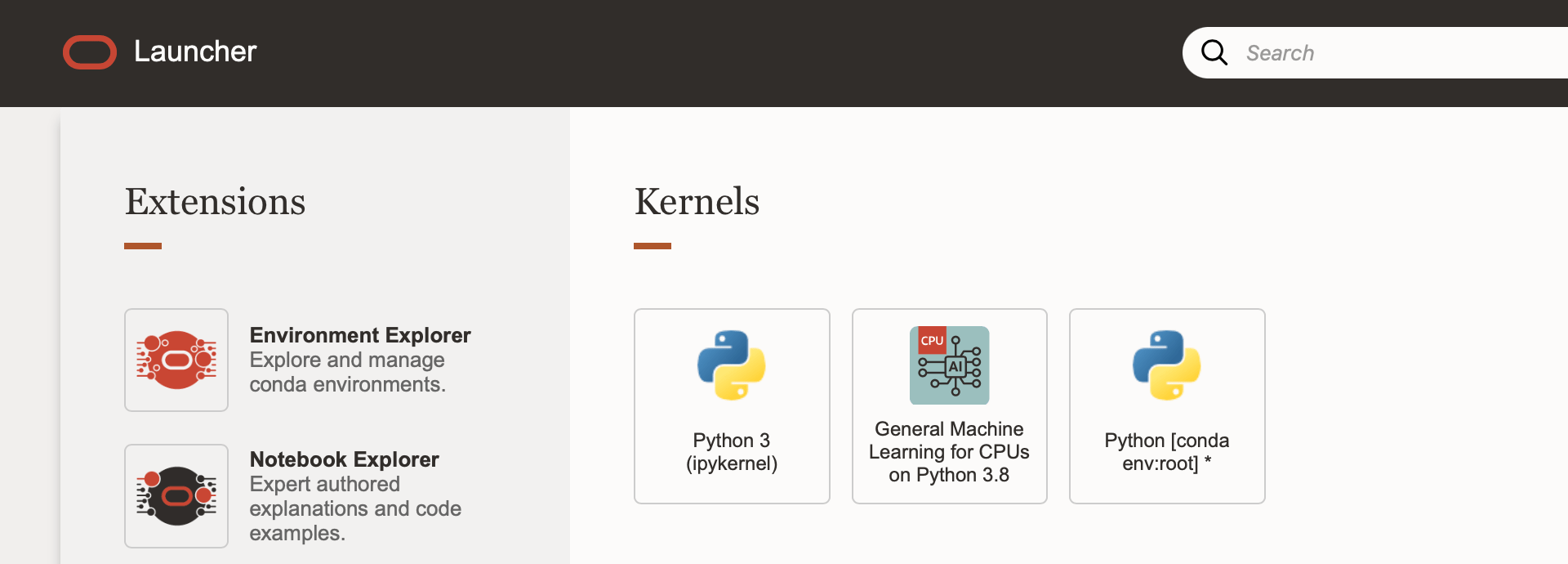
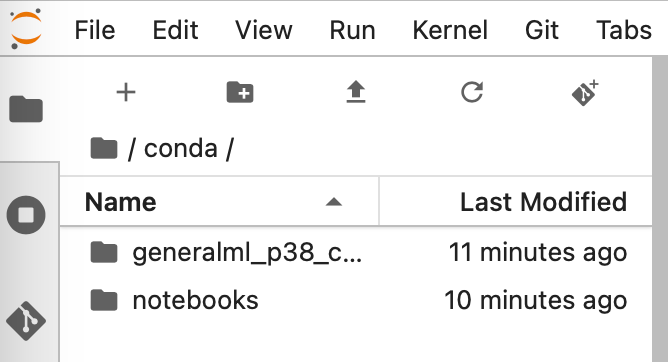
You will be able to see the environment on your instance under the path detailed here. Once the activate command has completed you will also be able to see this environment from the launcher page.
I.e. here we can see the General Machine Learning for CPUs on Python 3.8 environment.
Create or update a Conda environment
To create a custom environment for your needs, you can either start from the base Conda environment, or from an installed Oracle data science environment. Once the environment is activated in the terminal, pip can be used to install any packages required.
To create a custom environment from the base Conda environment run:
odsc conda create -n RM_DS_ENV -v 0.1
Here RM_DS_ENV is the name of the new environment created, and 0.1 is the given version number.
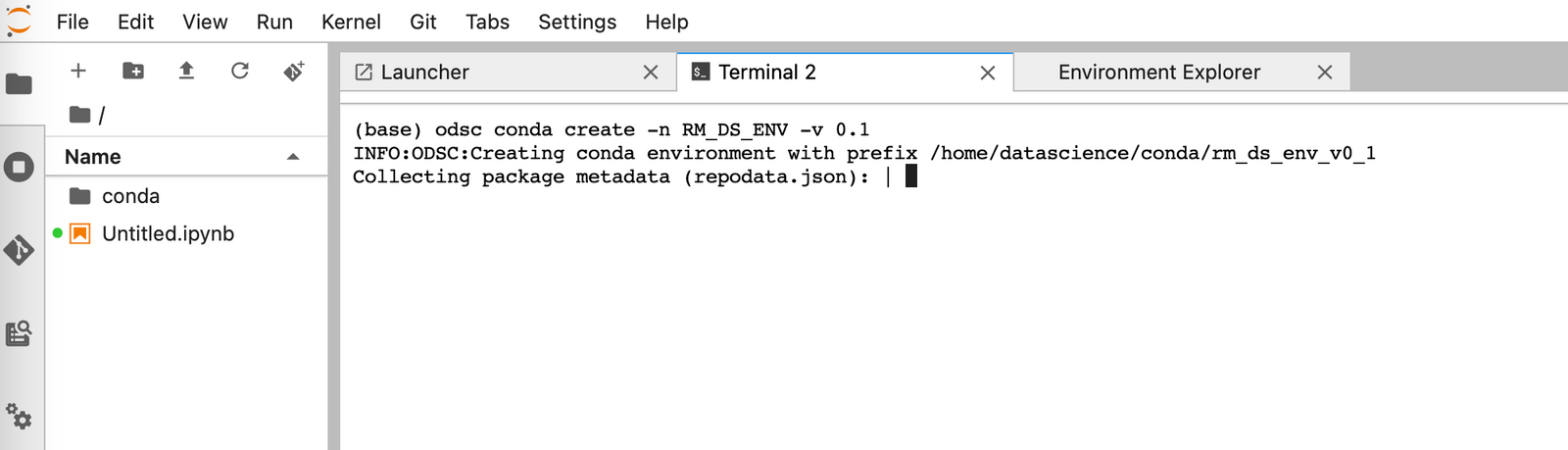
When this has completed, you will be prompted to activate this conda environment with:
conda activate /home/datascience/conda/rm_ds_env_v0_1
The environment can now be seen from the launcher tab and used in notebooks.
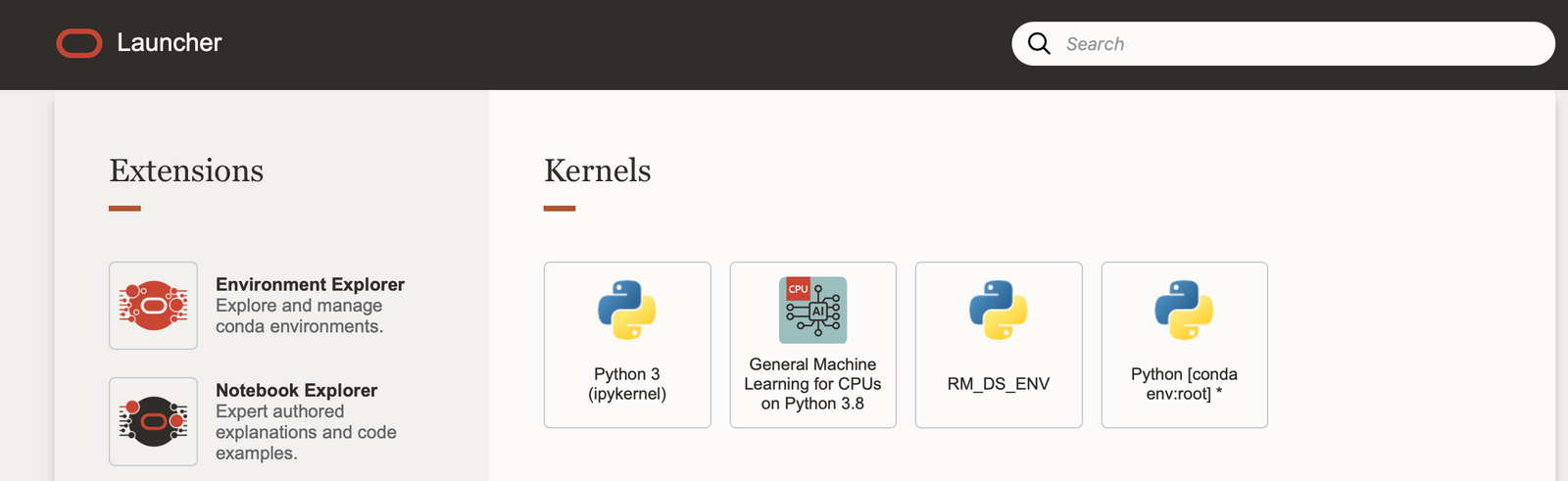
From the terminal window, pip can then be used to install any packages required, as you would normally do. For example these Oracle packages:
pip install oracle-ads Oracle Accelerated Data Science.
pip install ocifs Required to connect to OCI file storage.
(Instead of creating a conda environment from scratch you could also use odsc conda clone to create a copy of an installed environment, which you can then modify.)
Saving a Conda environment to an Oracle Storage Bucket
The changes you make to this environment will persist on this notebook session until it is deactivated. However, to save and share these environments with other Data Science users you will need to publish them to an OCI Storage Bucket.
If you do not already have a storage bucket to use, you can create one from Storage → Buckets.
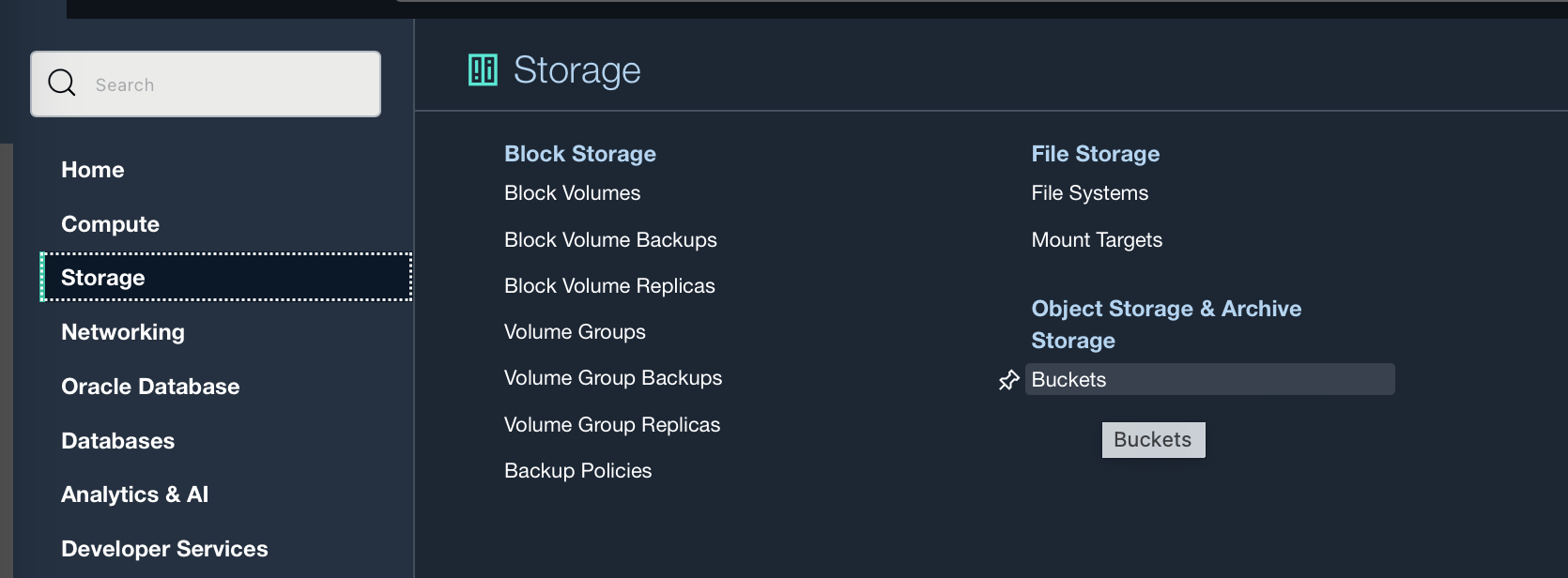
The Bucket I am using here is called DataScience_Bucket, you will need to know the object storage namespace and bucket name of the bucket you intend to use.
Your notebook session can be connected to a storage bucket using “Resource Principal”, as long as your dynamic group has policies to “use” buckets and to “manage” object-family. Otherwise they can be connected using an API key.
Go to Settings under the Launcher tab, then then select “Resource Principal” as your Authentication mode, and fill in the namespace and bucket name.
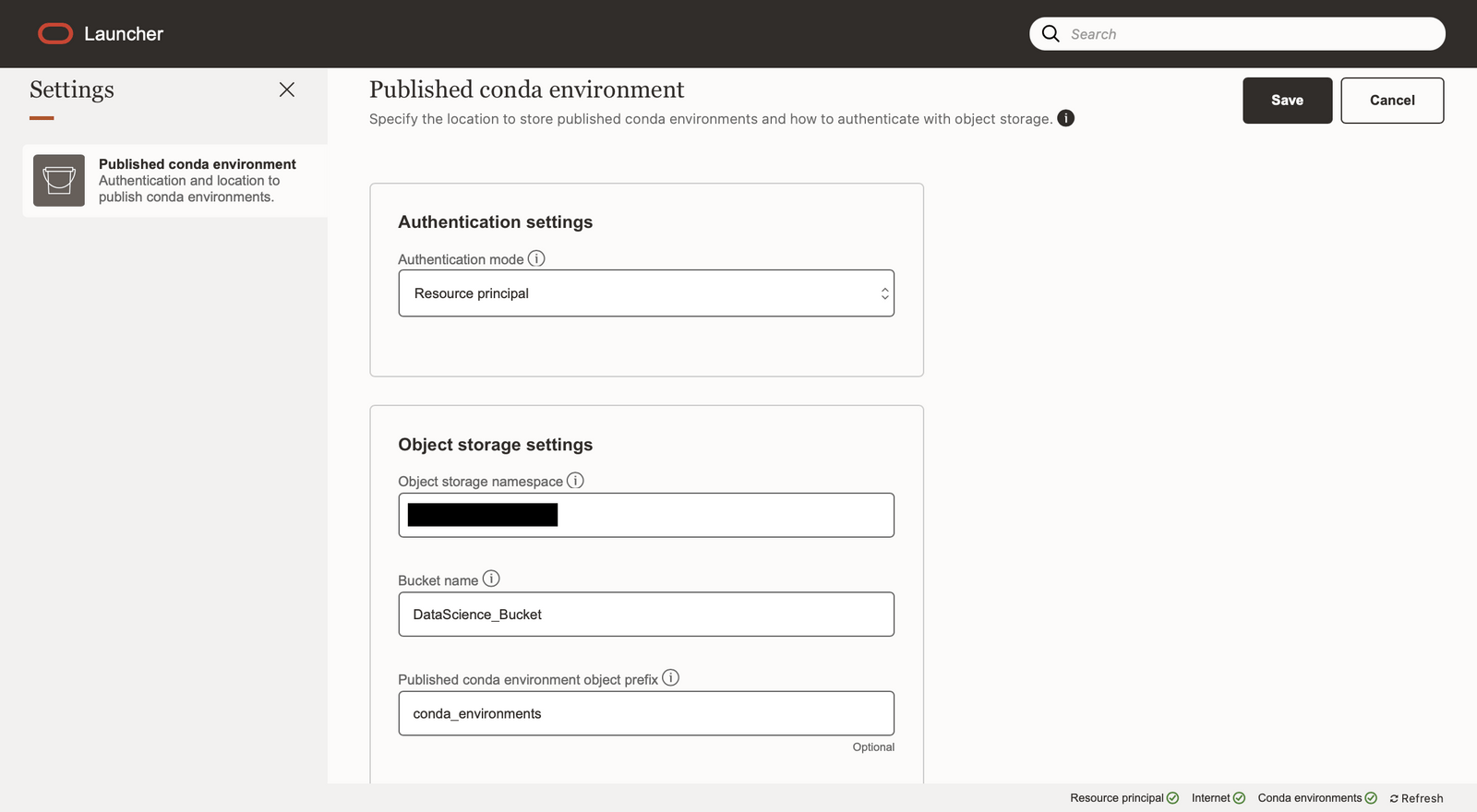
After creating this connection to the storage bucket you can publish your conda environment to the bucket, allowing it to be seen and used by anyone with access to the Bucket.
odsc conda publish -s rm_ds_env_v0_1
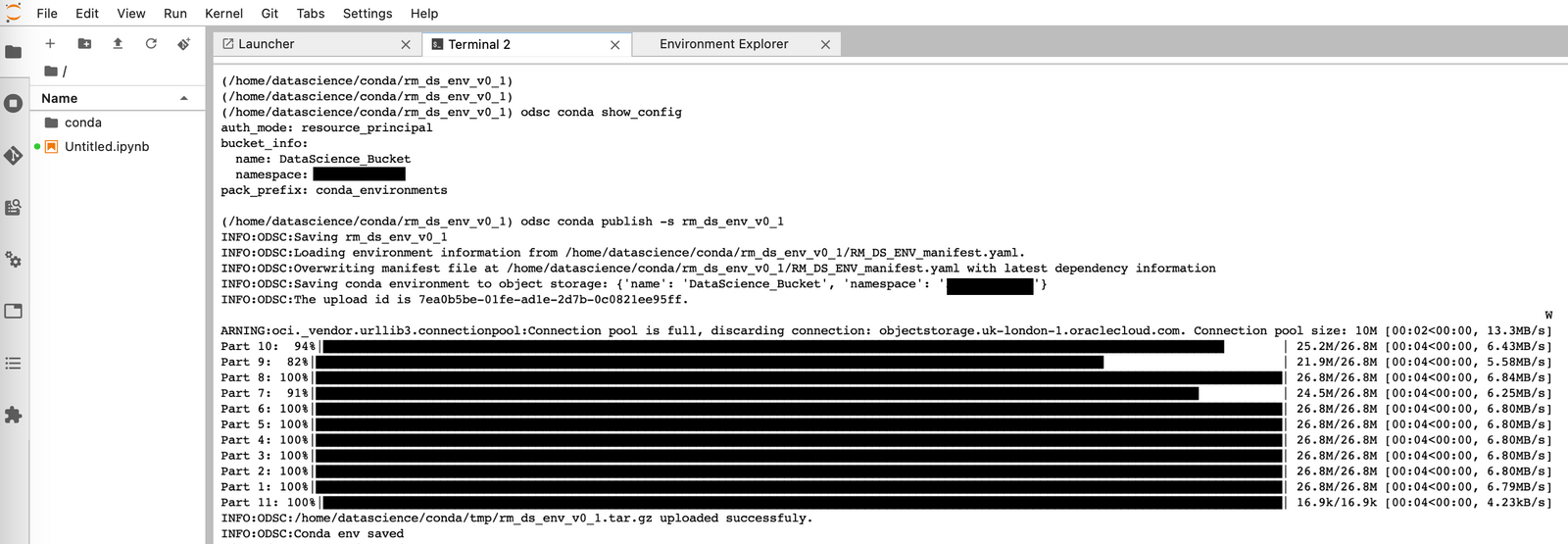
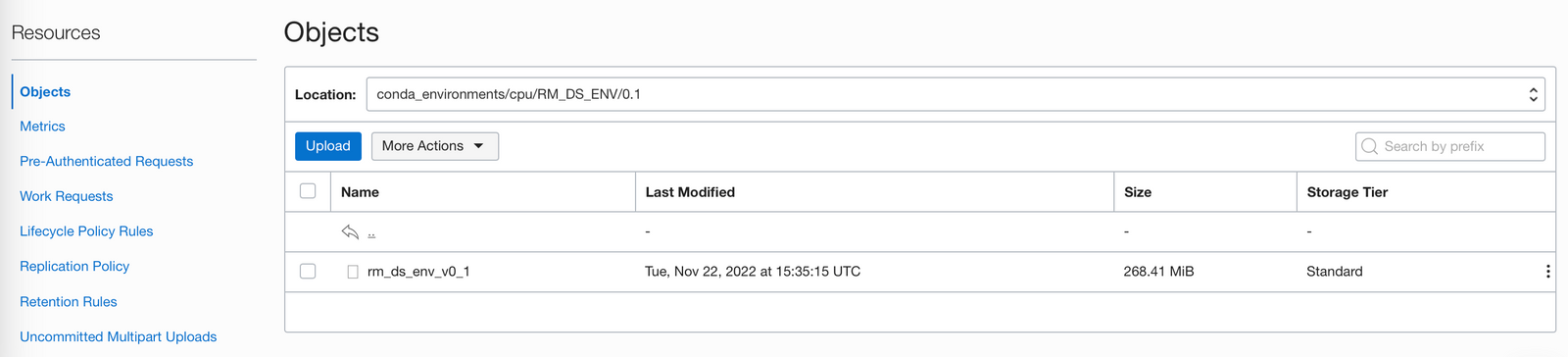
Once publishing is complete, you will be able to see the environment stored in your bucket:
You will also be able to see the environment in the Environment Explorer.
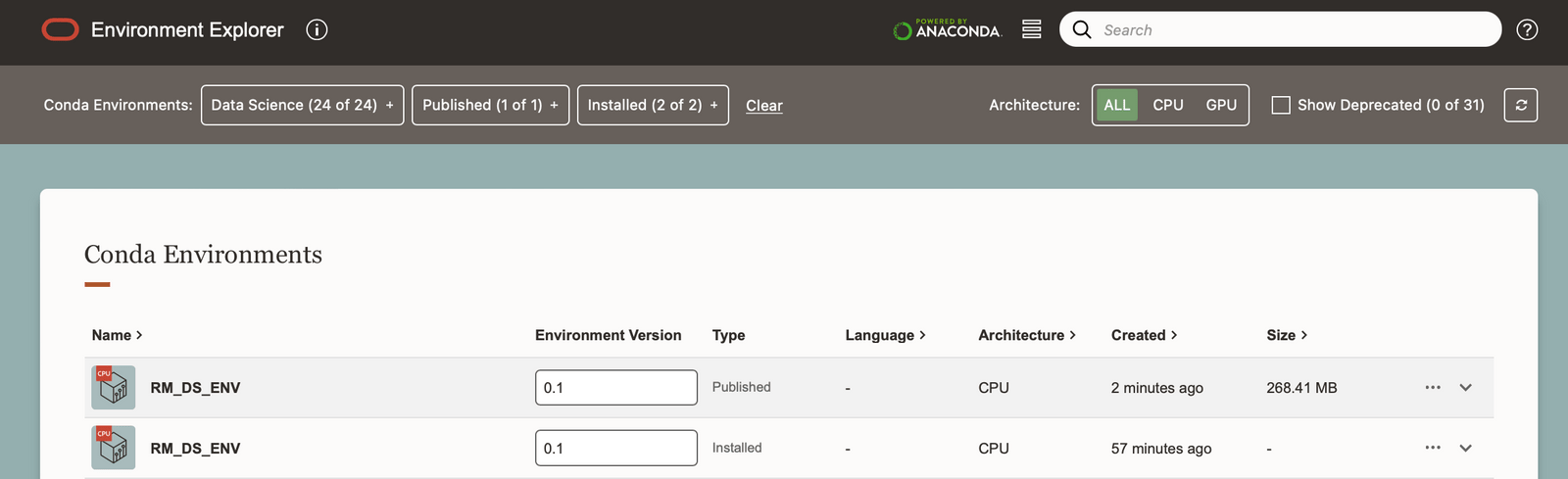
Any other users who can connect to that bucket will be able to install your custom environment.
Editing or updating this environment is as simple as cloning the environment, creating a new version number, adding or updating packages using pip, and then publishing the new version to the storage bucket.
odsc conda clone -f rm_ds_env_v0_1 -e RM_DS_ENV
Version number [0.1]? 0.2
Activate the environment using:
conda activate /home/datascience/conda/rm_ds_env_v0_2Install or update packages from within the terminal then publish the new edited environment back to storage bucket using:
odsc conda publish -s rm_ds_env_v0_2Data Preparation
Obviously any model you create will be limited by the quality of the dataset it is trained on. There are several steps you will want to perform to clean and prepare your data for modeling. To do so, understanding your data is key, certain cleaning or transformation steps may not make sense on some columns, or you might be able to see from visual inspection that some values in a column look incorrect.
These data exploration and cleaning steps can take a long time and the Oracle ADS package has some functions to try and speed these up, some of the ones I've found most useful are discussed below.
In the following examples I am using a publicly available dataset from Kaggle, the Smoking Dataset, which contains various body measurements and a flag indicating whether the patient is a smoker or not. (A notebook with all the following examples can be downloaded from the end of this post.)
Understanding data:
In the examples below, the following libraries were imported and the data has been read into my notebook session as shown below:
# Required for data exploration and cleaning
import pandas as pd
import numpy
import ads
from ads.dataset.factory import DatasetFactory

# Authenticate with OCI Data Science Service
ads.set_auth(auth="resource_principal")

# Read in csv file form OCI noteboook instance
df = pd.read_csv('Data/smoking.csv')

# Convert the data set to an ADSDataset requried for "show_in_notebook" function
smoking_ds = DatasetFactory.open(df, target="smoking").set_positive_class(1)
Feature types: Oracle ADS allows you to set feature types, which define the nature of the data in the column, as opposed to just the data type. For example IDs, telephone numbers, credit card numbers are all numeric, but treating them as numbers and summing them up would never make sense. You can define your own feature types for use in your organisation, or make us of Oracle's pre-defined feature types.
Feature types can help with exploratory data analysis, feature selection, feature count, and correlation. You can set plots for specific feature types, ensuring these are reusable across other features of the same type, you can add checks to your data as feature warnings or validations, ensuring that the data is consistent and data errors or issues are spotted quickly. These feature types can be used with pandas data frames, and any column or variable can also be associated with multiple feature types, for example a single column could have associated feature types of both numeric, and currency.
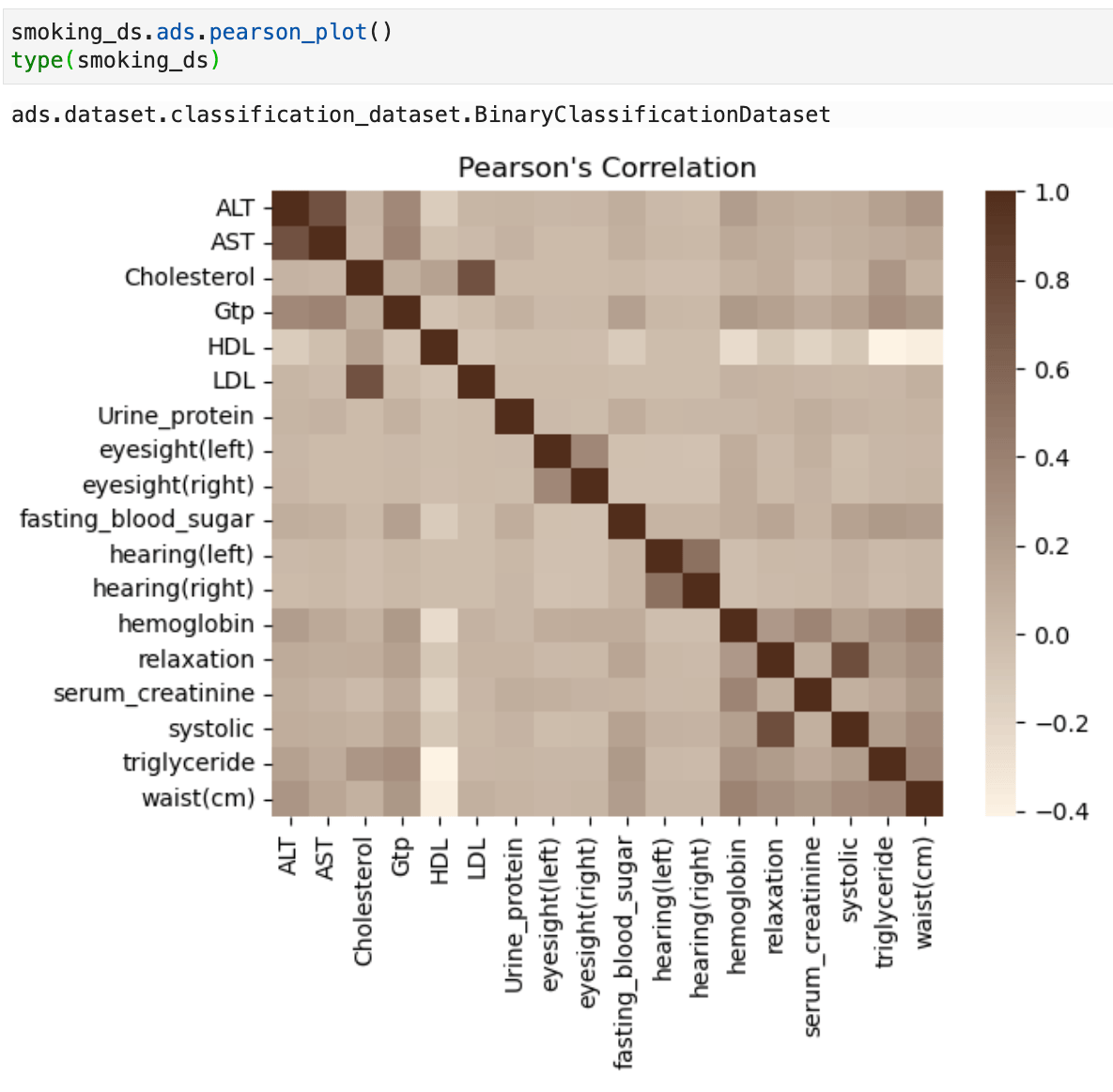
Correlation plots: Oracle ADS has 3 built in correlation methods for quick analysis and correlation plots. These correlation methods depend on the type of data that you're working with. For continuous numerical variables you would use Pearson correlation df.ads.pearson(); to compare categorical variables to continuous variables you would use the Correlation ratio df.ads.correlation_ratio(); and to measure the amount of association between two categorical variables you would use Cramer's V df.ads.cramersv(). Each of these have an associated plot function to visualise the correlations for example df.ads.pearson_plot() where “df” in these examples can be a pandas data frame or an ADS dataset.
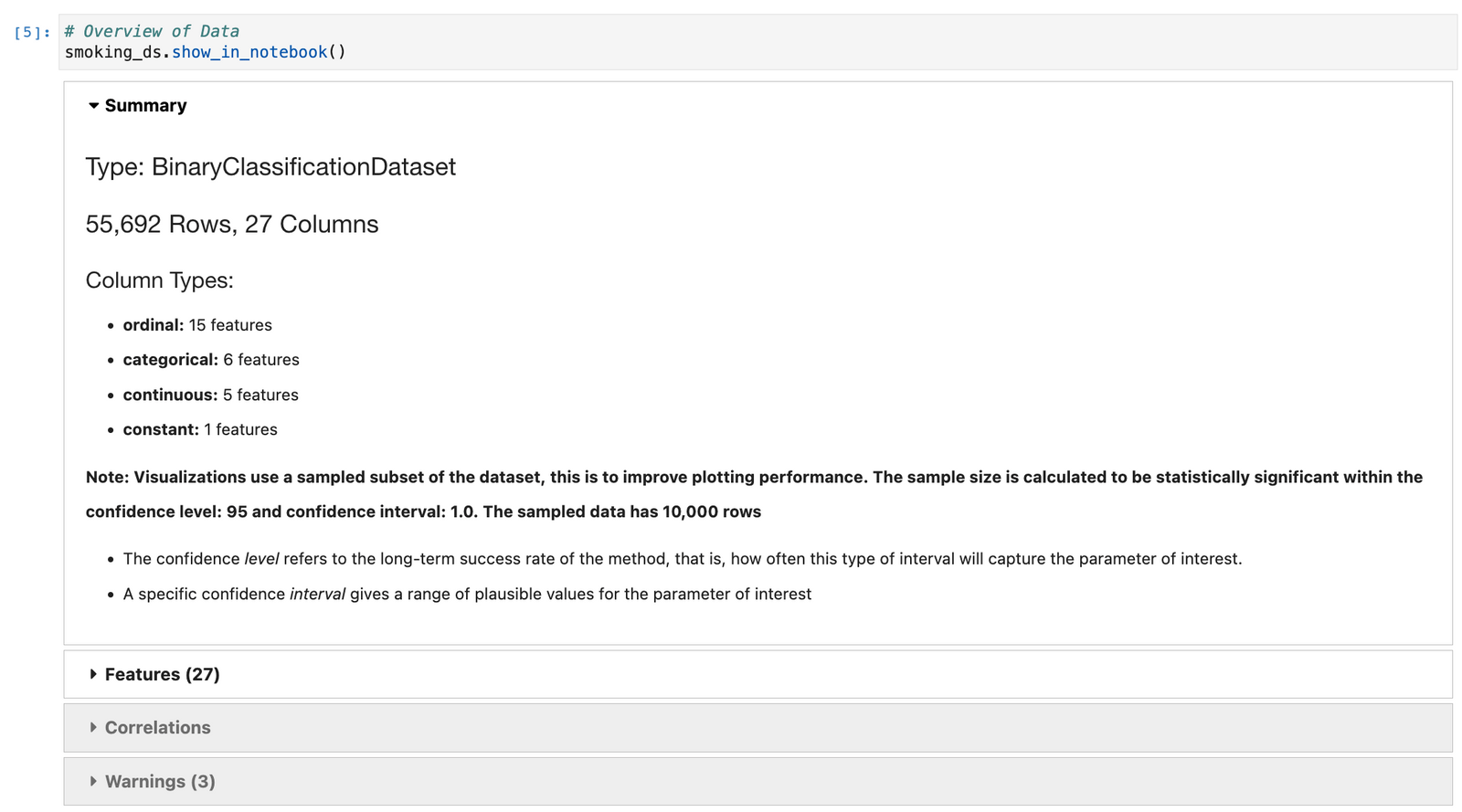
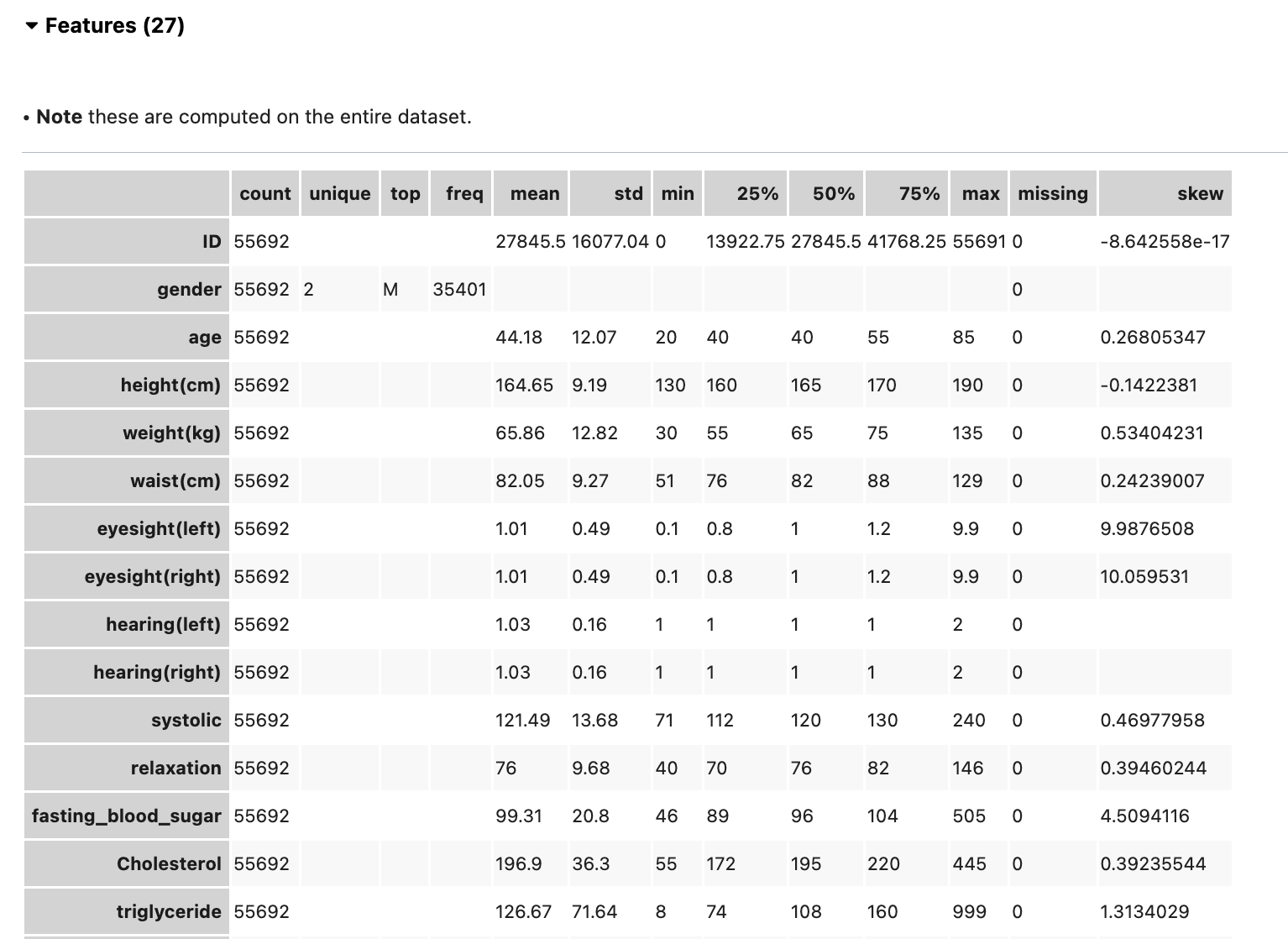
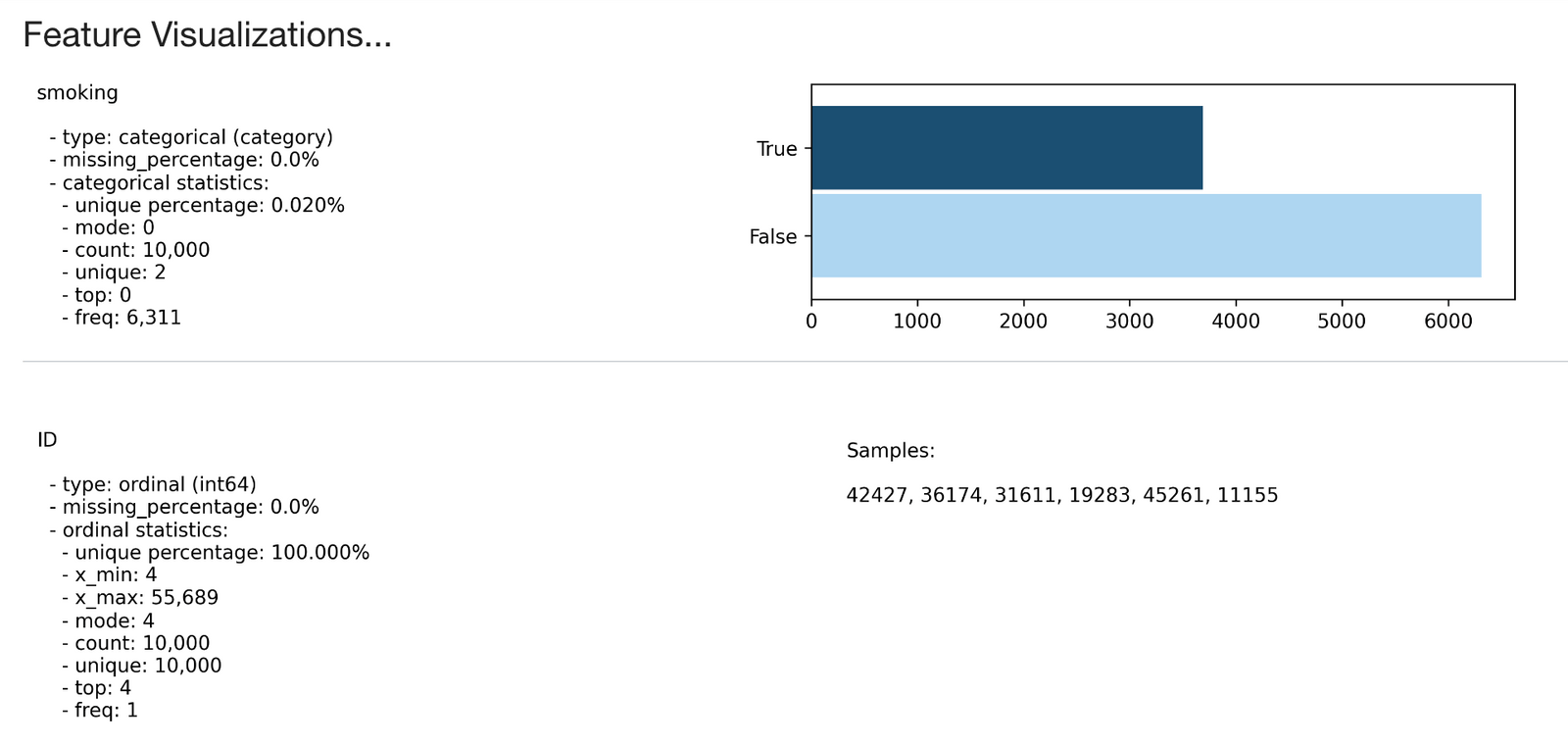
Show in notebook: The ADS show_in_notebook method creates a preview of all the basic information about the data set. It gives a great overview of what's in the data, number of rows and columns, data types/feature types of each column, visualizations of each column, correlations, and warnings about columns, for example columns that are mostly empty, or highly skewed columns. You can apply the ADS show_in_notebook method on an ads.dataset but not directly on a pandas data frame. More information about this can be found here: ADS Datasets, show_in_notebook.
Below is the output of the show_in_notebook function on the smoking dataset:
Cleaning and transforming data:
ADS has built-in functions to transform and manipulate data. The following work on ADS data sets, but any operation that can be performed on a pandas data frame can also be applied to an ADS data set.
Suggest recommendations: The suggest_recommendations function highlights issues with the data and suggests changes to apply to the dataset that would make it more suitable for modeling. For example, dropping columns which are mostly empty, imputing missing values in a column with the most populous value, dropping a column if there is an additional highly correlated field. The output of this function is a table with the recommended changes, and the code you could use to perform those steps.
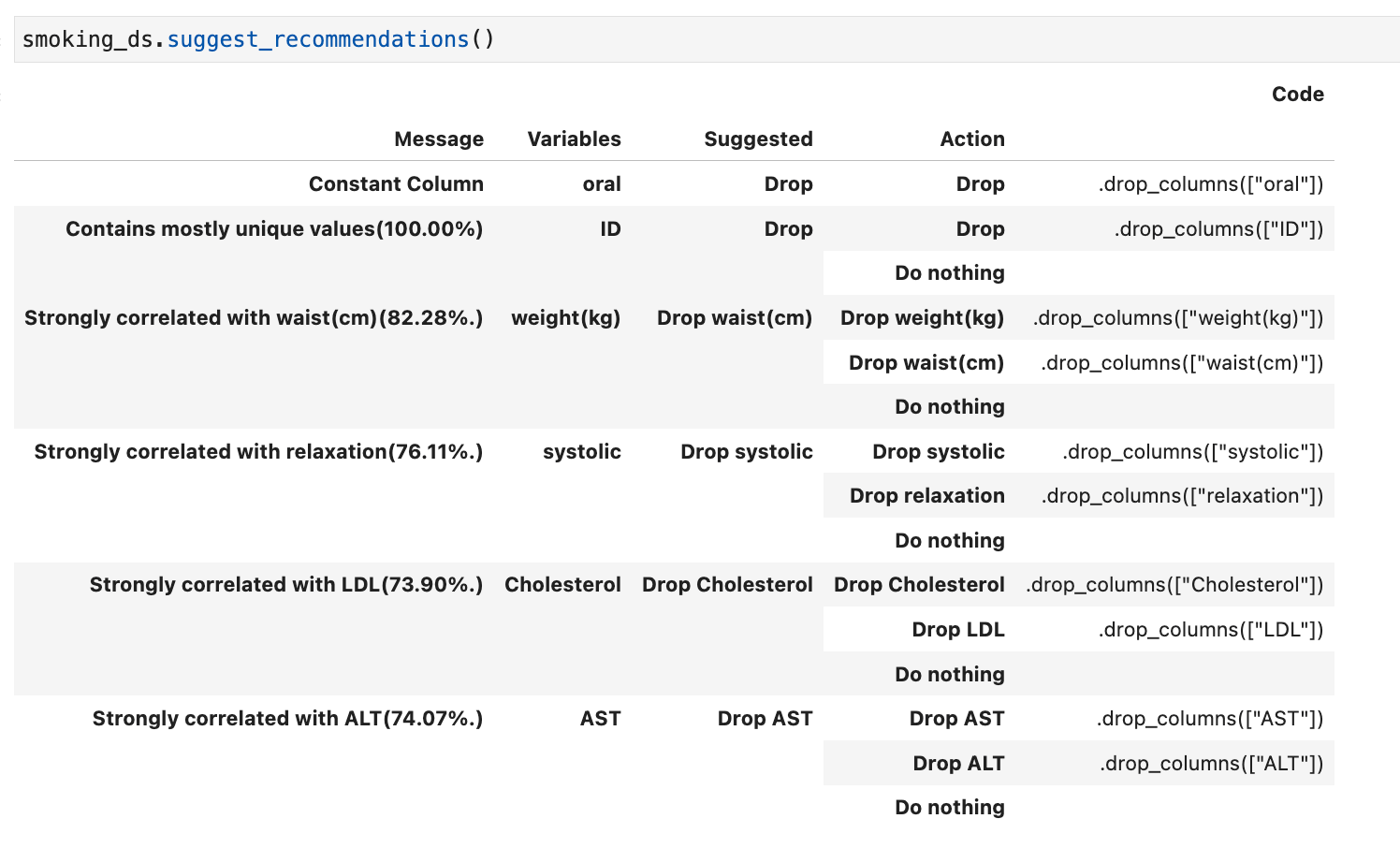
Auto transform: If you wish to apply all the recommended changed from the suggest_recommendations function you can use auto_transform. This function returns a transformed dataset, created from preforming all the recommendations at once.
transformed_smoking_ds = smoking_ds.auto_transform()By default this will also handle imbalanced datasets by attempting to rebalance the data with up-sampling or down-sampling (although this can be turned off, and you can still use auto_transform to complete all other transformation steps).
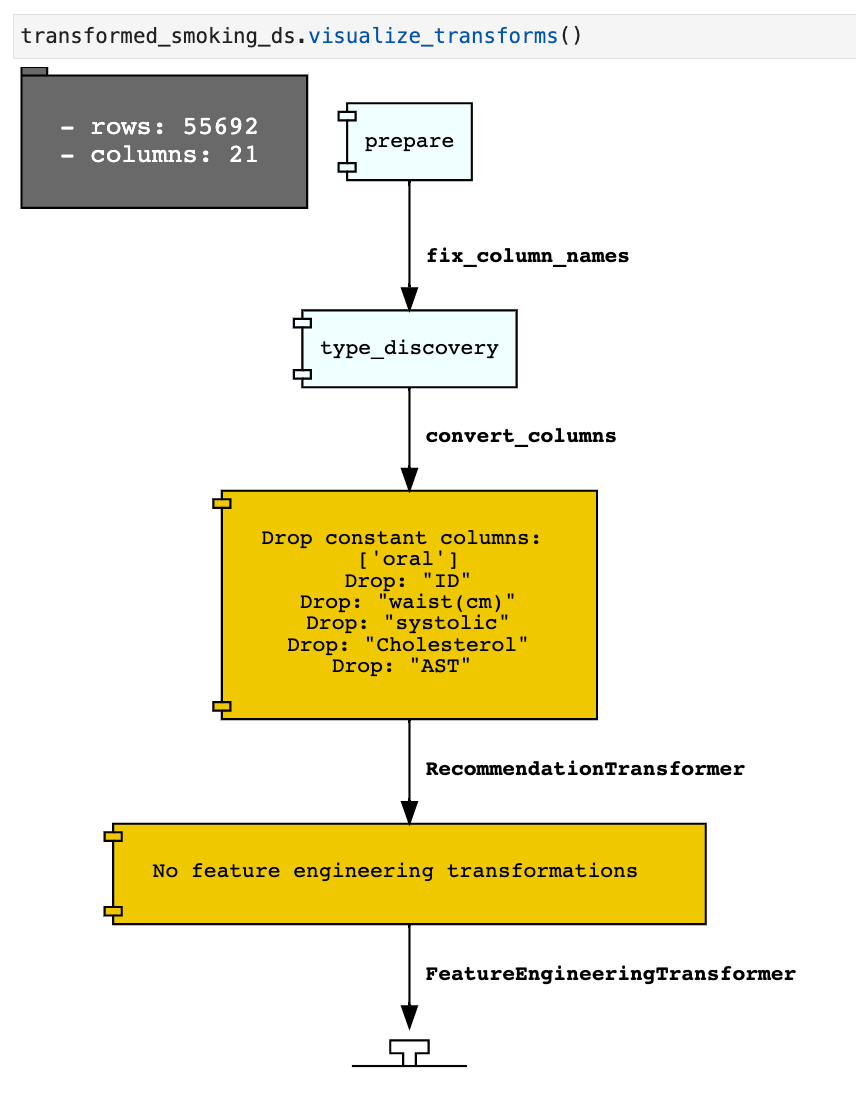
Visualize Transforms: If you have used auto_transform to preform the transformations you can use the visualize_transforms() function to view them. This function only works with the automated transformations and does not capture any custom transformations that you may have applied to the dataset.
transformed_smoking_ds.visualize_transforms()
Modeling
For the sake of brevity, in this blog I'm not going to be talking about Oracle's AutoML, which can be used within these notebooks via Oracle's AutoMLx package. I’m just going to run though creating two simple binary classifiers, and how they can be compared using ADS functions. As well as using additional ADS functions to deploy the model to the OCI Model catalogue, and load it back into a different notebook, we will also call a deployed model from and API.
In the examples below the following libraries are required :
# Required for creating and evaluating models
from sklearn.datasets import make_classification
from sklearn.linear_model import LogisticRegression
from sklearn.ensemble import RandomForestClassifier
from sklearn.model_selection import train_test_split
from sklearn import metrics
from ads.common.model import ADSModel
from ads.evaluations.evaluator import ADSEvaluator
from ads.common.data import ADSData
Using the transformed smoking data set to create two binary classification models:
# Split the data into a training and test data set, here we are taking 15% of the data as the test data set and 85% as the training data set.

train, test = transformed_smoking_ds.train_test_split(test_size=0.15)

# Splitting train and test X an y out for clarity
X_train = train.X
y_train = train.y
X_test= test.X
y_test = test.y

# Here we are using sklearn to train a Logistic Regression and a Random Forest Classifier Model.

# Logistic Regression Model
lr_clf = LogisticRegression(random_state=0, solver='lbfgs',
                    multi_class='multinomial').fit(X_train, y_train)

# Random Forest Model
rf_clf = RandomForestClassifier(n_estimators=100,
                                random_state=42).fit(X_train, y_train)
Evaluating Models:
Models are only as useful as their quality of predictions. After training your model you will need to interpret its ability with a suitable evaluation metric. To do this in an unbiased way normally you would hold back a set of labelled data as an unseen test data set, this will enable you to assess the models performance by comparing the target and predicted values. You will then generate some metrics based on this to tell you how close the predicted values and target values are.
The evaluation metric which will be most suitable for your problem will depend on a range of things such as the type of model, binary classifier, multi class classifier, regression, as well as acceptable error margins, or if you wish to prioritize correctly predicting certain classes at the expense of others. Nevertheless, you will need a way to assess the performance of your created models and compare models with each other.
ADS Model evaluators: The ADSEvaluator and ADSModel class in the ADS package to generate a range of interpretable model metrics as standardized scores and charts. The metrics created will depend on the type of model used.
For example, here I am creating an ADS Evaluator. The ADS evaluator expects an ADS model format so first we convert our logistic regression and random forest model to ADS model formats.
# Converting the models to ADS Model formats
bin_lr_model = ADSModel.from_estimator(lr_clf, classes=[0,1])
bin_rf_model = ADSModel.from_estimator(rf_clf, classes=[0,1])
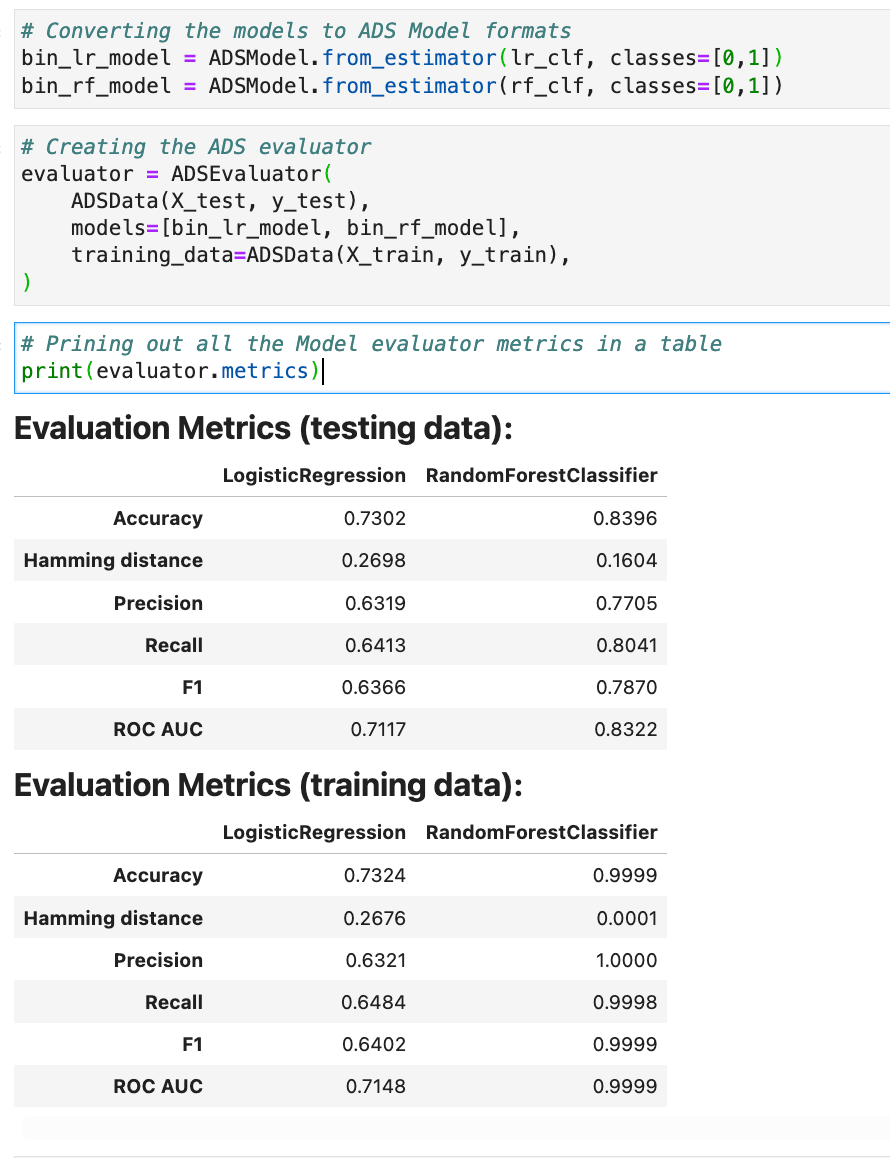
The function evaluator.metrics returns a table of metrics, you can also define and add your own metrics to this list using evaluator.add_metrics.
# Creating the ADS evaluator
evaluator = ADSEvaluator(
    ADSData(X_test, y_test),
    models=[bin_lr_model, bin_rf_model],
    training_data=ADSData(X_train, y_train),
)

# Prining out the model evaluator metrics
print(evaluator.metrics)
The list of returned metrics are dependent on the kind of model you have created, for example classification as opposed to regression. The evaluators for both of our binary classification models are shown below.
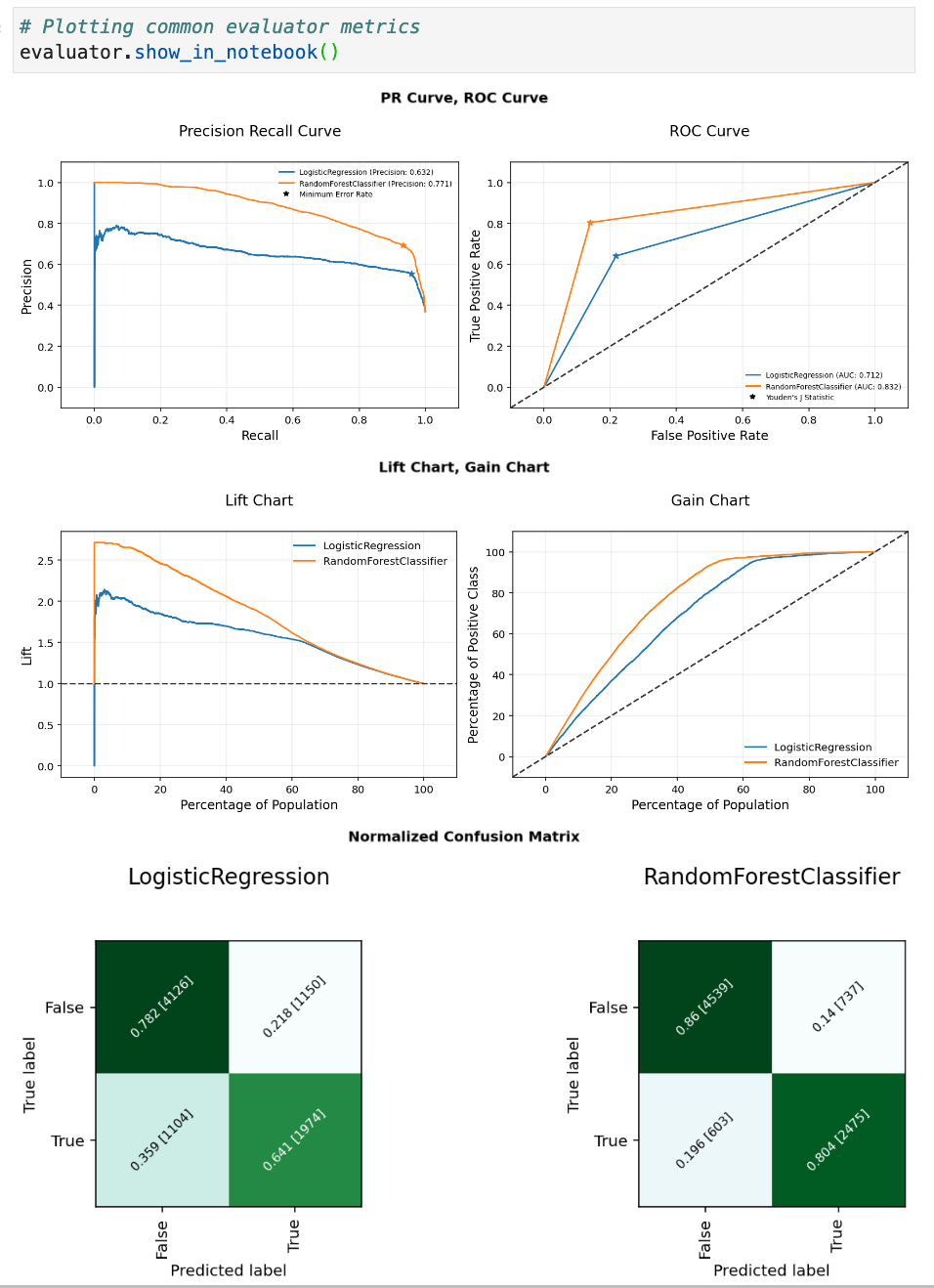
Evaluator with show in notebook: You can then use this evaluator with show in notebook to visualize a range of evaluation plots.
Here are some examples of charts created from the comparison of two binary classification models:
Saving and Deploying Models:
Once you have trained a suitable ML model for your use case, another common problem is how to version this model, and make it available for other people to utilize. Here we are going to use ADS to quickly prepare, save, and deploy a model. In the examples below the following libraries are required:
# Required for saving and deploying models
from ads.model.framework.sklearn_model import SklearnModel
import tempfile
import json
from shutil import rmtree
from ads.model.model_metadata import UseCaseType
Preparing a Model:
The first step is to prepare the model, this involves creating a Model Artifact that contains the following items:
- A serialized model;
runtime.yaml- information about the model and required conda environment;score.py- used by the model deployment server to load in the model and create predictions;input_schema.json- Example input (optional);output_schema.json- Example output (optional);- Any other artifacts required.
ADS can help us to auto generate all the mandatory files above to help save the models. Currently ADS supports the following frameworks:
- scikit-learn;
- XGBoost;
- LightGBM;
- PyTorch;
- SparkPipelineModel;
- TensorFlow.
There is also a GenericModel class that would help you to create the required files for any unsupported model framework that has a .predict()method.
Since the model we wish to save in this example is a scikit-learn model we can use the SklearnModel class in ADS. The .prepare() function creates the model artifacts that are needed to deploy a model without you having to configure it or write code. However, it does allow you to customize the score.py file if needed.
The Model class takes two parameters - estimator object which is the model you wish to save and deploy and a directory location to store autogenerated artifacts. The code below creates a temporary directory for the model artifacts, and sets the estimator to be the random forest model created above in this post. To prepare the model we then provide information on the conda environment it should be run on, the conda environment it was trained in, the training data, and the use_case_type: which will depend on the kind of model you have made and options available can be found on the Oracle ADS help page here.
In the example below since I am using a conda environment I created myself I’ve supplied the full path to the OCI bucket location.
artefact_dir = tempfile.mkdtemp()

sklearn_model = SklearnModel(estimator=rf_clf, artifact_dir=artefact_dir)
sklearn_model.prepare(
    inference_conda_env="oci://Bucket_Name@Namespace/conda_environments/cpu/RM_DS_ENV/1/rm_ds_envv1",
    training_conda_env="oci://Bucket_Name@Namespace/conda_environments/cpu/RM_DS_ENV/1/rm_ds_envv1",
    use_case_type=UseCaseType.BINARY_CLASSIFICATION,
    X_sample=X_train.head(5),
    y_sample=y_train.head(5),
    force_overwrite=True
)
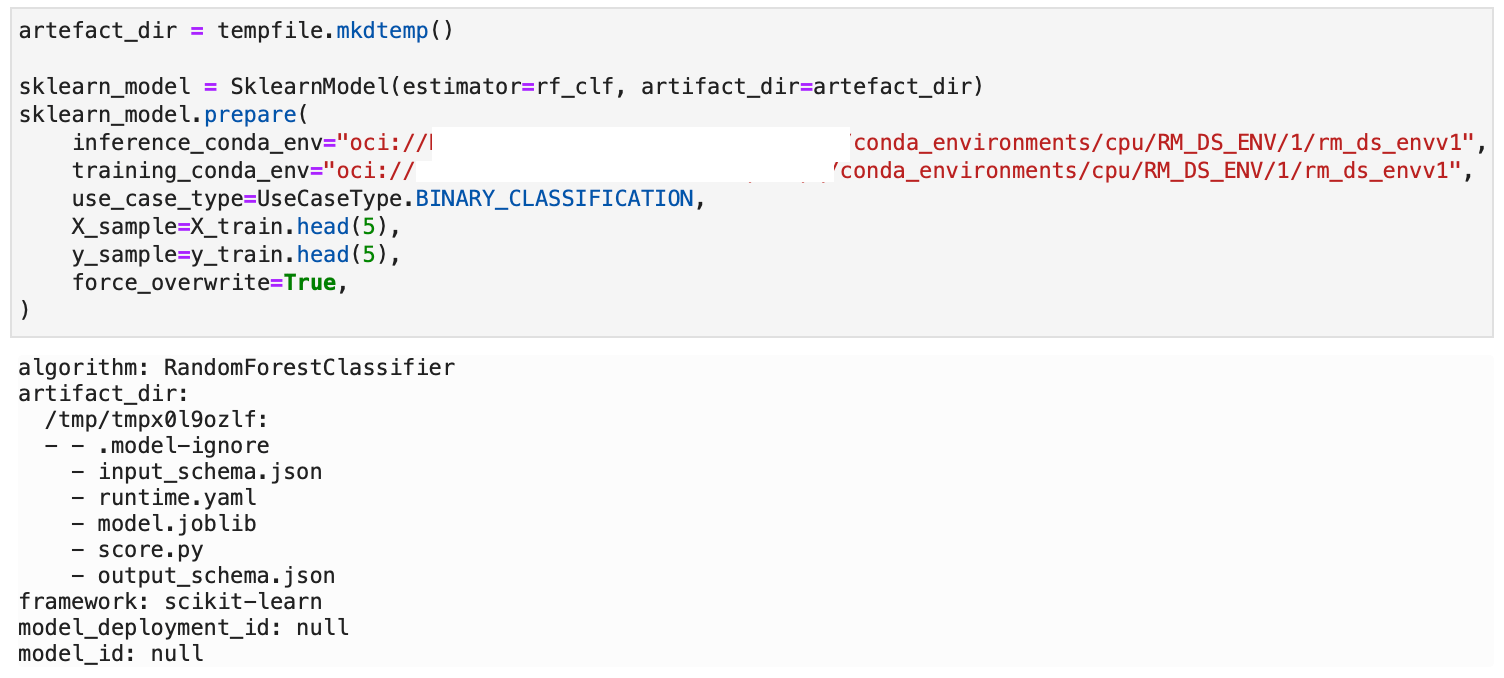
The above created the following files: runtime.yaml, score.py, and some json files
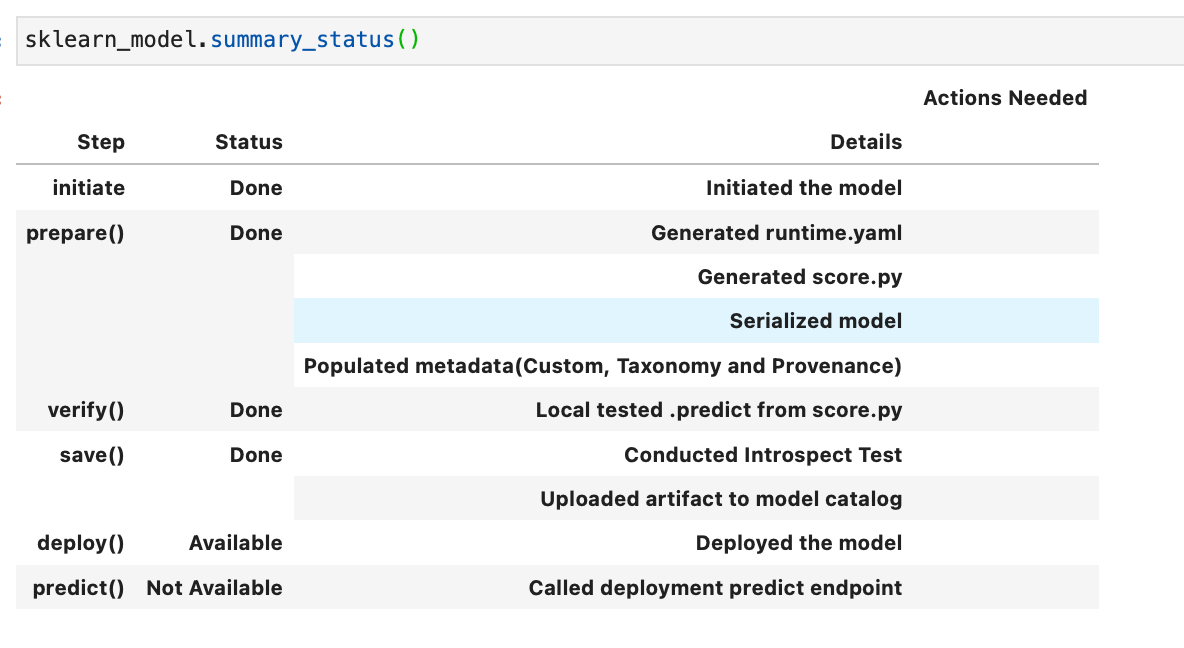
with example inputs and outputs based around the sample training data sets supplied. If we use the .summary_status() method we can see the steps required to deploy the model and which steps we have so far completed. Running this we can see that the next “Available” but not Done step is verify.
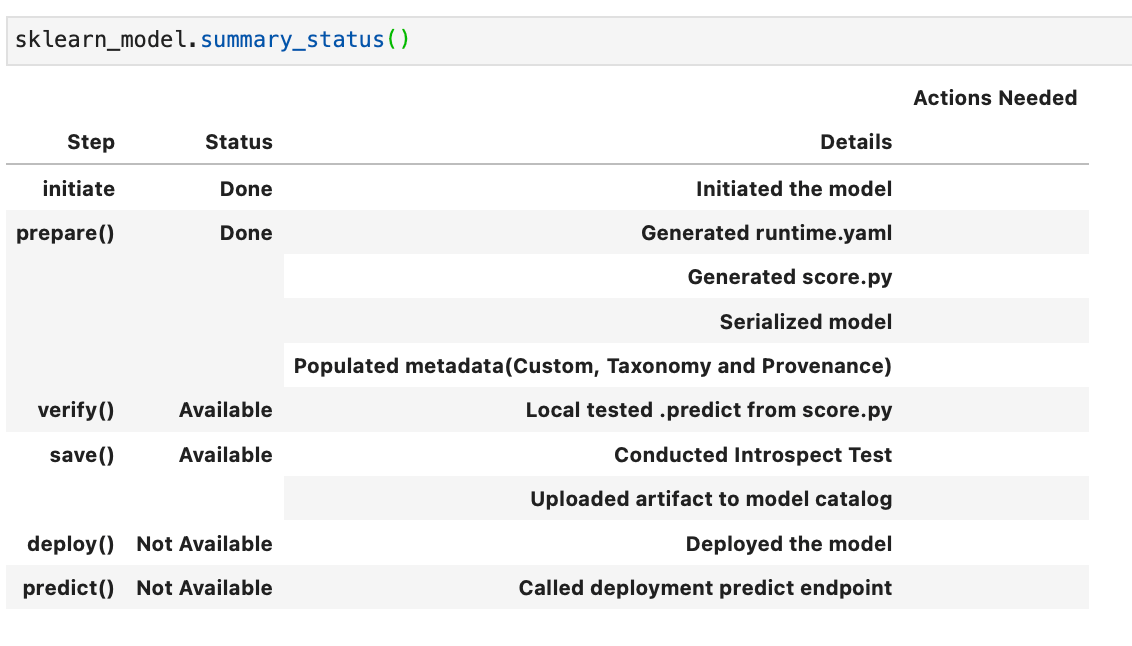
Verify a model: The .verify() method tests the score.py file with a sample of data. For example, below I am using the smoking test data set as a model input, and it returns a set of predictions.
sklearn_model.verify(X_test[:10])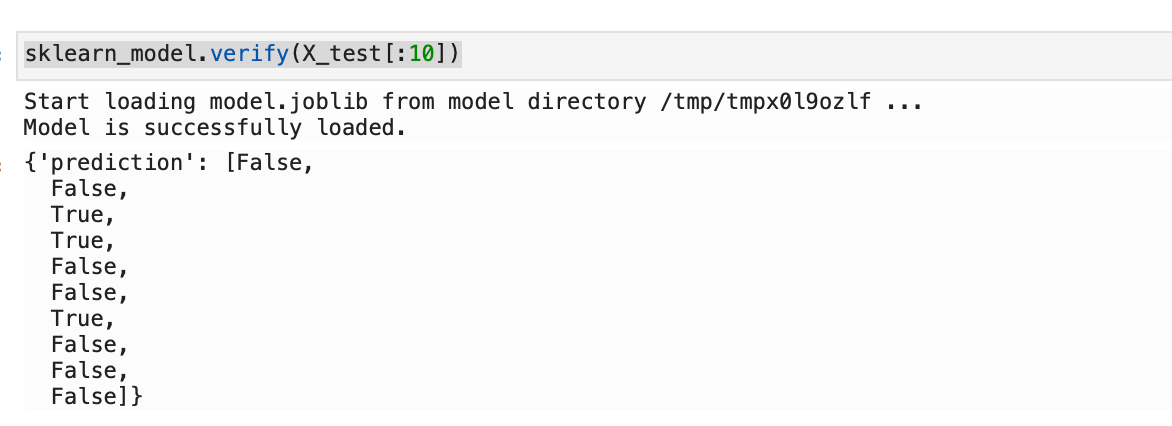
If we re-run .summary_status() we can now see that the verify status is “Done”.
Saving a model to the model catalog: We can then use the .save() method to save the model to the OCI Model Catalog. This will fail if there is already a model with the supplied name saved to the catalog.
sklearn_model.save(display_name="RF_Smoking_Model")

From the OCI Console we can now see our model in Analytics & AI -> Data Science -> Models.
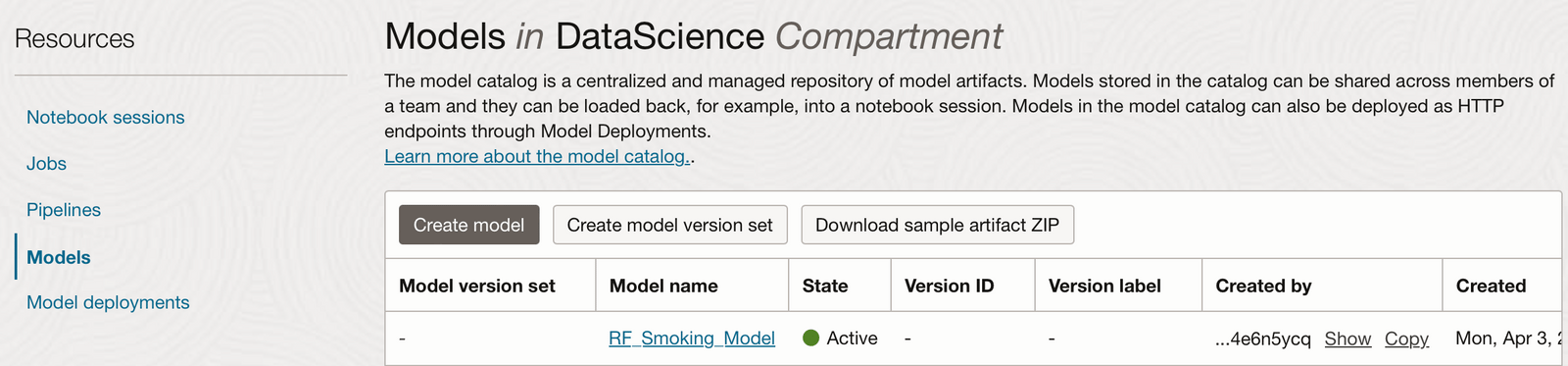
Model Deployments: Now that the model is saved to the catalogue, if we re-run .summary_status() we can now see that the save step is “Done” and the deploy step is “Available”. Deploying a model means that it is available from an HTTP endpoint that is hosted live on a compute node and is waiting to be called for predictions, it is active from the moment it is deployed until you deactivate it, and therefore you will be charged for the number of hours the model is deployed.
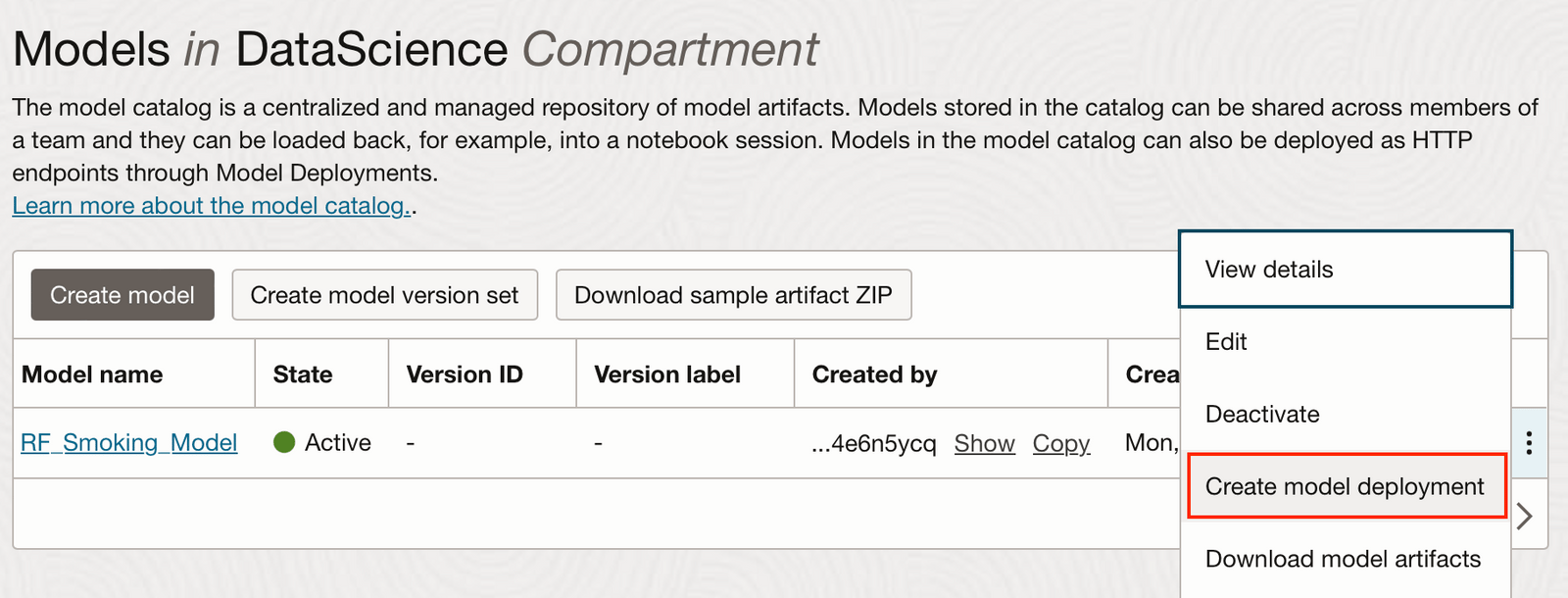
You can either deploy the model from the OCI console, by clicking on the 3 dots next to your saved model in the OCI model catalog, shown here:
Or from the notebook using the .deploy method:
deploy = sklearn_model.deploy(
    display_name="Random Forest Model For Smoking Classification",
    # instance_shape  = "VM.Standard2.1",
    # instance_count = 1,
    # project_id = "<PROJECT_OCID>",
    # compartment_id = "<COMPARTMENT_OCID",
    # access_log_group_id = "<ACCESS_LOG_GROUP_OCID>",
    # access_log_id = "<ACCESS_LOG_OCID>",
    # predict_log_group_id = "<PREDICT_LOG_GROUP_OCID>",
    # predict_log_id = "<PREDICT_LOG_OCID>"
)
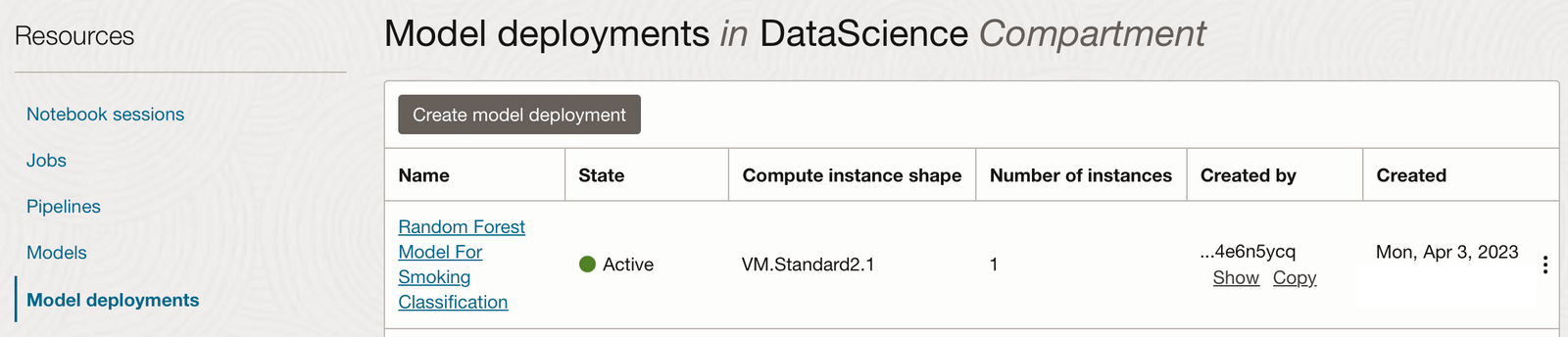
In the example above I have accepted all the default settings and only added a display name. You can however set the description, instance shape and count, set projects and compartments (defaults to the same as the notebook session), the maximum bandwidth, and logging groups. The .deploy() method returns a ModelDeployment object, and may take a few minutes to complete. It can then be seen from the Model Deployments tab from within the OCI console.
Once the model is deployed the .predict method is available:
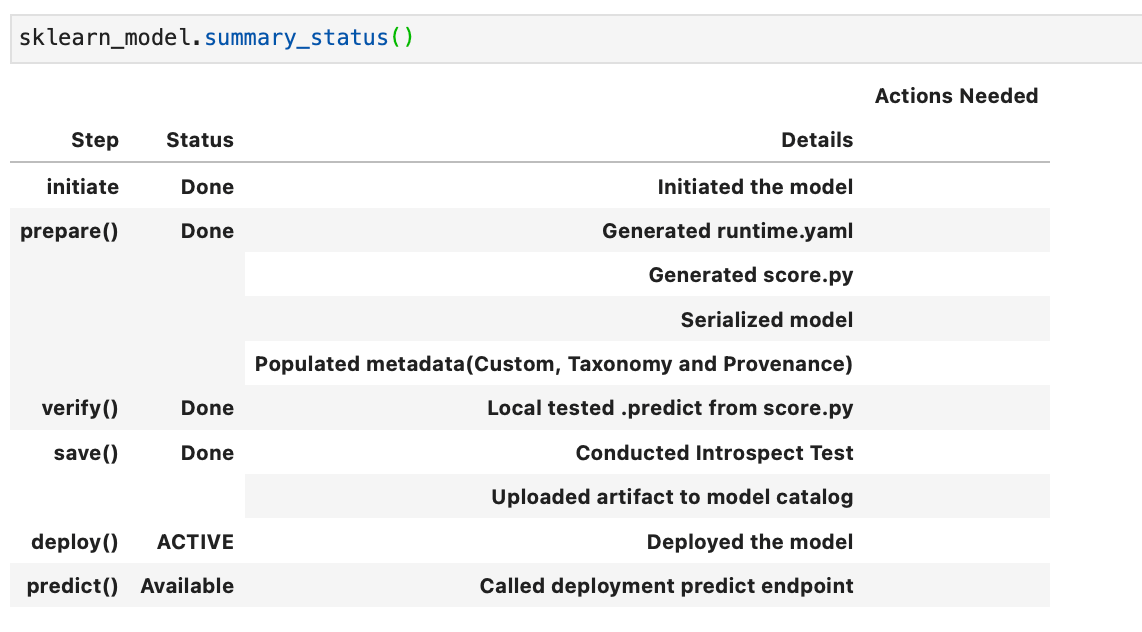
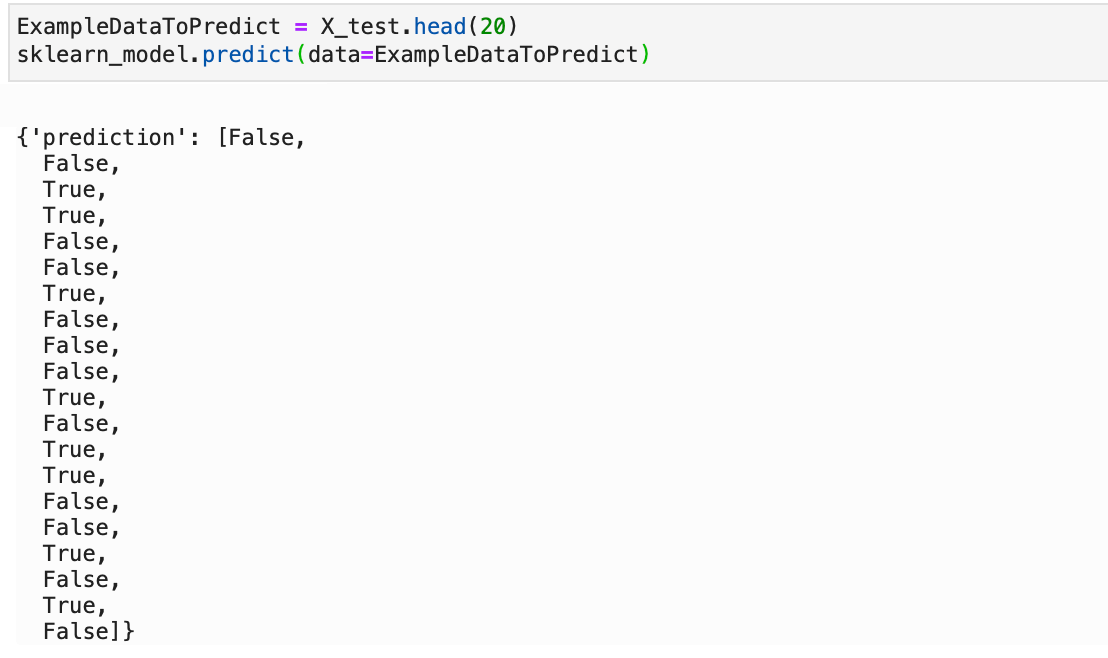
We can then use the .predict method on some data, here I'm using a subset of the test data.
ExampleDataToPredict = X_test.head(20)
sklearn_model.predict(data=ExampleDataToPredict)
Using Saved and Deployed Models:
Now that we have models that are saved and deployed in the OCI Model Catalog, how can we use them to create our predictions?
I’m going to show you several different ways to use the saved and deployed models. For example, if you wanted to load a saved, but not yet deployed model into any notebook session you can load it in with the following code:
# Change the OCID to the SAVED model OCID
saved_model = SklearnModel.from_model_catalog(
    "ocid1.datasciencemodel.oc1.xxx.xxxxx",
    model_file_name="model.joblib",
    artifact_dir="rf-download-test", # Directory for the model artefact files
)

# To create predictions from a model that isnt deployed, use verify.
saved_model.verify(ExampleDataToPredict)["prediction"]
You could then create predictions using the .verify() method, you can only use the .predict() method on deployed models. This might be worth considering if you want to create predictions in batch as opposed to adhoc, since you incur a cost for the hours your model is deployed.
If you or a different data scientist wanted to call the deployed model from within a notebook session they can load in the deployed model into their notebook session and then use the .predict() method as in the example below:
# Use the DEPLOPYMENT OCID
deployed_model = SklearnModel.from_model_deployment(
    "ocid1.datasciencemodel.oc1.xxx.xxxxx",
    model_file_name="model.joblib",
    artifact_dir="deployed-download-test", # Directory for the model artefact files
)

# To create predictions from deployed model
deployed_model.predict(ExampleDataToPredict)
Invoking the model from an HTTP endpoint
They can also call the model from the HTTP endpoint created when it was deployed. This endpoint could be used from anywhere that can invoke a REST API endpoint. There are some examples created when our model is deployed on how it can be called. In OCI if you navigate and click on your deployed model, you will see examples of how to invoke it from the CLI, Python, or Java.
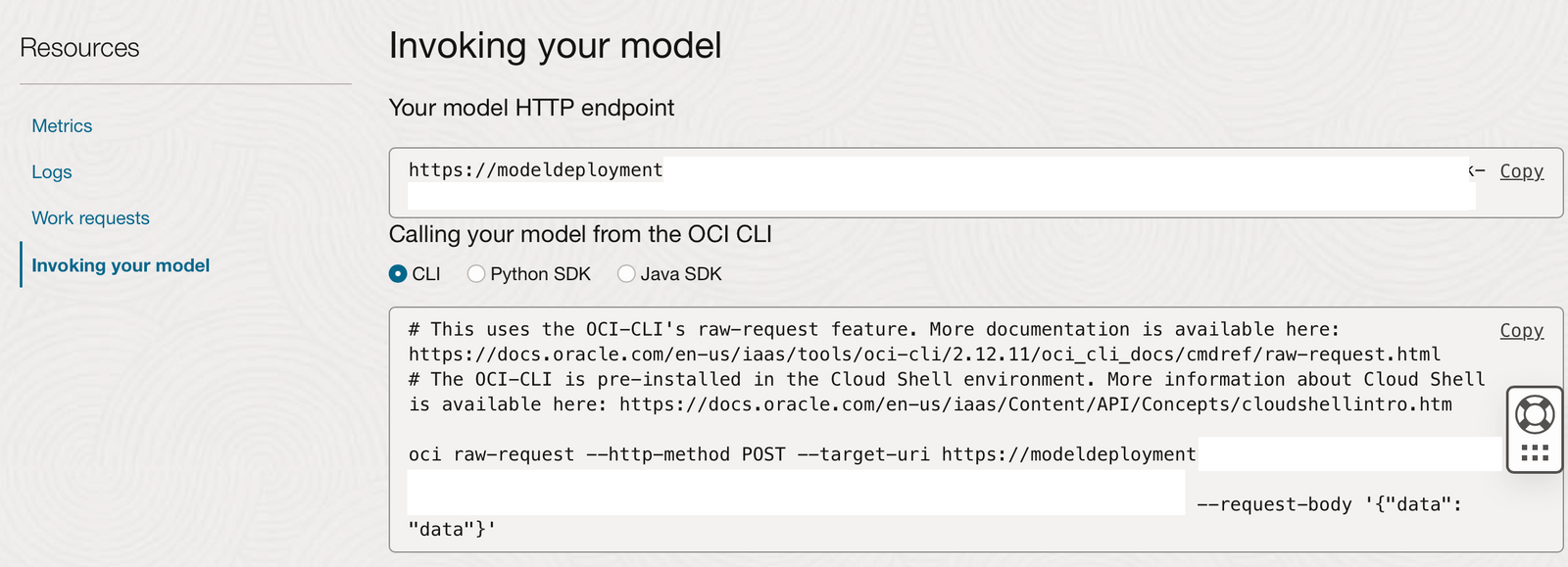
For each of these options (except for the OCI Cloud Shell) you would first need to create an OCI credentials config file to allow you to authenticate to the tenancy hosting the deployment of the model.
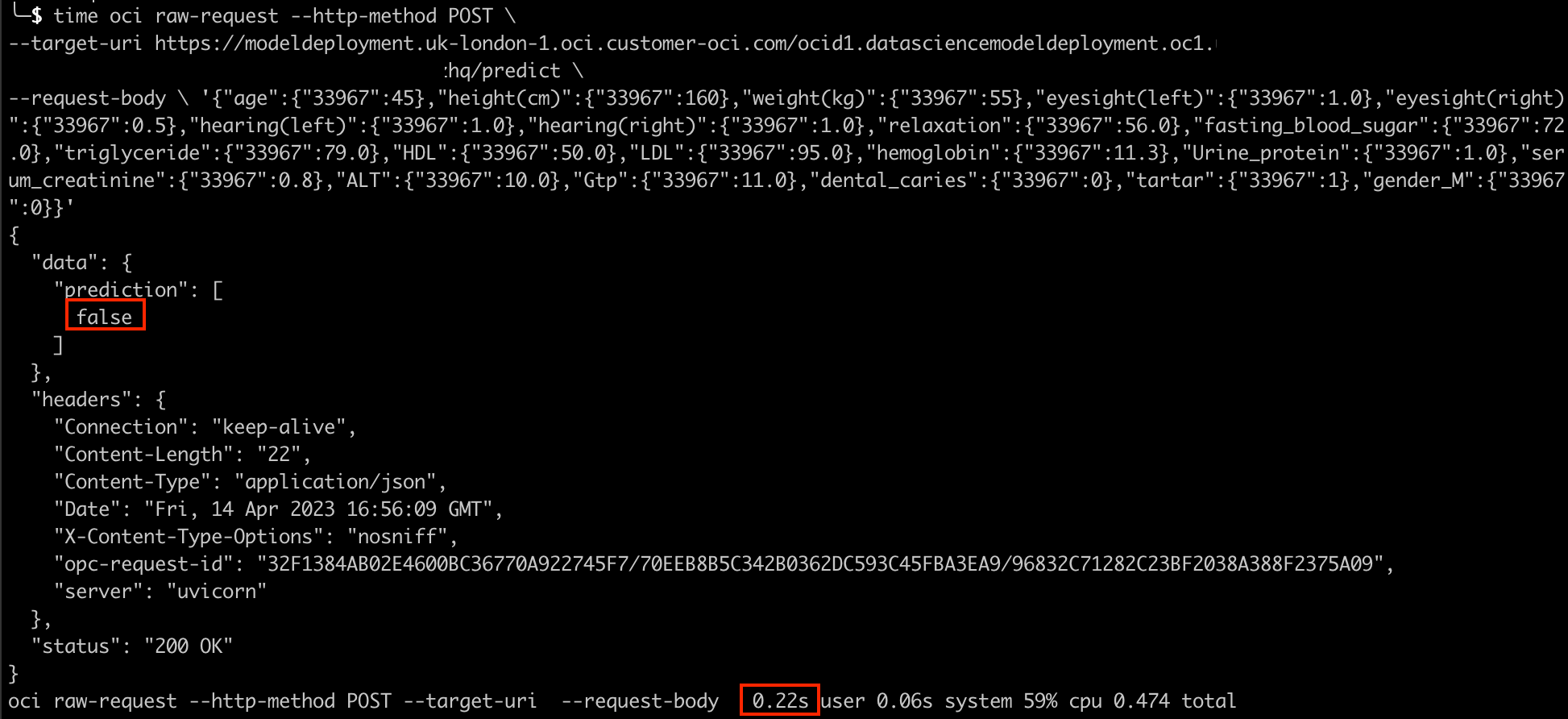
Once this config file has been created you can invoke this deployed model using the examples given on the OCI “Invoking your model” tab. Below I have already created an OCI config file on my Mac, I can therefore run the above code to create adhoc predictions by passing in a json payload in the command line.
oci raw-request --http-method POST \
--target-uri https://modeldeployment............./predict \
--request-body \
'{"age":{"33967":45},"height(cm)":{"33967":160},"weight(kg)":{"33967":55},
"eyesight(left)":{"33967":1.0},"eyesight(right)":{"33967":0.5},"hearing(left)":{"33967":1.0},
"hearing(right)":{"33967":1.0},"relaxation":{"33967":56.0},"fasting_blood_sugar":{"33967":72.0},
"triglyceride":{"33967":79.0},"HDL":{"33967":50.0},"LDL":{"33967":95.0},"hemoglobin":{"33967":11.3},
"Urine_protein":{"33967":1.0},"serum_creatinine":{"33967":0.8},"ALT":{"33967":10.0},"Gtp":{"33967":11.0},
"dental_caries":{"33967":0},"tartar":{"33967":1},"gender_M":{"33967":0}}'
The json format supplied here was created from the training data set from within the OCI Notebook session we were using earlier.
ExampleDataToPredict.head(1).to_json()

Running this in the command line returned a prediction of “False” in 0.22 seconds.
What is an OCI Data Science Job vs a Job Run?
There are two parts to OCI Jobs; the Job and the Job Run. The Job describes the task to be run, it contains the code and any other information required for the task, and these details can only be set when creating the job. The Job also contains the compute shape, logging information, and environment variables, which can be overridden in the job runs if required. The Job Run is the actual job processor. Whilst creating it you can override the compute shape, logging information, and environment variables. Each time the job is executed it will require a new Job Run, and you could have several Job Runs concurrently executing the same Job, for example with different hyperparameters.
Creating a Job
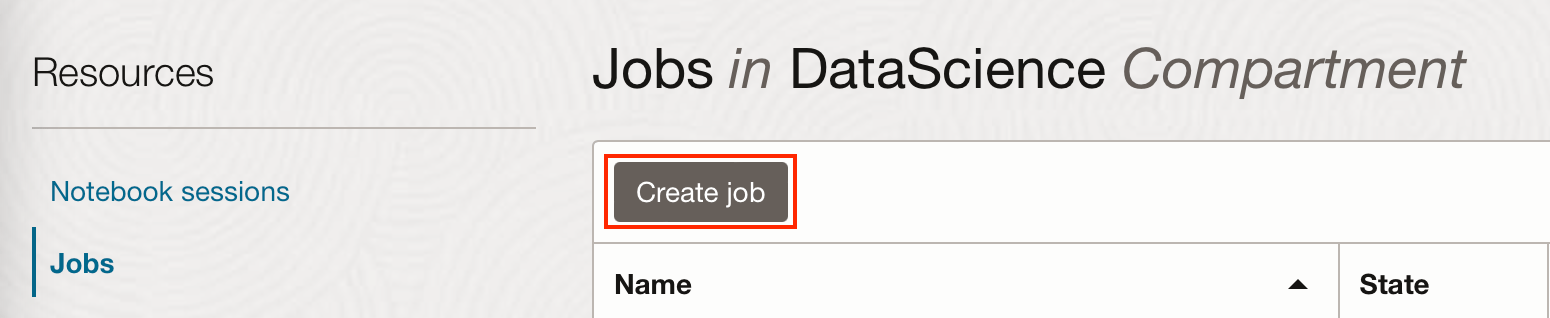
A job can be created within an OCI Data Science Project. Within the Project, there is a Jobs tab on the left-hand side from which you can create a job.
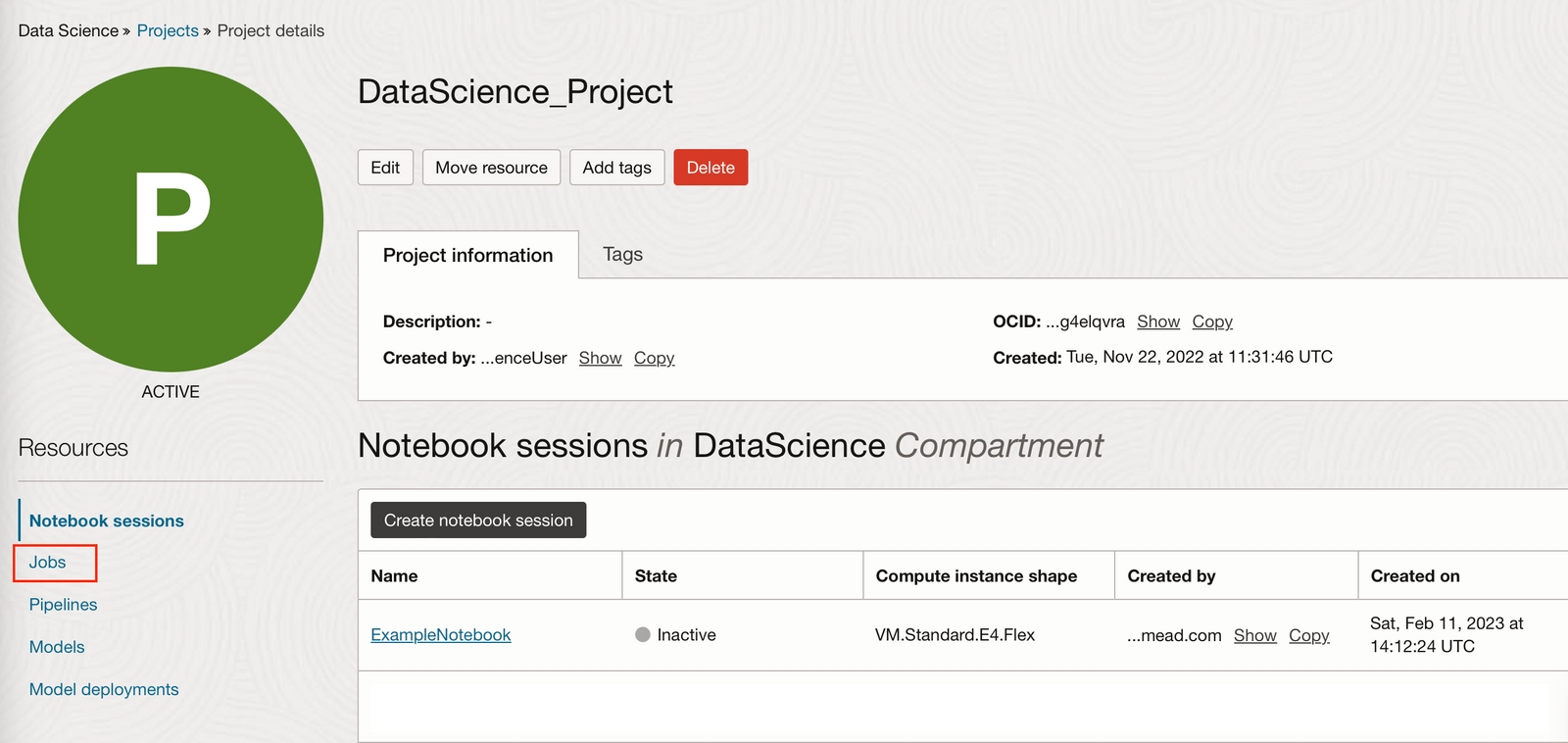
In the example below, I'm going to create a really simple job that will execute a Python file.
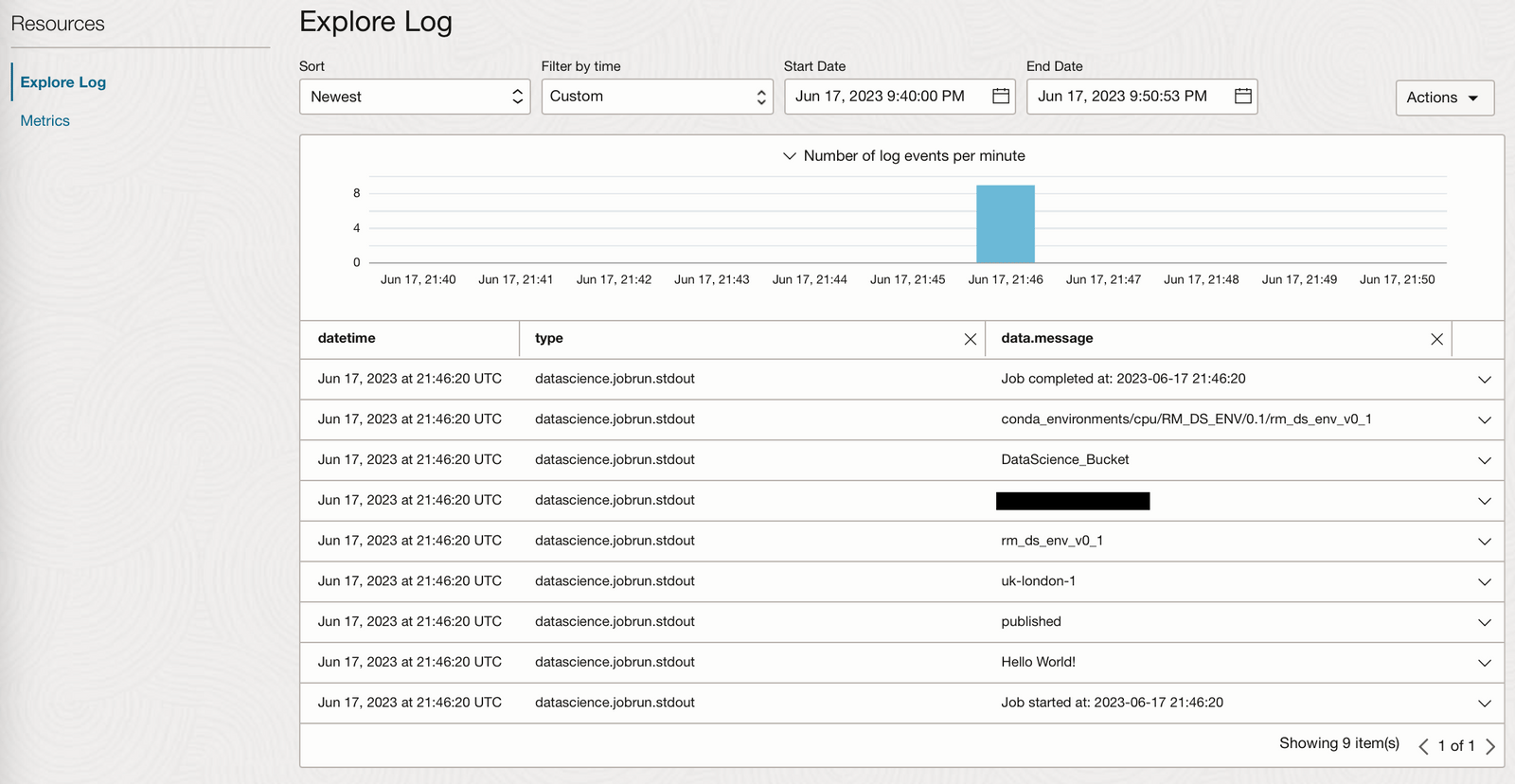
This Python file, ExamplePythonForJobAndSchedule.py is going to print the environment variables we set for the job and the start and end timestamps.
# Print start timestamp
from time import gmtime, strftime
now = strftime("%Y-%m-%d %H:%M:%S", gmtime())
print("Job started at: " + now )

import os

# Print environment variables
print("Hello World!")
print(os.environ['CONDA_ENV_TYPE'])
print(os.environ['CONDA_ENV_REGION'])
print(os.environ['CONDA_ENV_SLUG'])
print(os.environ['CONDA_ENV_NAMESPACE'])
print(os.environ['CONDA_ENV_BUCKET'])
print(os.environ['CONDA_ENV_OBJECT_NAME'])

# Print end timestamp
now = strftime("%Y-%m-%d %H:%M:%S", gmtime())
print("Job completed at: " + now )
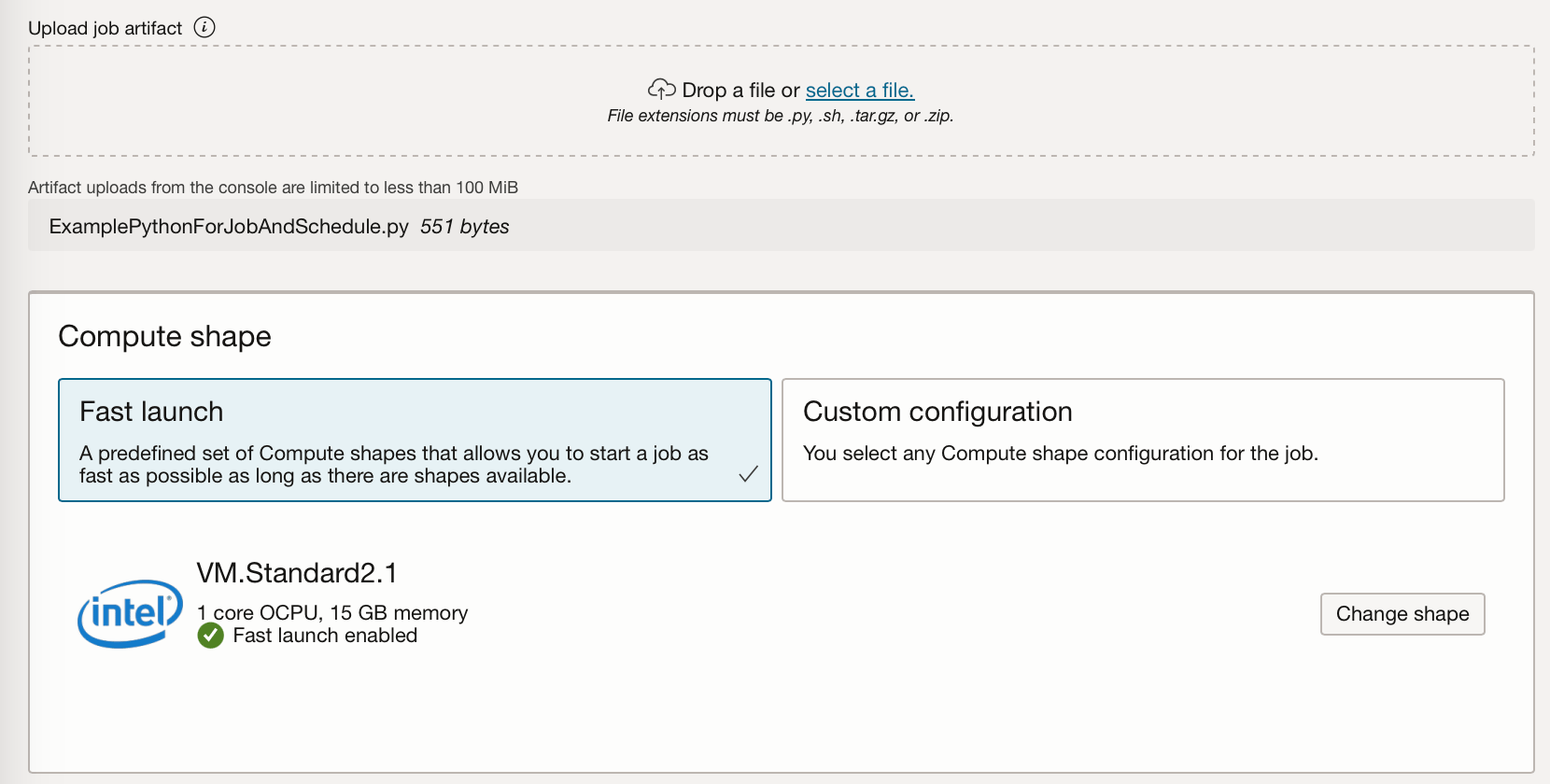
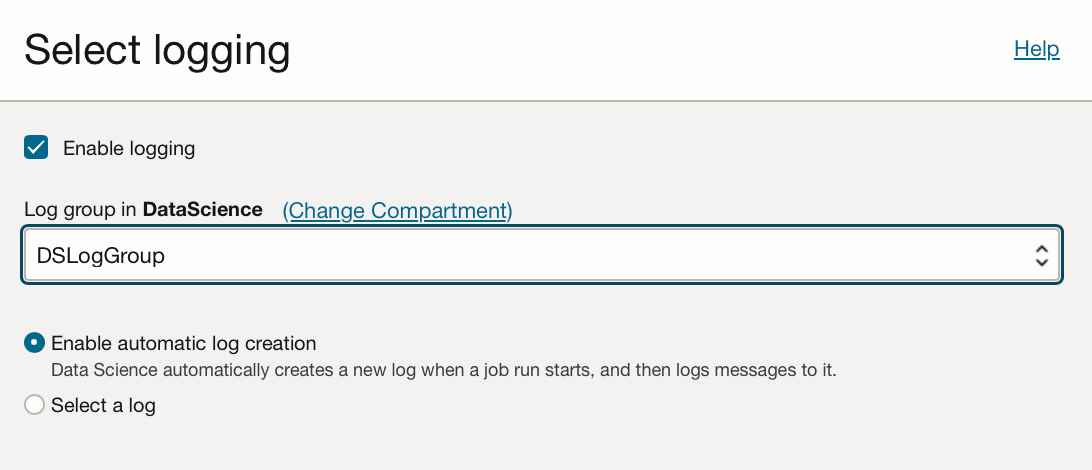
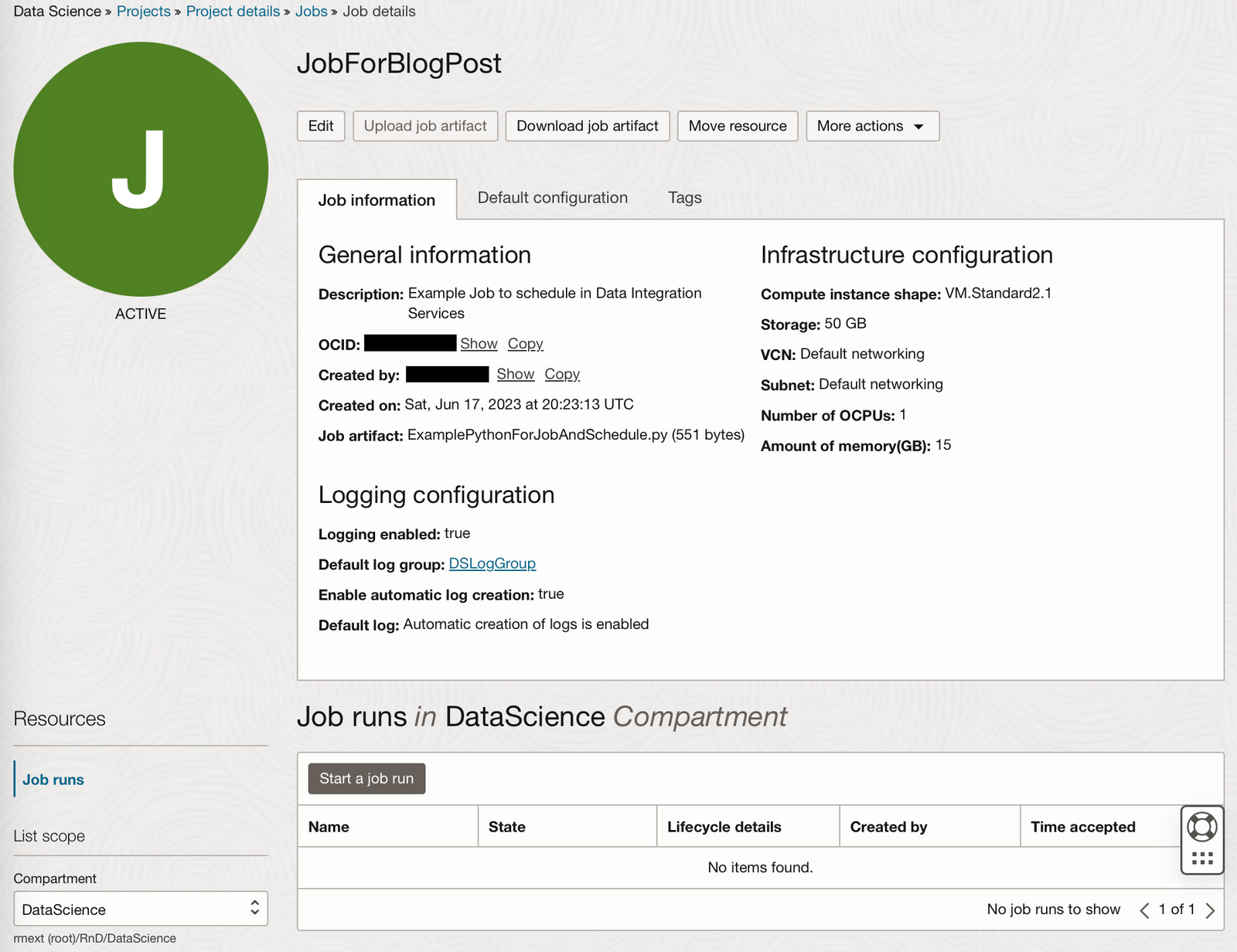
To create a job we must supply a job artifact file, this artifact file contains the job's executable code. This can be Python, Bash/Shell, or a ZIP or compressed tar file containing an entire project written in Python or Java. Here I'm just using the Python file mentioned above. We also need to set the compute shape to run the job artifact, the block storage, and networking. You have the flexibility to select various CPU and GPU shapes, and a block storage of up to 1 TB. The logging option allows you to set automatic logging creation for every job run, and will allow you to look at the standard output or errors from your artifact.
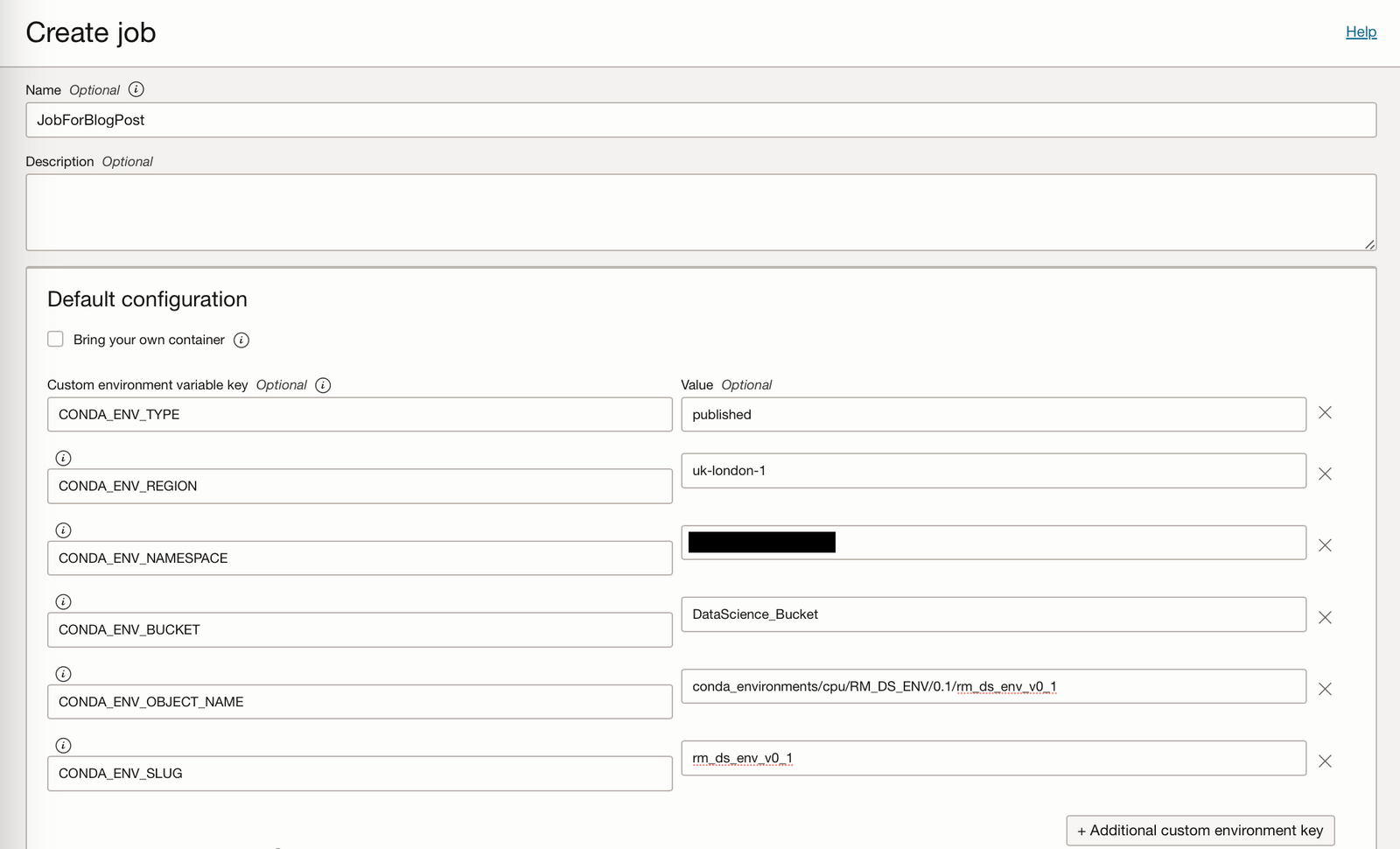
Here I have created a job called JobForBlogPost, where I have set the environment variable keys to point to my saved conda environment stored on the Storage bucket. Supplying these environment variables enables the job to use a specific conda environment within which specific Python modules are installed. This ensures that jobs can be executed on the same environments they have been tested on. If the job you are running does not need to connect to a published conda environment, or you do not have a conda environment currently published to your OCI Storage Bucket then you do not need to set these environment variables.
I have also uploaded the file ExamplePythonForJobAndSchedule.py and enabled logging. (If you do not have a log group associated with the compartment you are using, you can create one via Observability & Management → Logging. Depending on your security / policy settings creating a new log group might be the role of an admin on your OCI tenancy.)
You can then click “Create” and you will be taken to the OCI Job page.
Creating a Job run
After creating a job you can create a job run, this will execute the job once. You can overwrite many of your compute shape or environment variables here should you need to, I have just created a job run to execute the job as specified.
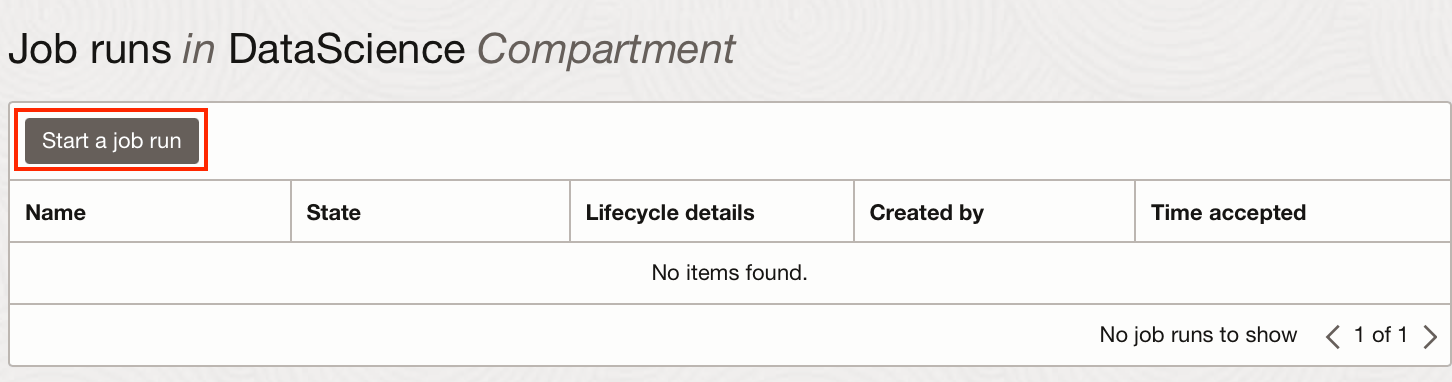
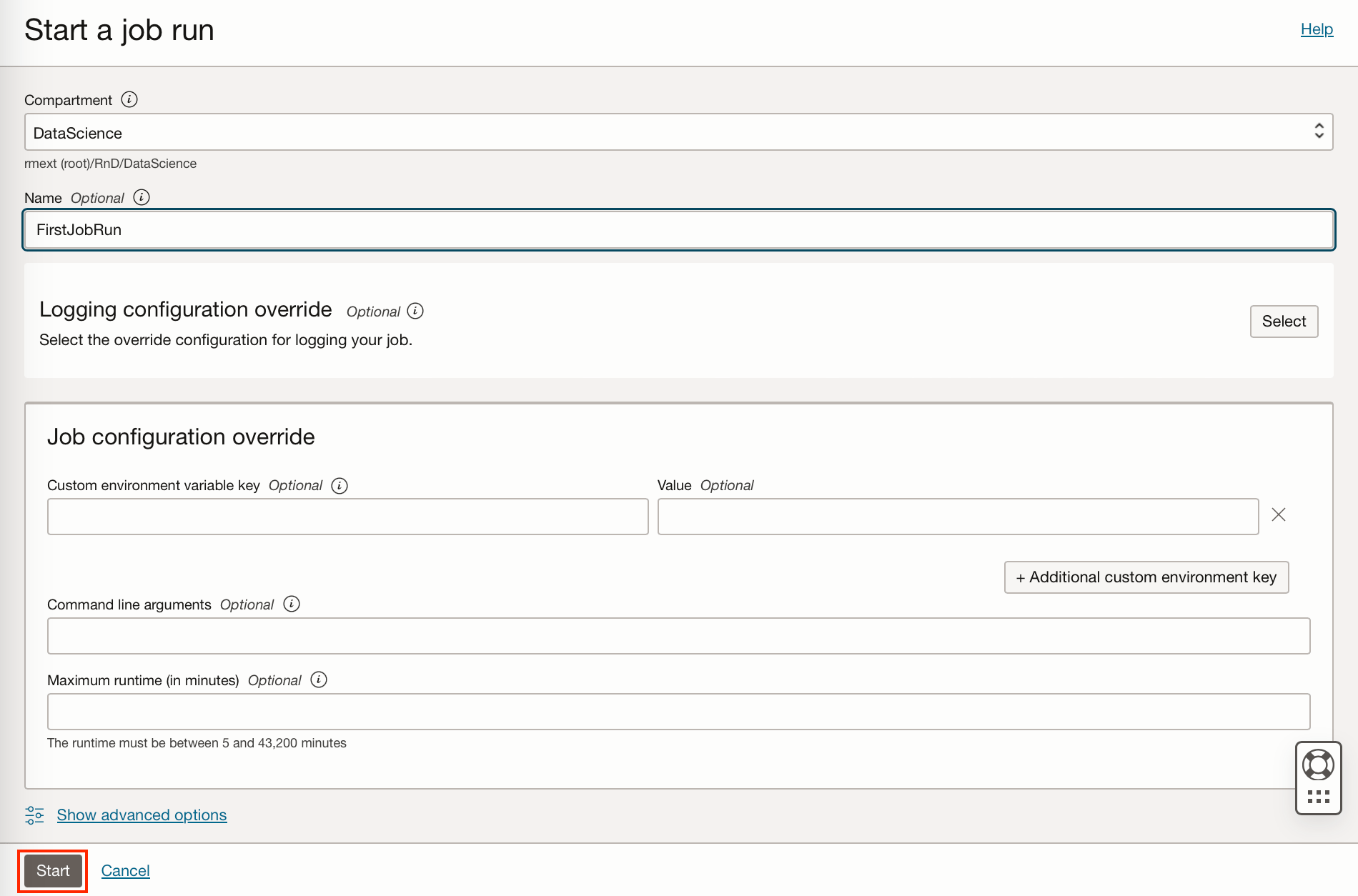
After clicking start, a machine is provisioned and the job run started. The job run details will go from Accepted to Succeeded.
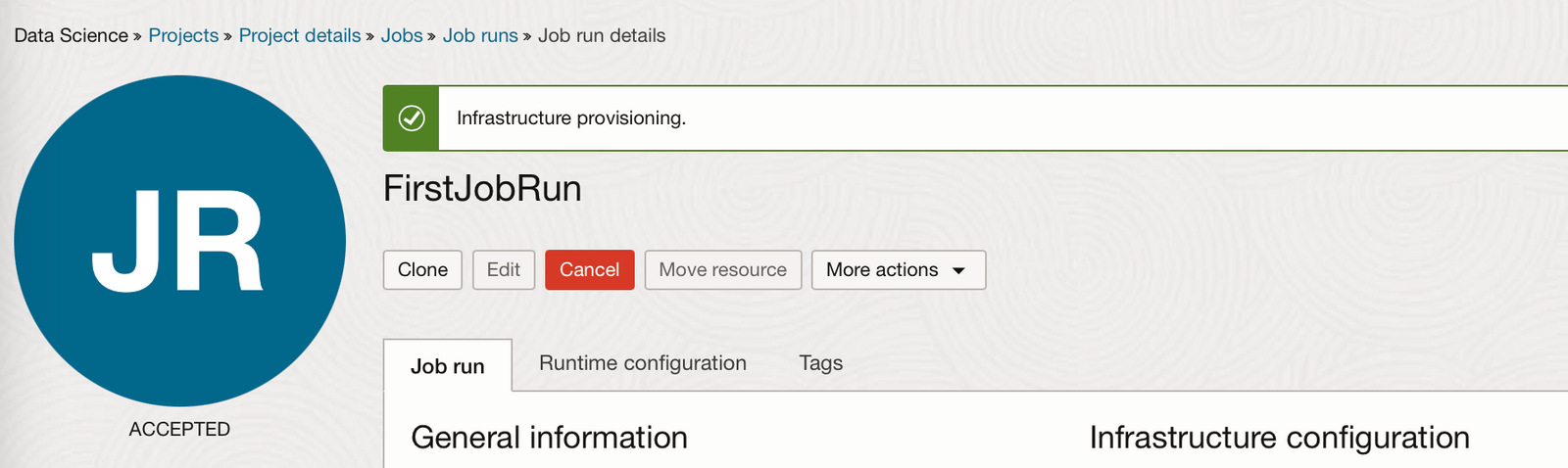
Since we enabled automatic log creation when creating the job, a log will be linked under the Logging Details section of the Job Run.
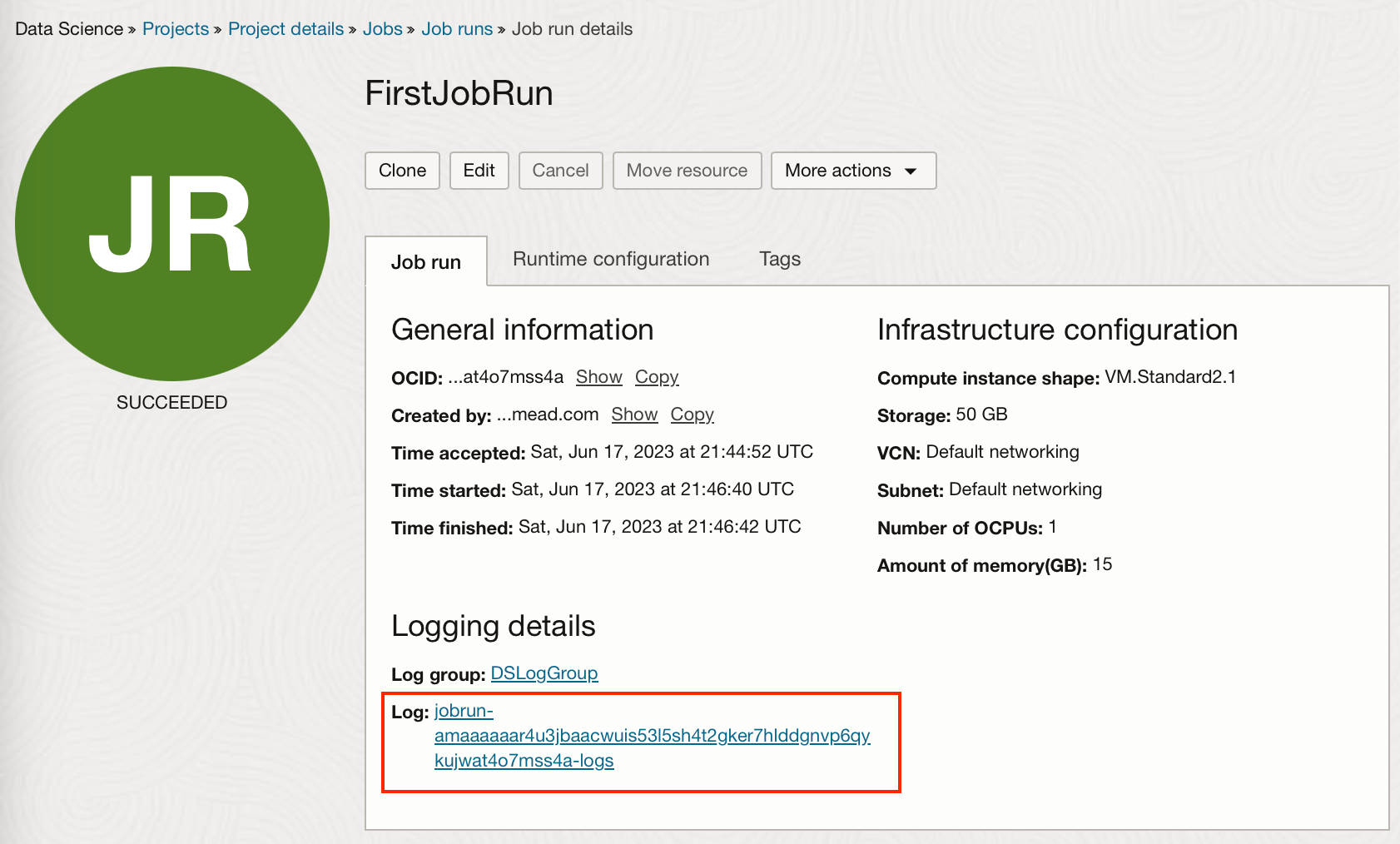
From this log, we can see printed statements and other standard outputs or errors.
Now we know how to create jobs and job runs, and how to pass these jobs or runs environment variables. The environment variables can be used as above to specify conda environments which have been published to a storage bucket, but they could also be used to access your secrets stored in the Vault, or to pass any other variables you wish to use in the artifact file of your job. Jobs can therefore be used for a whole range of tasks that could include, reading and writing to the storage bucket, reading and writing to an ADW, performing data manipulation etc.
Scheduling a Job
Creating a single Job Run just executes the Job once, if we want to run it many times from OCI Data Science we would need to manually create many Job Runs, luckily we can schedule the job using the OCI data integration service. In order to do this we have to create several things:
-
A Data Integration Workspace
-
A Project within the workspace
-
A Rest Task (Containing the details of the data science job to be run )
-
An Application (To execute the task)
-
A Schedule (To define the frequency of the task to be run)
Create a Workspace and Project
Data Science Jobs can be scheduled via the data integration service.
If you don’t already have a Data Integration Workspace and Project you wish to use, you will have to create one. This can be done under Analytics and AI → Data Lake → Data Integration.
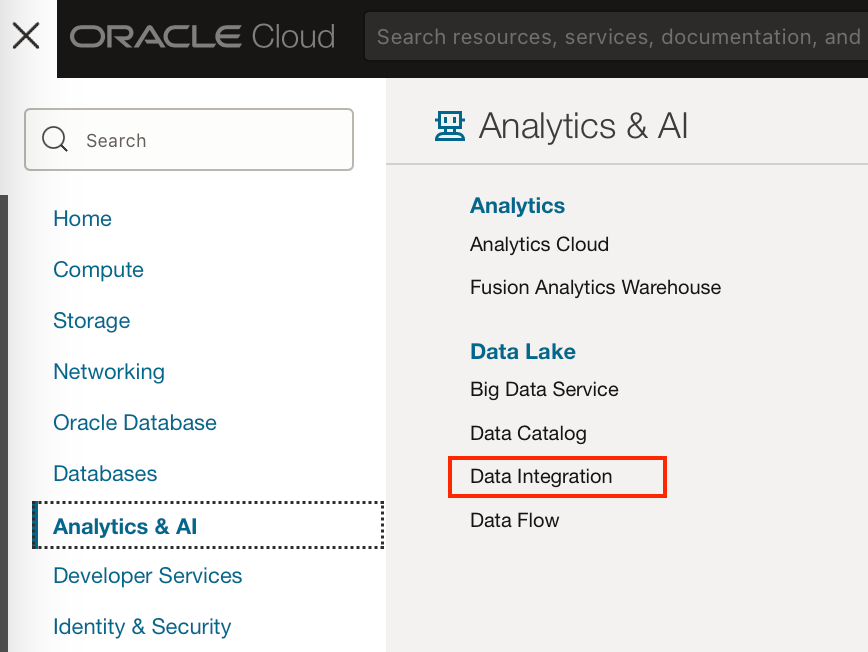
From here, you can create a workspace, adding a VCN if you’re using one. This will take a few minutes.
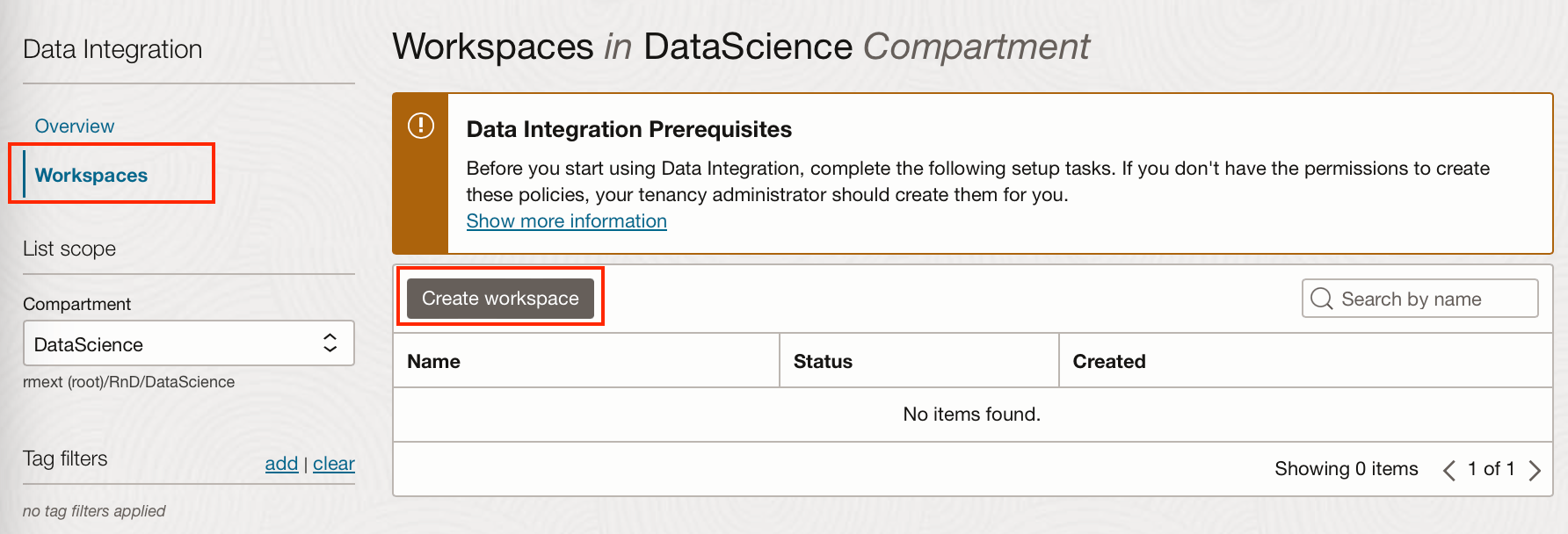
A default project “My First Project” is created with the workspace, you can use this or click “Create project” to create a new project.
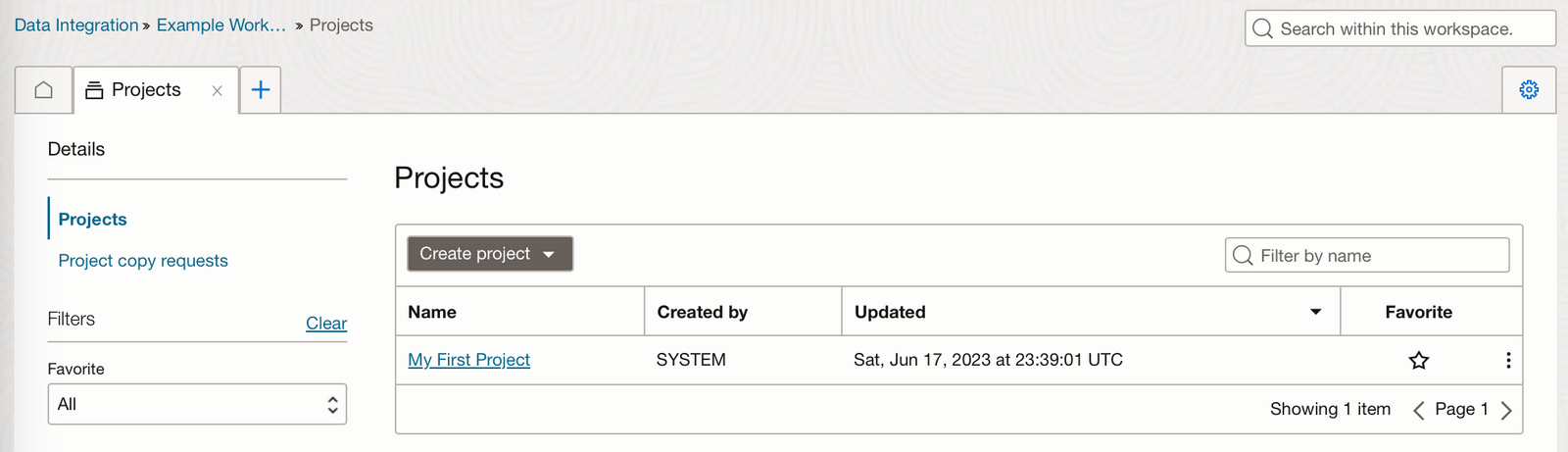
Create a REST Task
From within the data integration project, you can create a REST task this will create a data science job with the same specifics as the job details we supply it with.
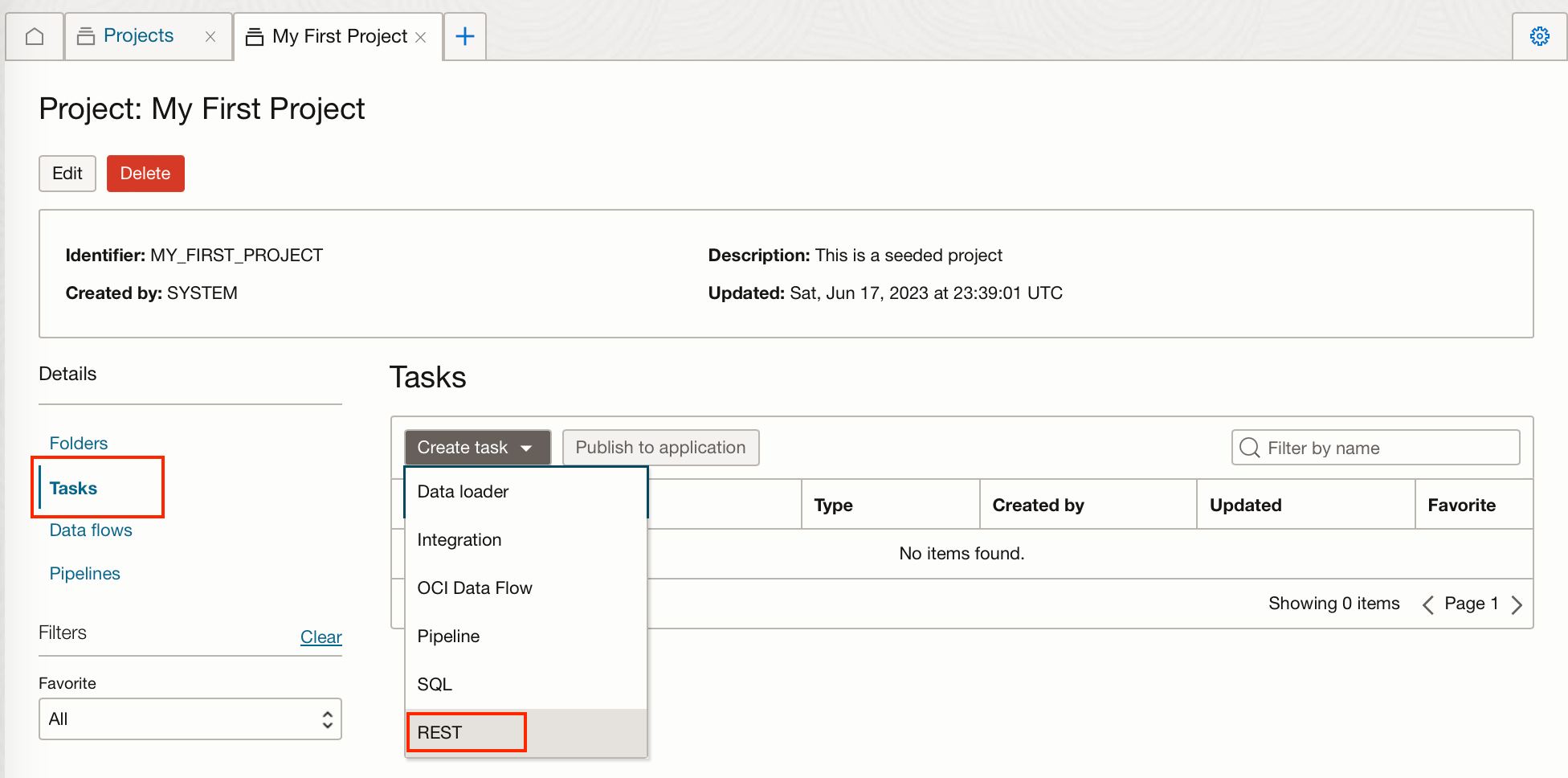
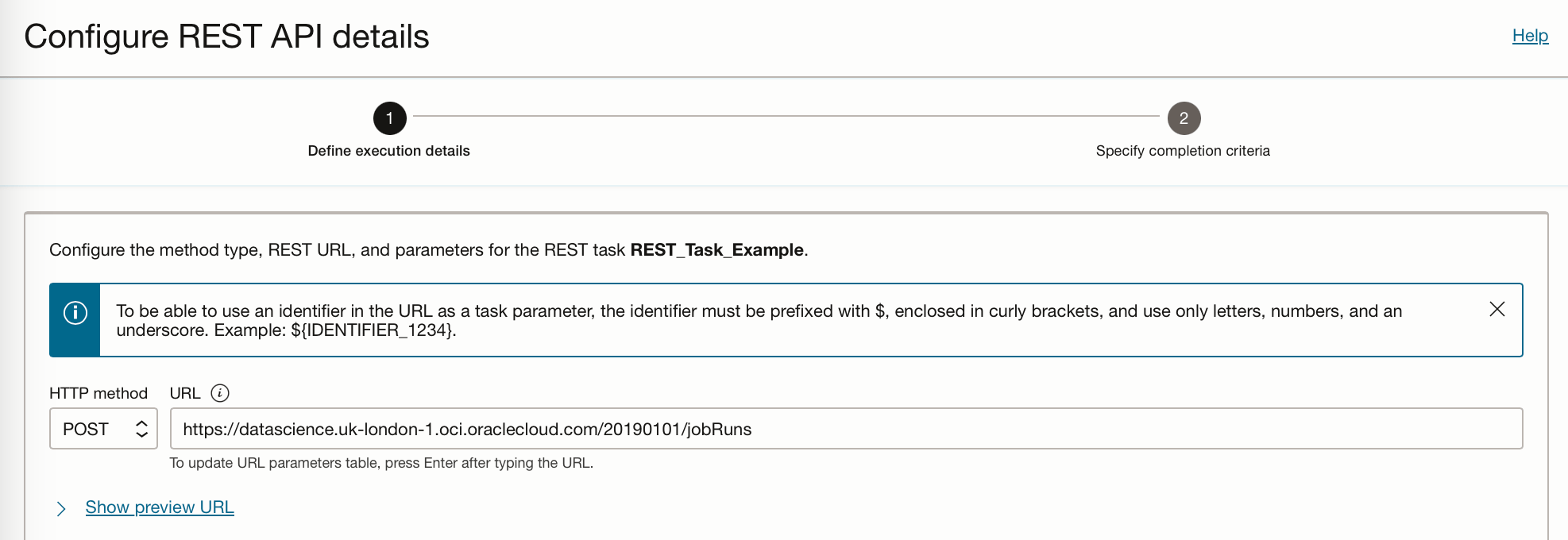
Within the REST API Details, change the HTTP method to POST, and the URL to
https://datascience. <region-identifier>.oci.oraclecloud.com/<REST_API_version> /jobRuns
My URL looks like this:
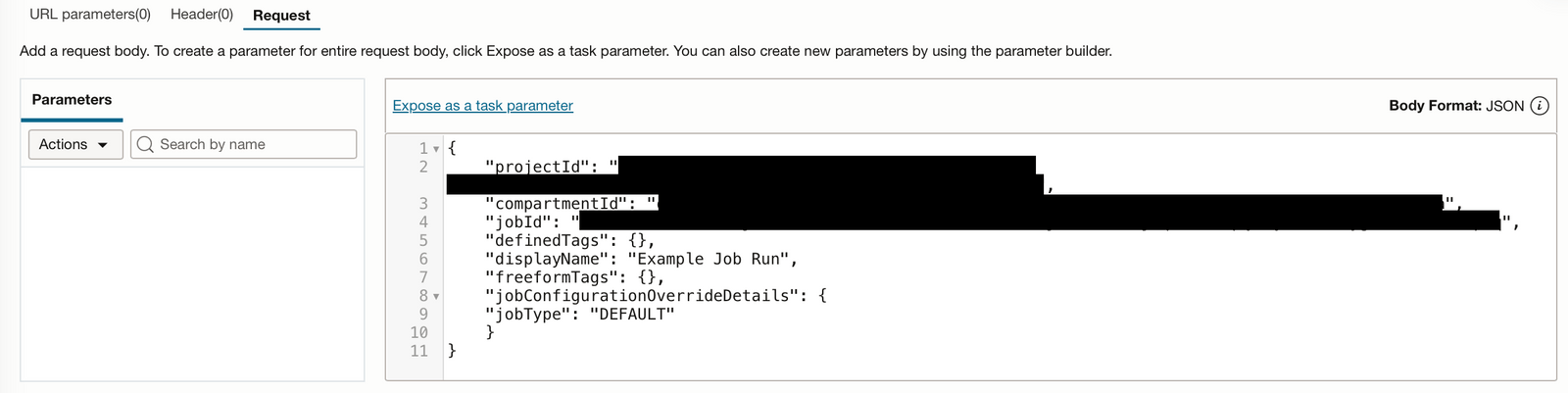
In the Request tab, you will need to supply the API with the job details, including theprojectId, compartmentId, and jobId.
{
    "projectId": "",
    "compartmentId": "",
    "jobId": "",
    "definedTags": {},
    "displayName": "Example Job Run",
    "freeformTags": {},
    "jobConfigurationOverrideDetails": {
    "jobType": "DEFAULT"
    }
}
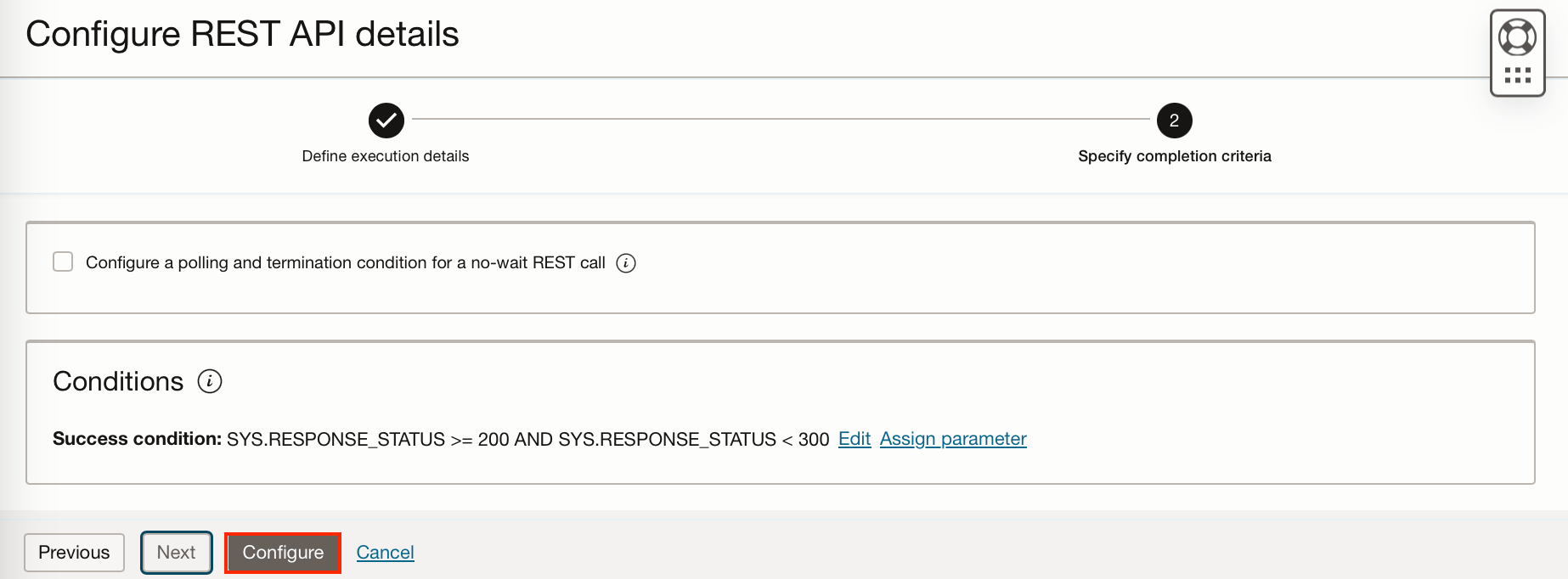
Click “Next” and set the success criteria. (I have just accepted the defaults). Then click “Configure”.
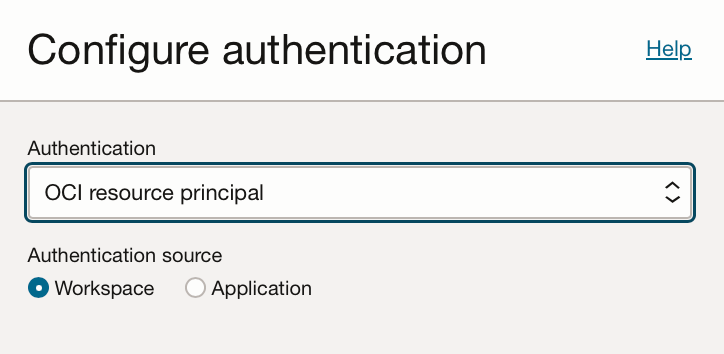
In the Authentication pane select OCI resource principal and workspace, this will allow our task to authenticate itself and access the data science service.
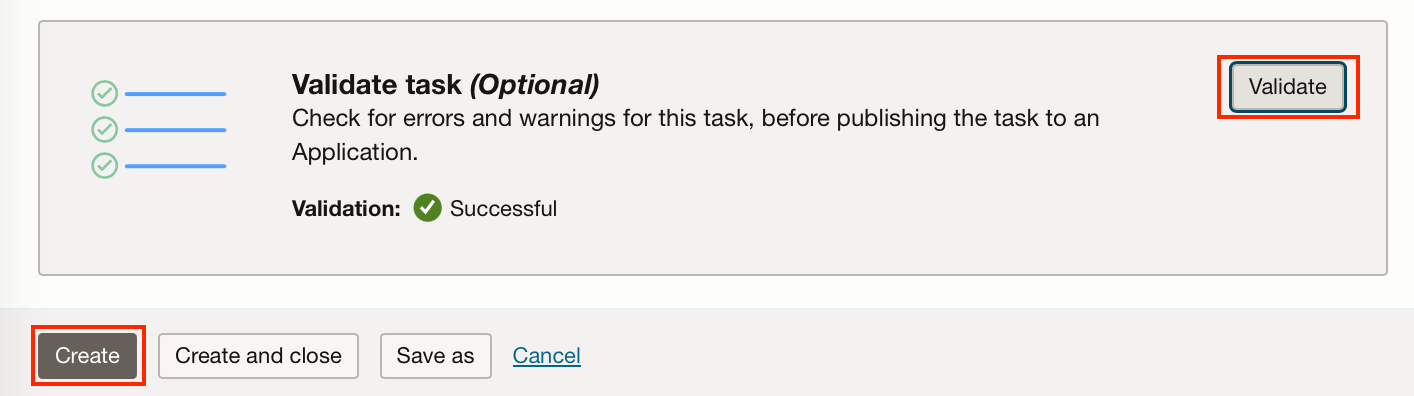
Validate the task, then click “Create”.
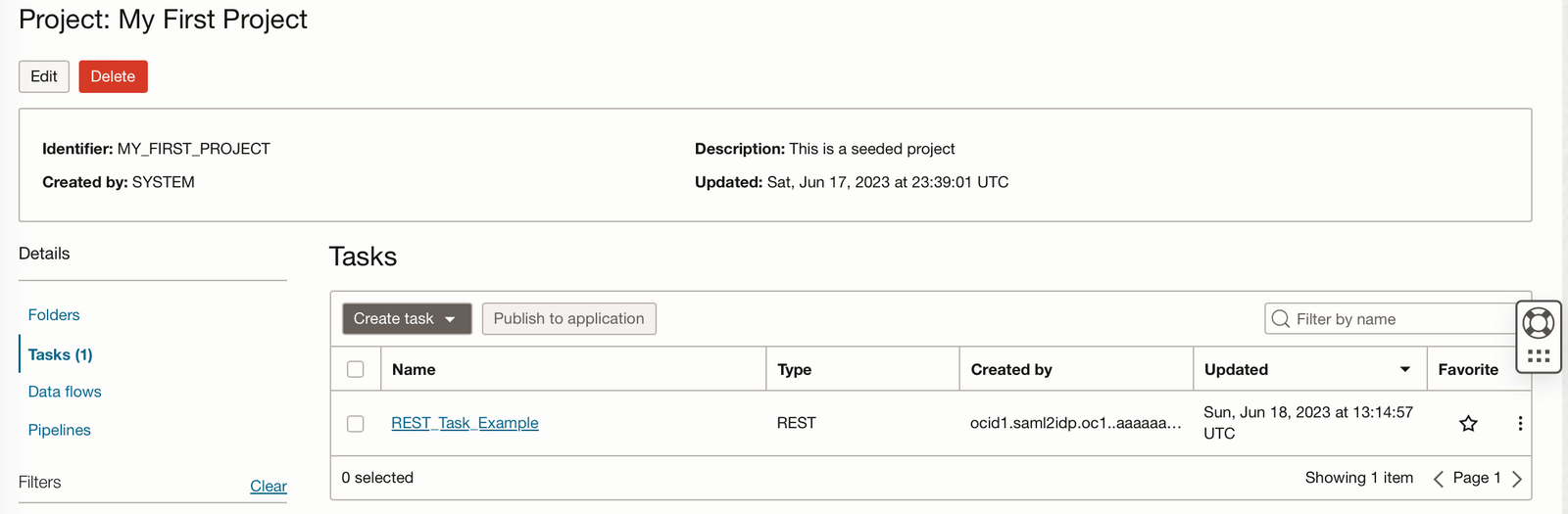
We can now see this REST task in our Data Integration Project.
Create an Application
To execute this task we require an application, you can either create a specific application, or you can use the default application created with the workspace.
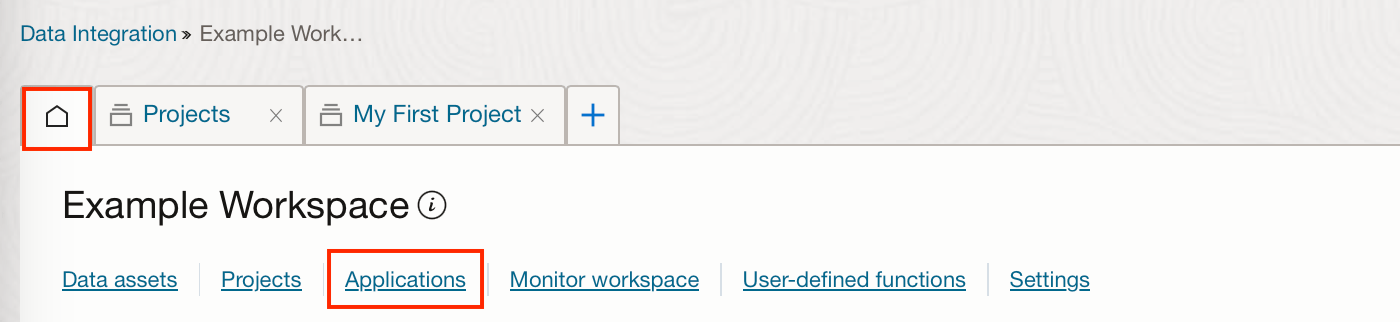
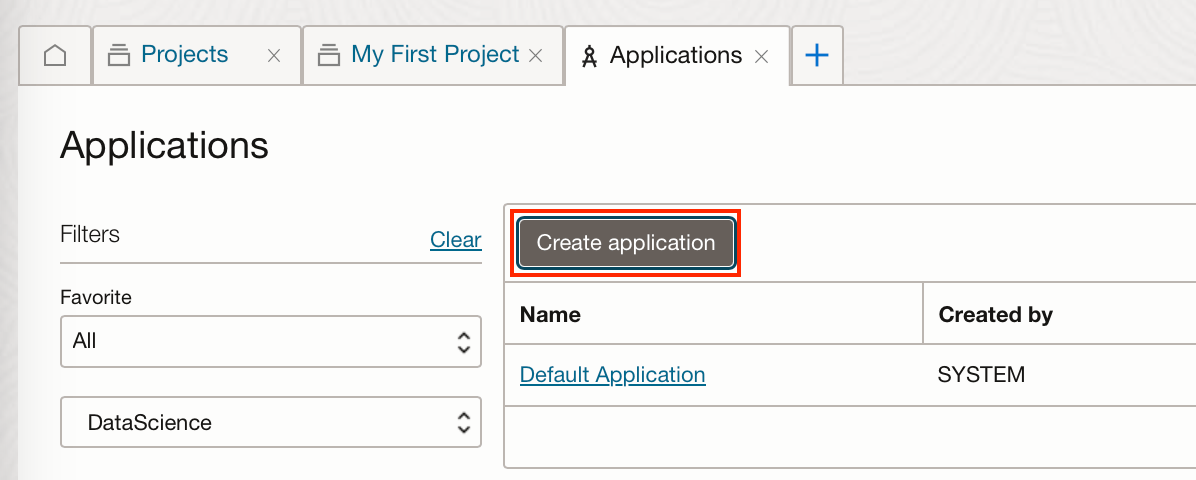
To create an application go to the Home tab and then Applications.
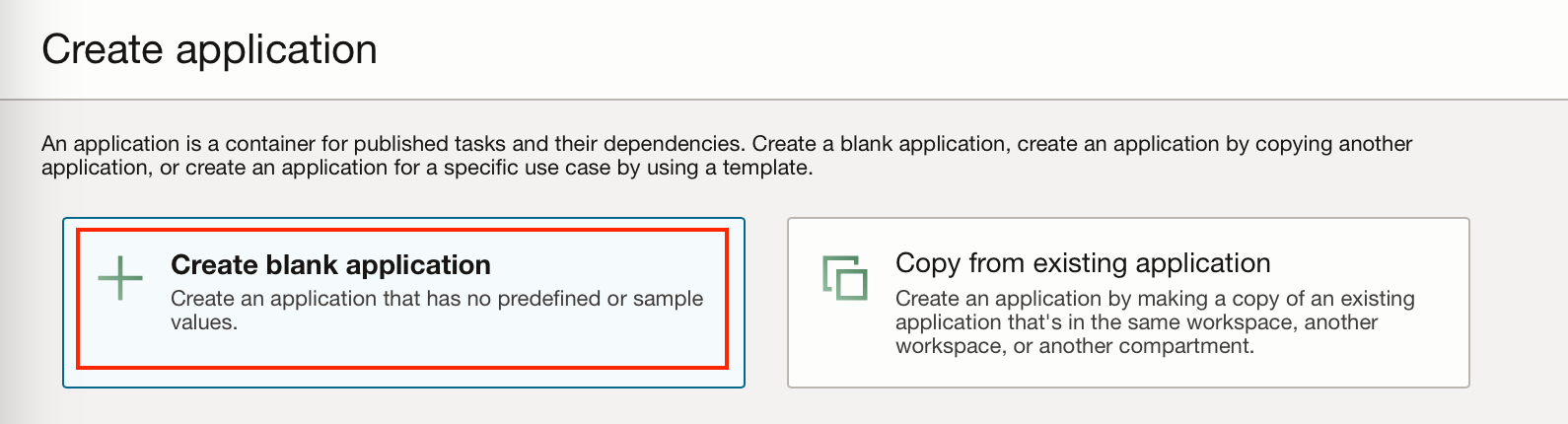
Click “Create application”, in the example below I have created a blank application.
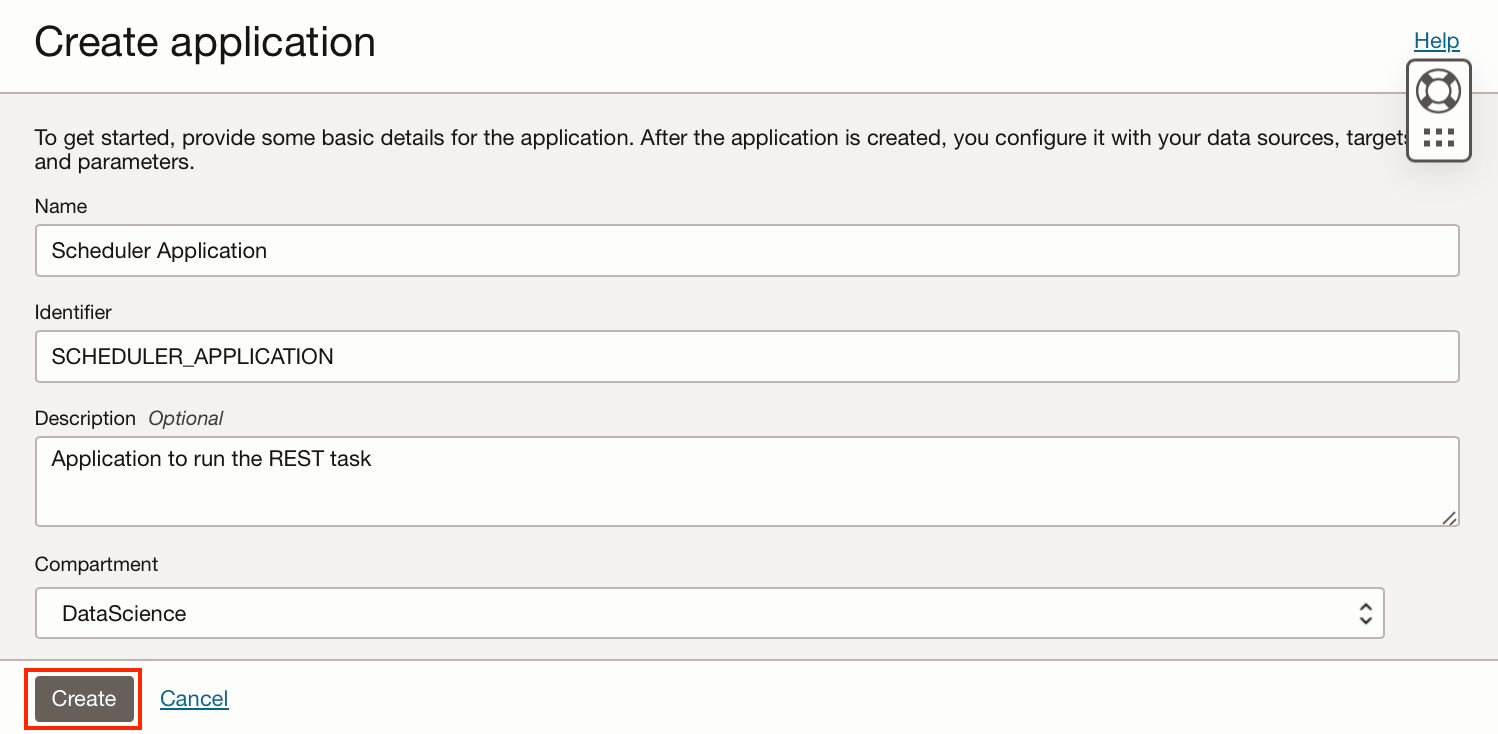
To assign the REST task to the application, we go back to the Tasks within our Project “My First Project” and click on the ellipsis and then “Publish to application”.
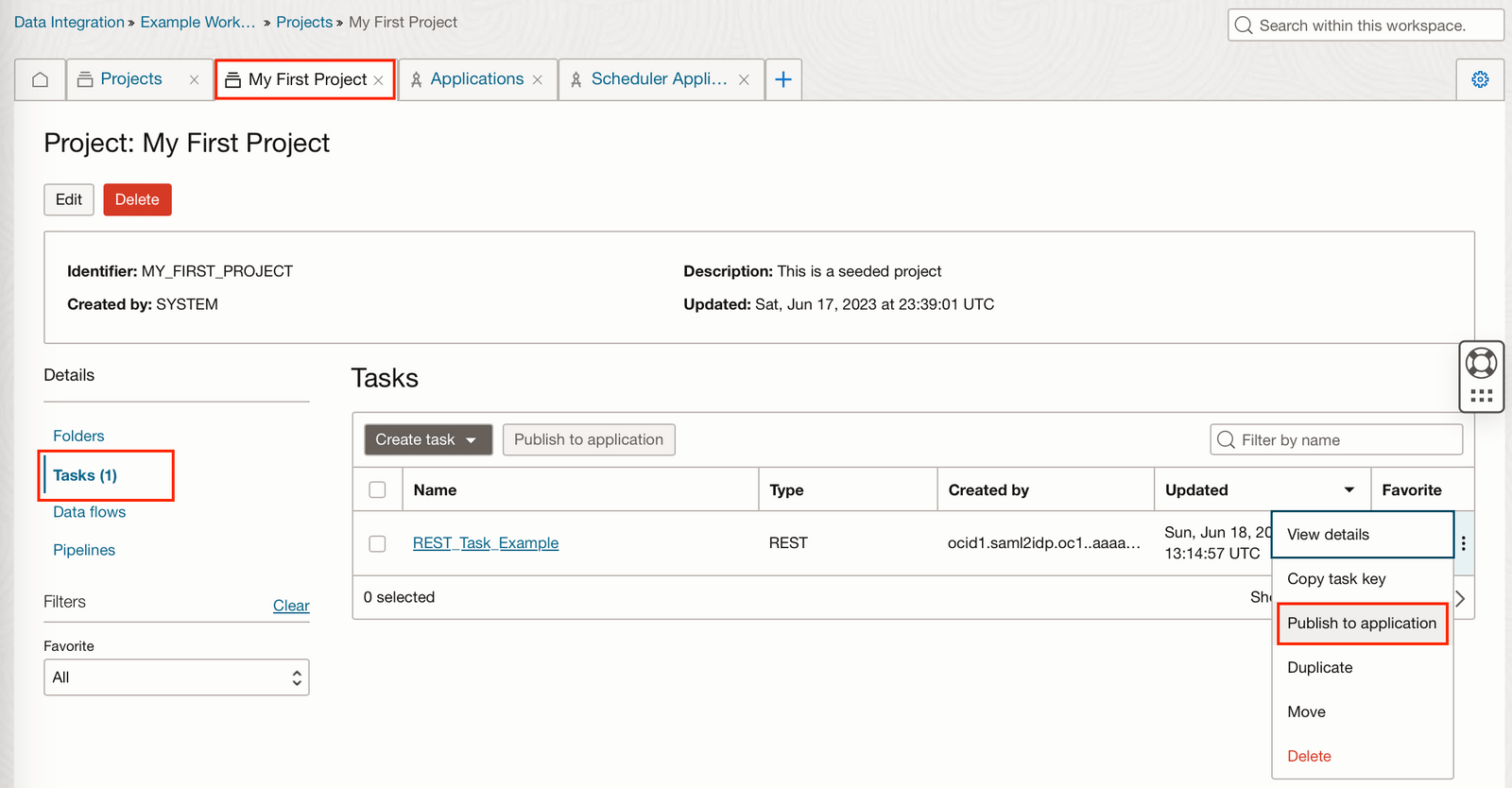
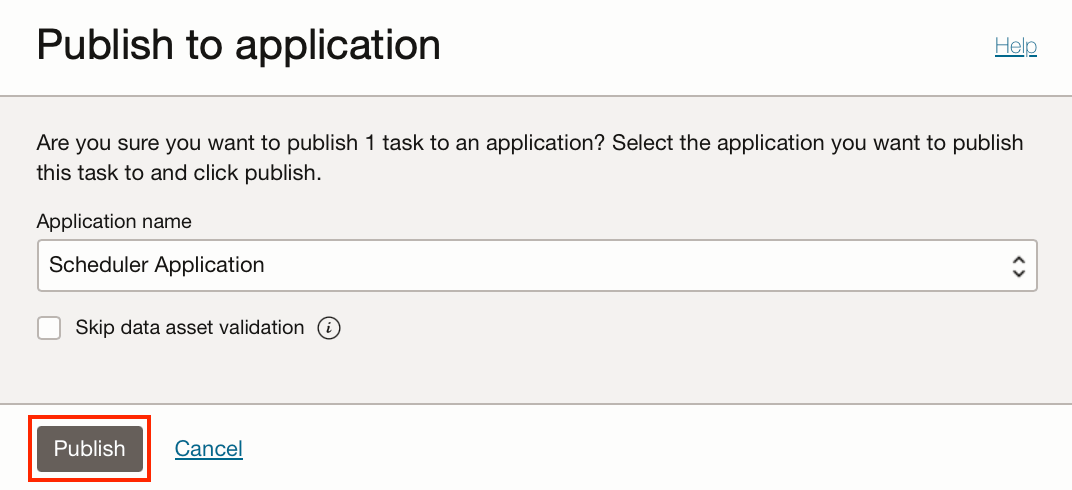
Select our Scheduler application from the drop-down and then “Publish”.
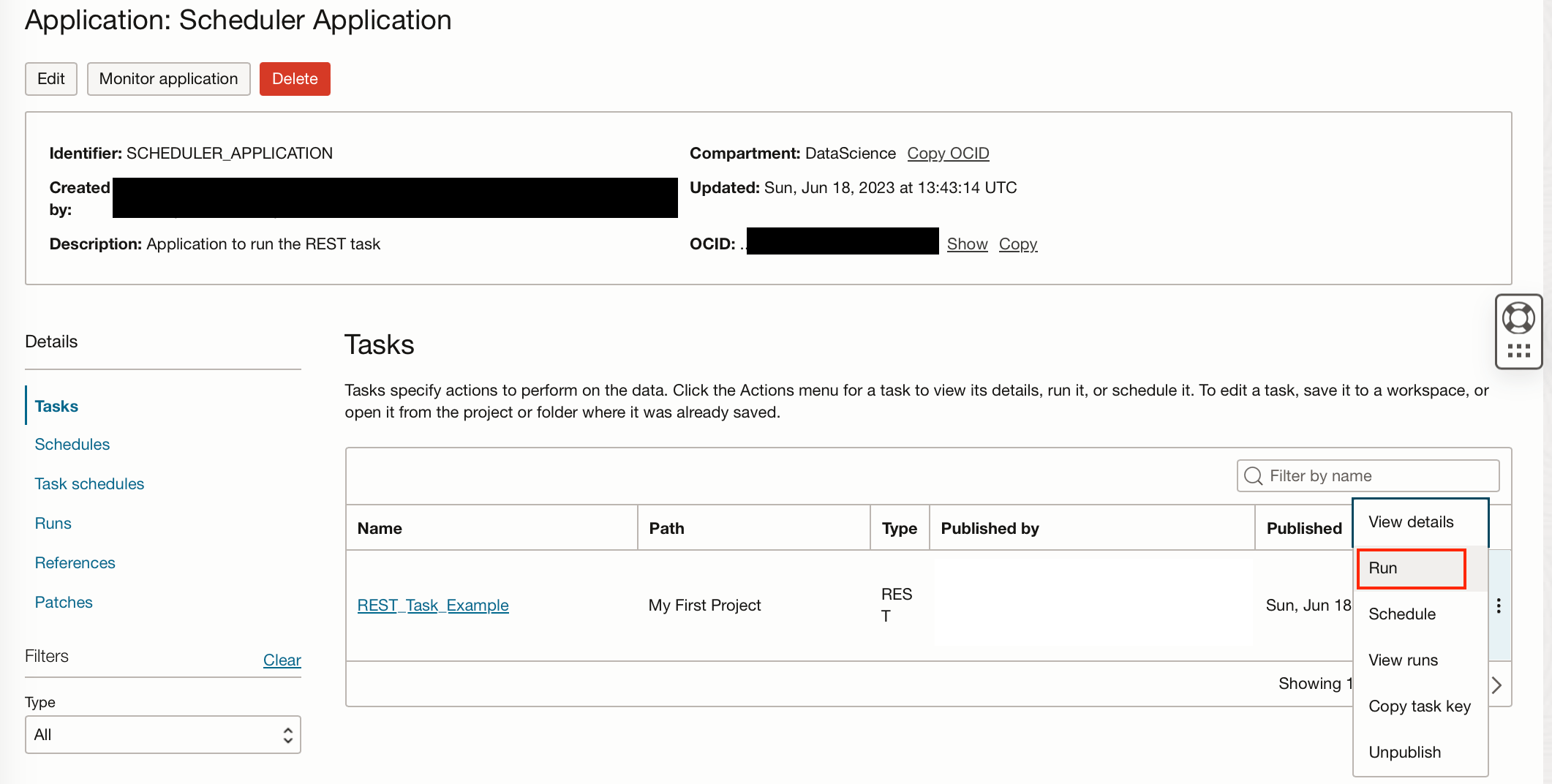
If we navigate back to our application, we can see our REST task in our applications list of tasks. We can now test that this task works by clicking on the ellipsis next to the task and “Run“.
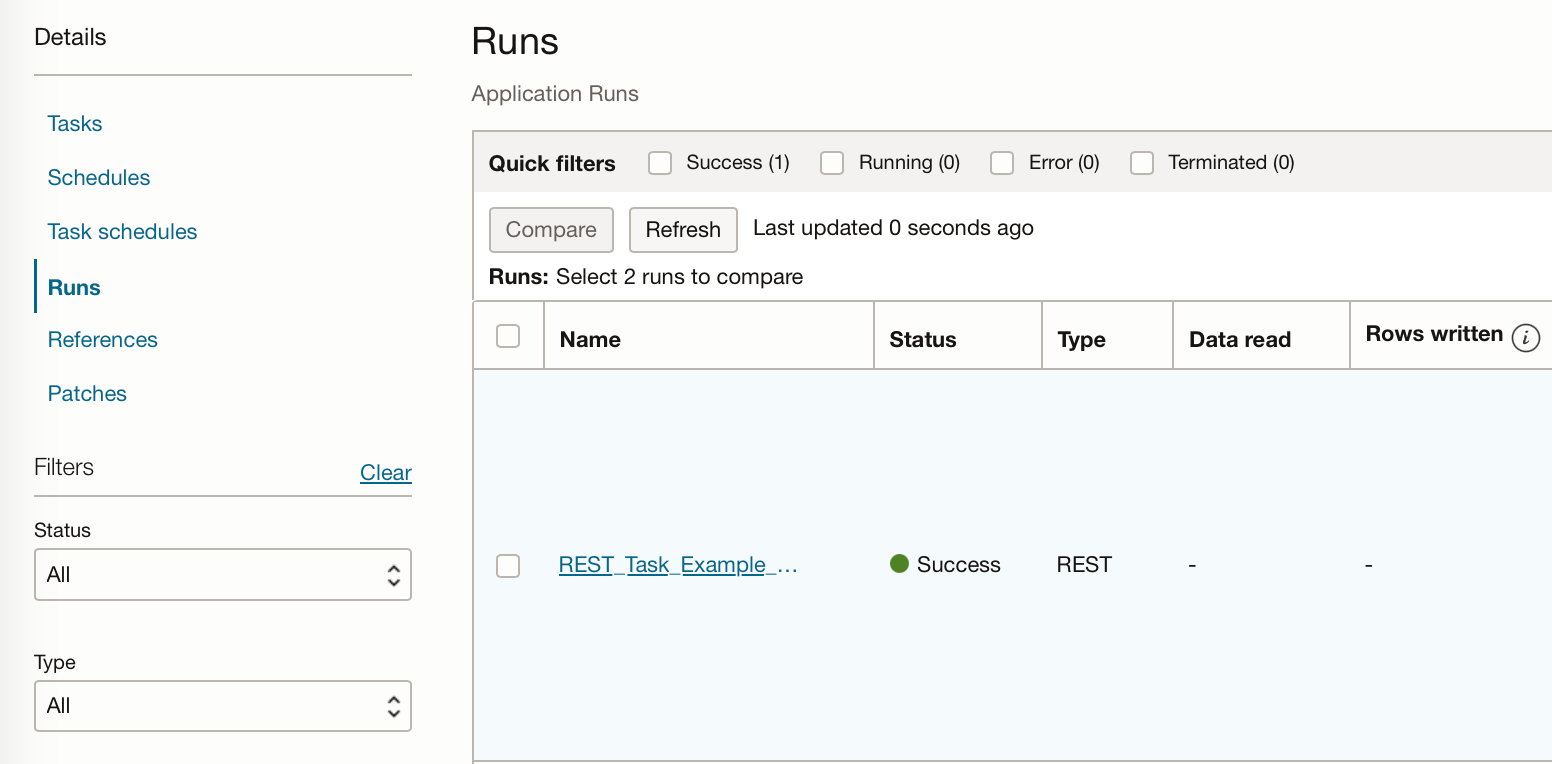
This will automatically take us to the runs tab, which will show us that the task is being run and will hopefully be successful.
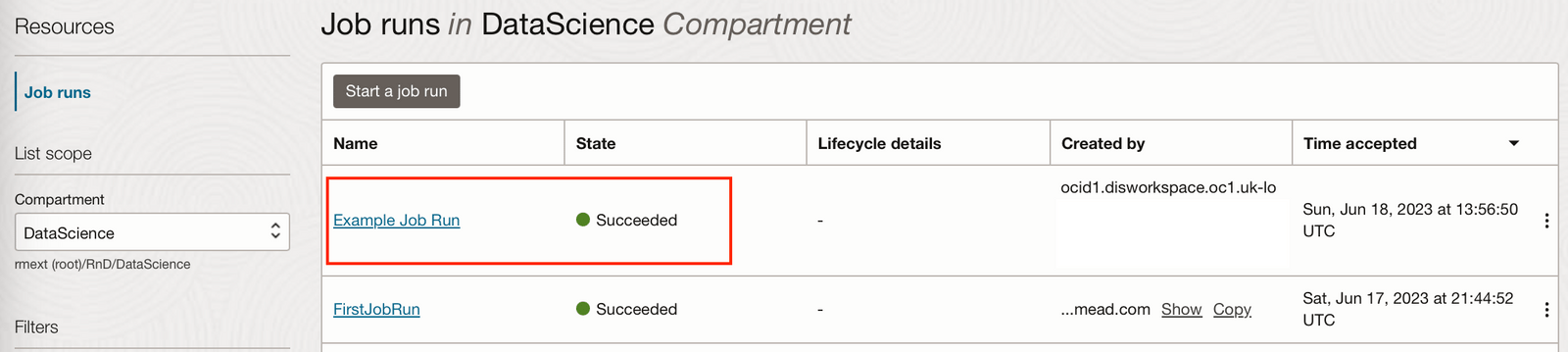
If we go back to our Data Science Job in OCI Data Science can see that a job run has been created from this task execution.
Create a Schedule
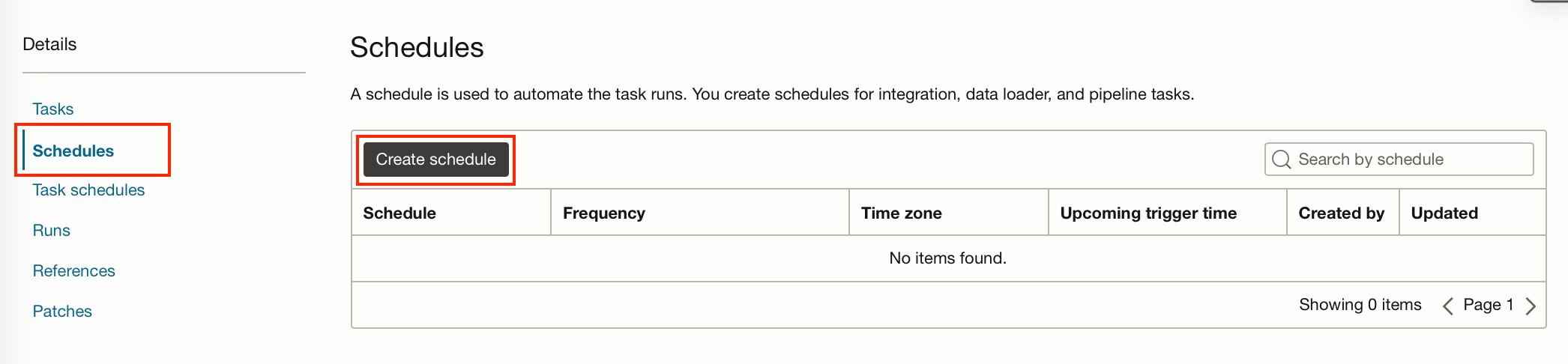
Now we know our application runs our Data Science Job we need to schedule the application. A schedule can be created from within our Data Integration Application.
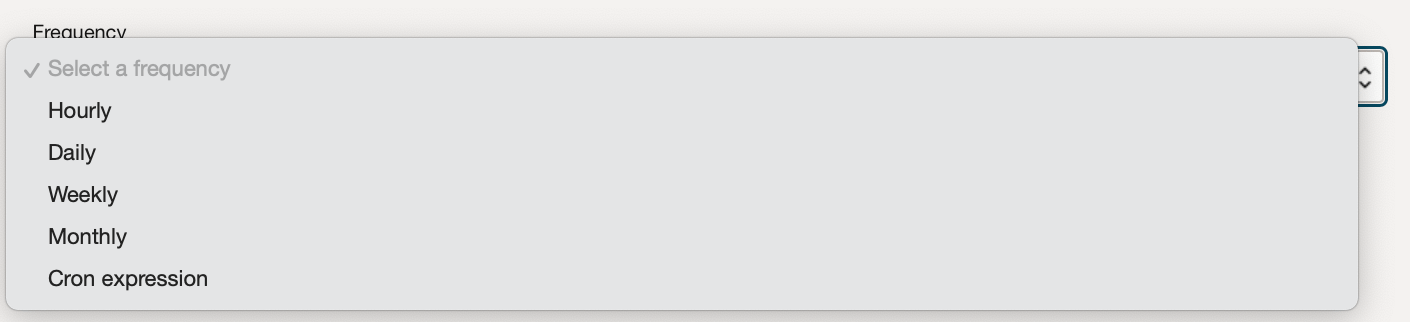
Here you set the time zone and frequency, depending on the frequency you select you can customise the start time of your schedule. (If you select a cron expression the most often you can set is once every 30 minutes).
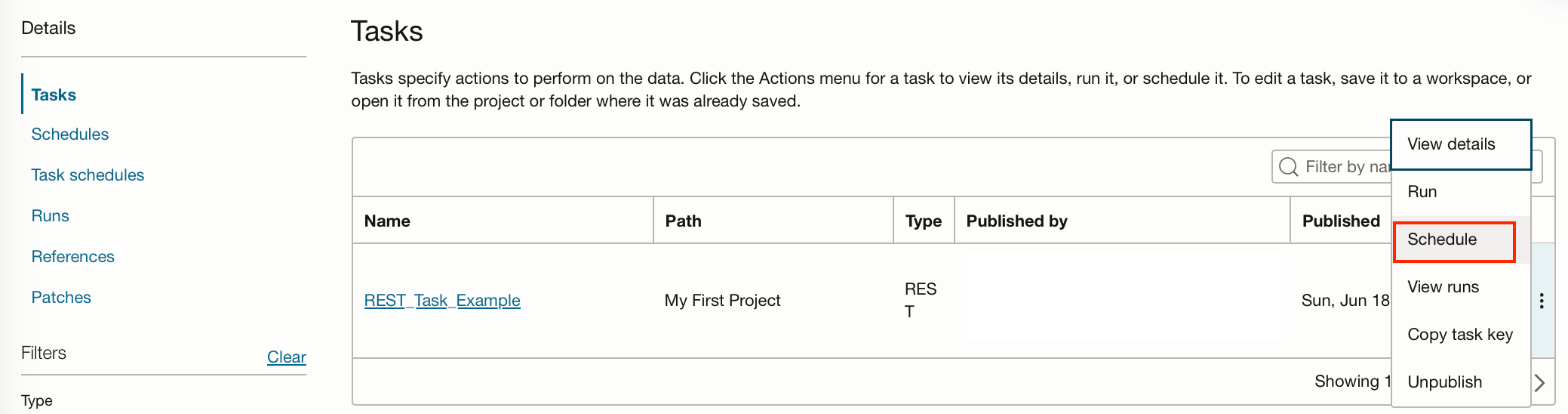
Once you have created the schedule you can add it to the task within the application. To do this go back to the tasks listed in the application, click on the ellipses and click “Schedule”.
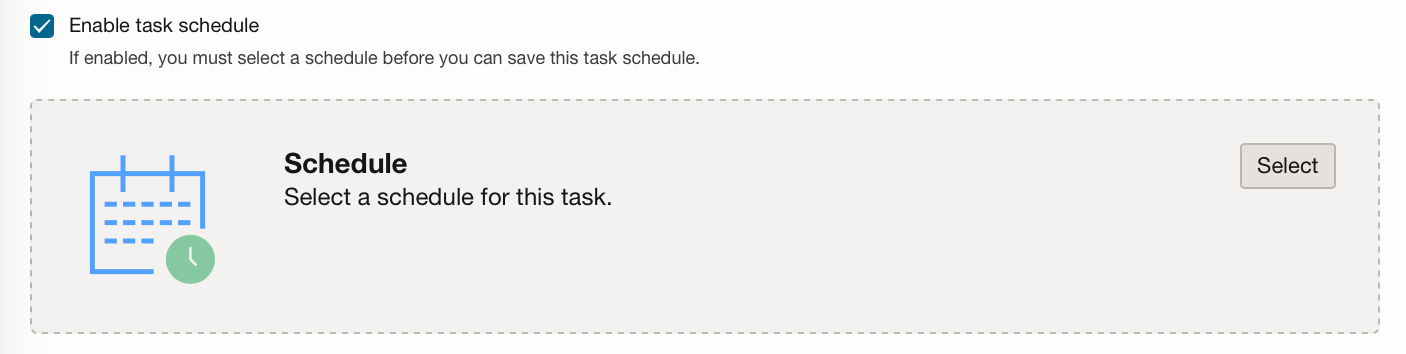
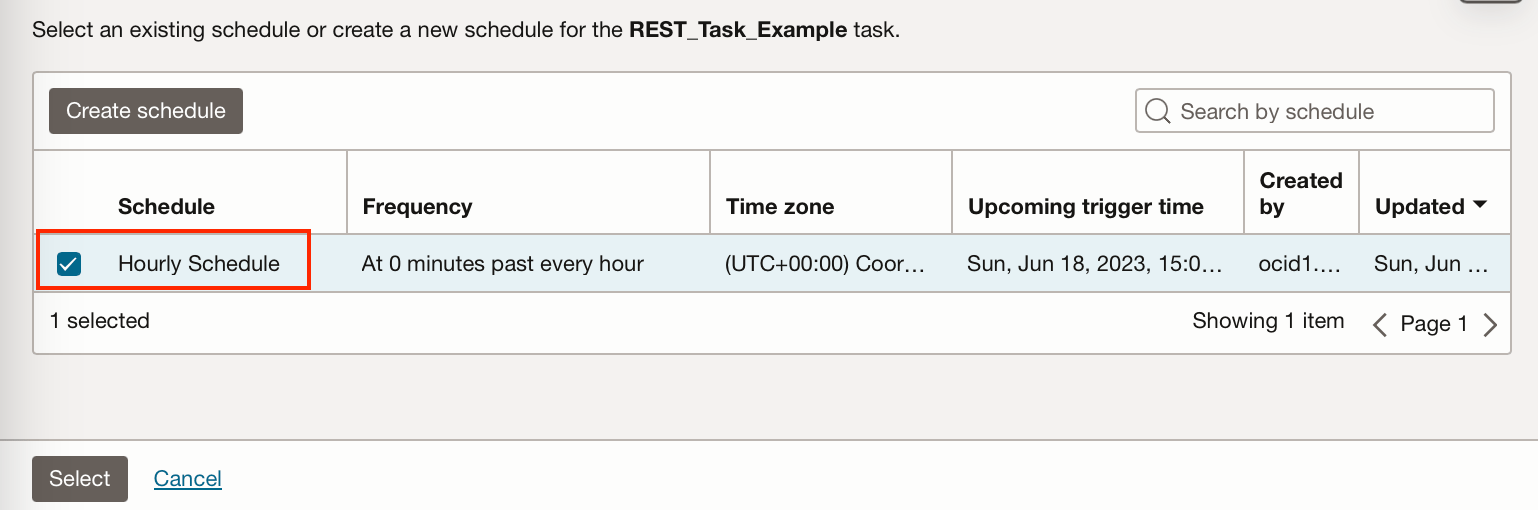
Select the schedule you have just created and then click “Create and close”.
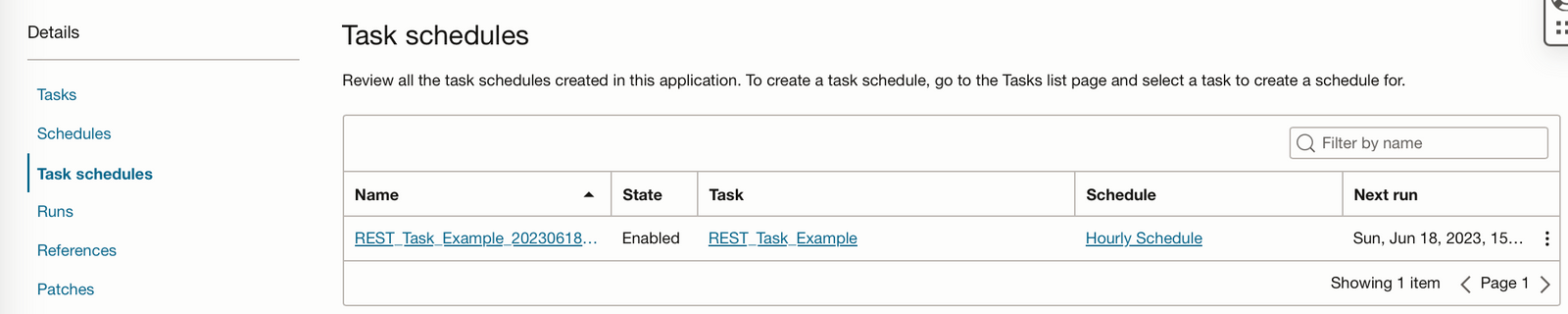
If you go to the Task Schedules tab from within your application you can see that the task is scheduled.
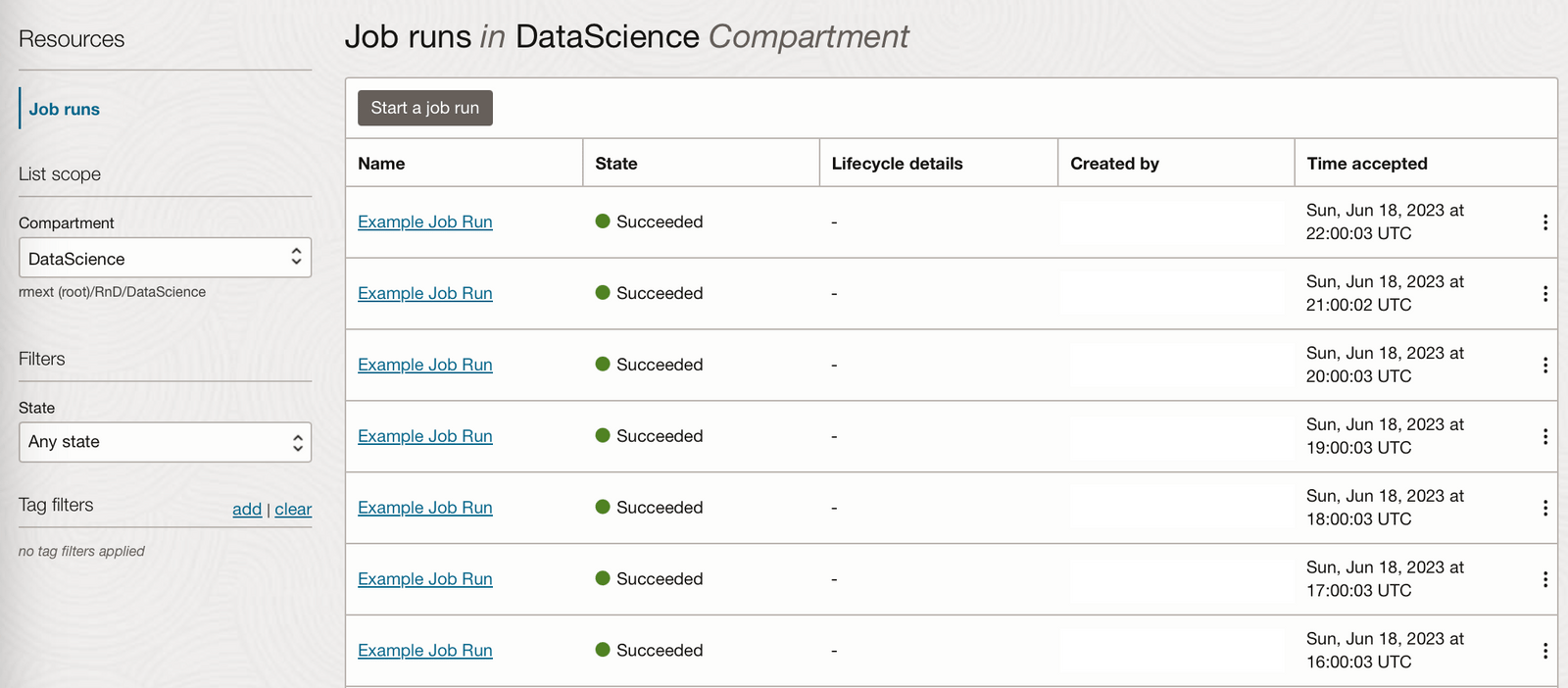
The task should then run on the schedule you have set, in this example, my task is run every hour.
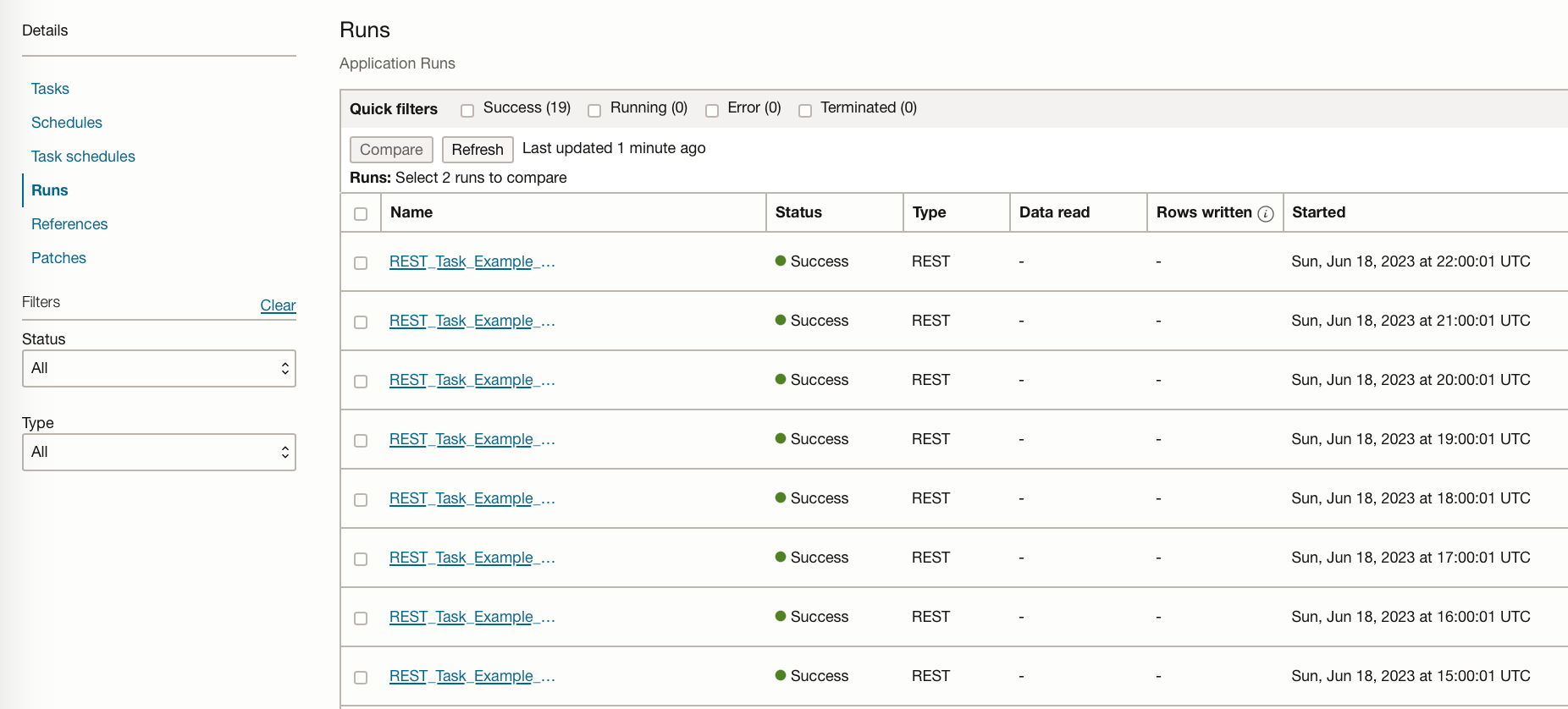
You can see the task creates a job run from the data science service every hour, allowing you to see the logs for each run:
Summary
In this post, we have covered creating a data science job to run a Python script, although this could be used to run Bash/Shell, or a Python or Java compressed file containing an entire project. This Job was then scheduled using the OCI data integration service by creating a REST task with the details of the data science job, and application to run the task, and a schedule to define the frequency and start time of the application.
Our job included environment variables to utilize a published conda environment, but these could have been extended to include secrets stored in the OCI vault. This means Data Science Jobs could be used for a whole range of tasks which could include, reading and writing to the storage bucket, reading and writing to an ADW, performing data manipulation, or applying a saved model to a dataset in batches. Technically you could use these jobs to retrain and deploy models, however, I would strongly advise against deploying models which have not been properly checked and tested for bias.
Oracle Analytics Consulting Services
Ready to unlock the full potential of your data with enterprise-grade machine learning on Oracle Cloud?
Share this
Share this

Overview of the New Cloudera Data Science Workbench

Oracle Generative AI Services


.svg)
.svg)