



If you’re still running OBIEE 12c, you are definitely not alone.
Although Oracle’s focus has moved to Oracle Analytics Cloud (OAC), many organisations still rely on established OBIEE environments built over decades. But with premier support for OBIEE officially ending in December 2026, the time to start planning your migration to OAC is now.

Taken from MOS doc KB471560
The good news? Migrating to OAC is generally a well-supported process. However, it’s not as simple as exporting a BAR file and uploading it to the cloud. While your catalog and much of the application metadata will migrate cleanly, critical areas like identity management, data connections, local files, and system configurations still require planning and manual effort.
To make sure you don't get tripped up, I'm going to walk you through a typical OBIEE 12.2.1.4 to OAC migration, outlining what migrates automatically, what demands manual work, and some of the common issues to watch for during the process.
The migration blueprint at a glance
While Oracle provides tooling to migrate much of the application content, a successful migration still involves a mixture of automated migration and manual configuration. The table below summarises where each component fits.
|
Component |
Migration approach |
|
Catalog content |
BAR file |
|
RPD |
Export, update, and replace |
|
Users/groups |
Create in OCI IAM/IDCS |
|
Application roles |
BAR file + verify/remap after import |
|
Data sources |
Reconfigure and test |
|
Local files / fmap |
Move and update references |
|
Deliveries |
Restore and re-enable |
|
Config Changes |
Advanced System Settings or instance sizing |
Step 1: Plan your OAC service
Before creating an OAC instance, spend some time mapping out the architecture. Decisions made at this stage are often difficult, if not impossible, to change later. Consider things like where your data will reside, how many users the service needs to support, and which existing Oracle licences can be reused.
Where will your data live?
This is one of the biggest architectural decisions. Keeping databases on-premise might avoid a complex migration, but it introduces additional networking requirements, such as VPNs, FastConnect, or other private connectivity and network gateways. Not to mention, you will definitely need to budget time for performance testing.
On the other hand, moving the data into OCI generally provides the simplest long-term architecture. However, it also increases the scope of the migration and may introduce security, compliance, or data residency considerations.
Choose the serving size
The number of Oracle Compute Units (OCPUs) directly affects system capacity, concurrency, and query limits. That said, it’s important to choose an instance size that reflects both your current workload and expected future growth. Oracle publishes sizing guidance and workload limits, so it’s worth reviewing these before selecting an instance.
Public vs. Private Endpoints
Another important decision is whether to deploy OAC with a public or private endpoint. This choice forms part of your wider network architecture and cannot currently be changed after the instance has been created, so it should be considered carefully.
Identify deprecated features early
Take a hard look at the features your current OBIEE environment relies on. Some functionalities have been deprecated or replaced in OAC. This is particularly important if your RPD contains custom session-variable logic or security implementations that rely on techniques available in OBIEE but no longer supported in OAC. Catching these early avoids unpleasant surprises during testing.
Step 2: Create and verify the OAC instance
Once you’ve planned the architecture, create the OAC instance and verify the basics before attempting any migration. Ensure that you can log in, that networking is working as expected, and that OAC can connect to all of your data sources.
Don’t just test the obvious databases. Check any local files, such as CSV lookup tables and those Excel files that live on a Windows server running under a desk in IT. Make sure these are accessible from the new environment or plan how they will be migrated.
If any databases or cloud services use IP allowlists, update them before cutover so that connections from OAC or the Data Gateway are permitted.
Get identity management ready
Set up your identity management before importing any content. Create or synchronise the required users and groups in OCI IAM (or IDCS for older environments) and verify that authentication is working correctly. Most organisations integrate with Active Directory or another enterprise identity provider, although smaller environments can also import users and groups from CSV files. See here.
Crucial advice: Don’t leave IAM until after the BAR import. Although the application roles migrate, they still need to be mapped to users and groups. Having identity management working first makes post-import validation much easier.
Step 3: Export content from OBIEE
Once the infrastructure is set up, it’s time to migrate your OBIEE content. But before you do that, it really is important to stop and review what you have and how much of it really needs to be migrated.
Treat this migration as an opportunity to tidy up, not just simply reproduce the existing environment.
- Rely on the usage tracking data to see which reports are still in use;
- Review all your iBots to see if any are redundant and are now just emailing empty reports into the void every Wednesday morning;
- Prune your RPD to remove old connections, experimental parent-child dimensions, etc. The more you can remove now, the easier it will be later on.
Your manual checklist
Make a list of custom files, config file changes, and anything else that may not migrate as part of the BAR file. Keep an eye out for:
- Custom security configuration
- Custom local files (logos, JavaScript files, etc)
- Unsupported features
- Mail server settings
- Safe domains
- Usage tracking
- Delivery schedules
- Config file changes
Create the BAR file
Once that’s done, create a BAR file containing the OBIEE content you’ll be migrating. There are two ways to do so:
- If you are still on OBIEE 11g (no judgment here), migrate to OBIEE 12.2.1.4 or OAS first, and then from there to OAC, following the steps below.
- If you are on OBIEE 12.2.1.4, use the exportarchive command to create a BAR file. The BAR file contains most of the catalog content and metadata needed for the migration, although you’ll still need to deal with the manual items identified earlier. Download it to your desktop or other suitable place that can be accessed by your browser.
At this point, you should also create or obtain a copy of the RPD file that you can edit in the latest OAC Client Administration tool to update the connection pool details where needed. This has the added effect of upgrading the RPD to the latest version as soon as you save it.
Be prepared for warnings or errors that were not there in OBIEE. The model consistency checker has become more sophisticated (or picky) in later versions. Deal with any issues before pushing to OAC.
Helpful tip: Take a snapshot of your new, empty, and functioning OAC instance. This will be your restore point, just in case.
Step 4: Import content
With the BAR file and updated RPD ready, the actual import process will be relatively straightforward. Most of the effort should already have gone into planning, preparation, and testing.
Log into OAC, navigate to DV Console, and open the Snapshots tab:
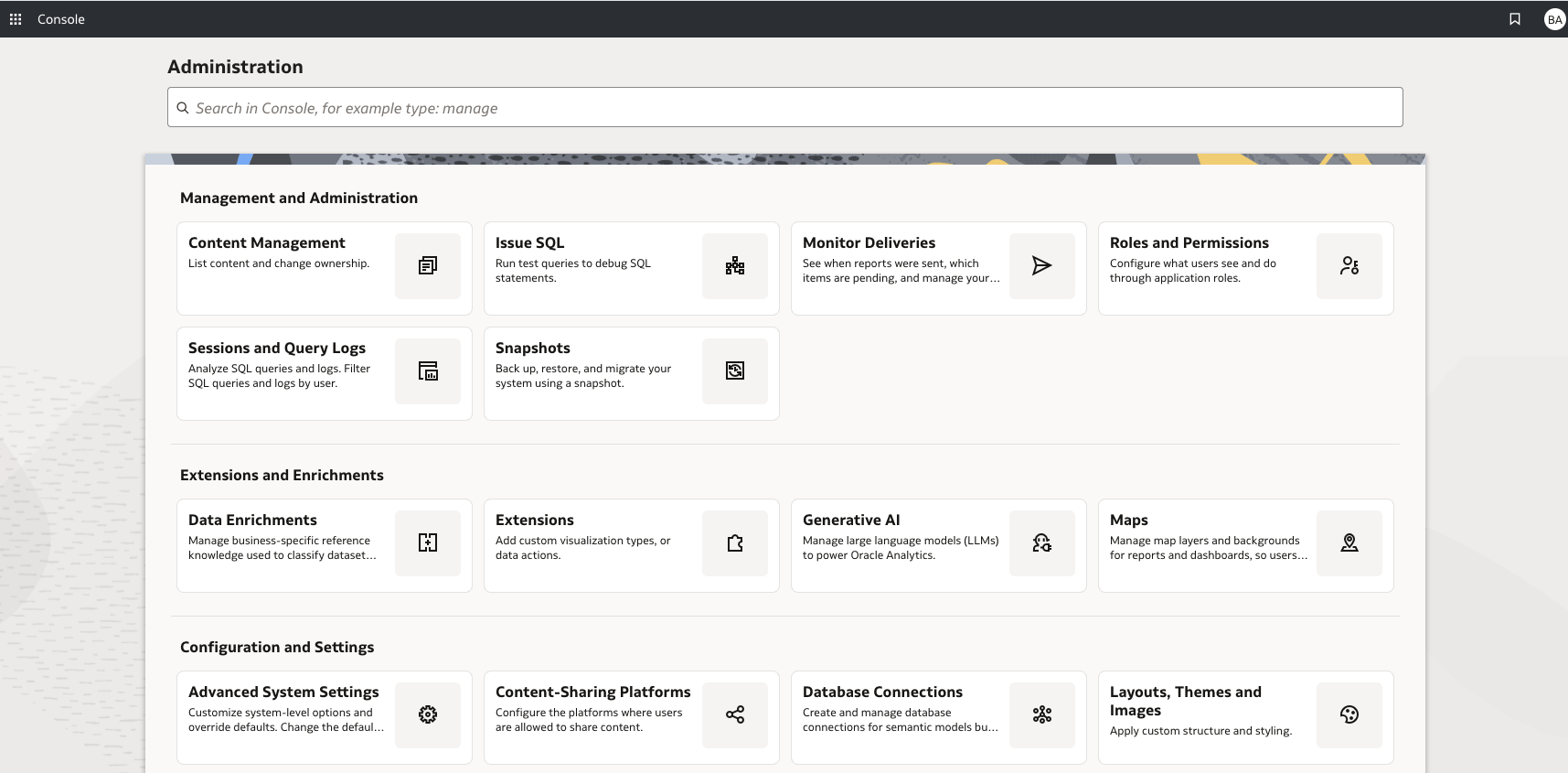
OAC Console tab
Use the More Actions menu to ‘Import Snapshot’, feeding it the BAR file from your desktop:
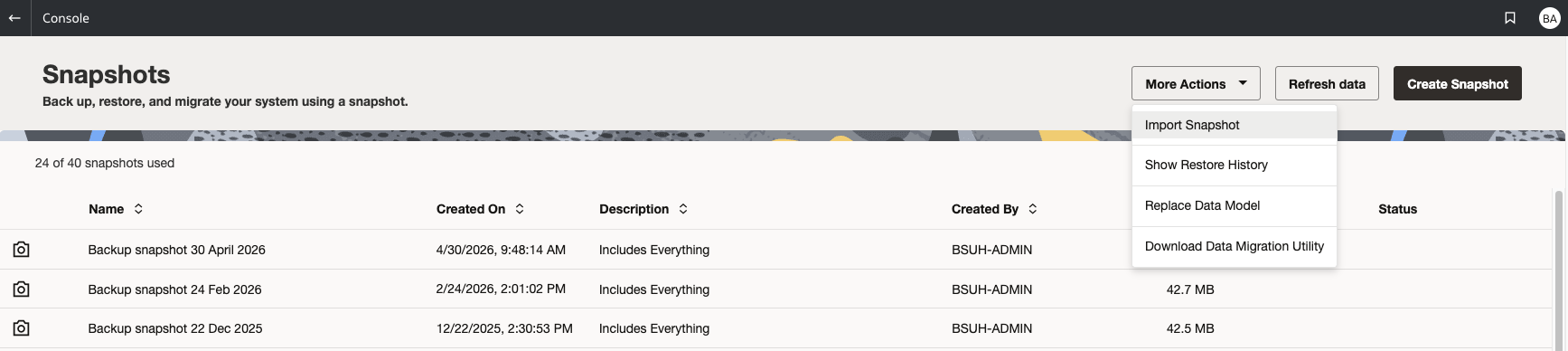
Snapshots tab for importing BAR files and RPDs (Replace Data Model)
Then use the same menu to Replace Data Model and upload the updated RPD that you prepared earlier.
That should give you working reports, assuming the connections, networking, and security were all tested beforehand. If not, revisit the previous three sections.
One final check: Before handing the system over to users, verify the imported application roles and their mappings. The BAR file imports the roles themselves, but you still need to confirm they’re mapped to the correct IAM/IDCS groups and that users inherit the expected permissions.
Step 5: Restore custom configuration
By this point, the core application should be up and running, so it’s time to work through that list of customisations you identified earlier.
Use the OAC Console to restore any Advanced System Settings, such as Usage Tracking, row limits, and any other environment-specific configuration that wasn’t included in the BAR file.
Recreate any custom Themes, logos, or other branding, then restore local files such as JavaScript, CSS, or FMAP files where required.
Finally, work through the remaining configuration and performance settings to make sure everything is behaving as expected. In particular, check that Usage Tracking is collecting data correctly, report row limits are appropriate for your users, and any custom integrations or delivery settings have been restored.
Step 6: Enable scheduled jobs
The final step is to restore any scheduled Agents and BI Publisher jobs that were disabled before the migration.
Don’t simply enable everything and hope for the best. Review each schedule to make sure it is still required, confirm that recipients and delivery destinations are correct, and run a small number of test jobs before re-enabling them all.
Once you’ve confirmed that scheduled jobs are running successfully, your migration is officially complete. Take another snapshot and revel in your success!
Final checks
Don't go celebrate your migration yet! To confirm everything is running smoothly, check whether:
- Users can log in without hitches;
- Application roles and permissions are accurate;
- Reports execute quickly and successfully;
- Usage Tracking is working;
- Agents and BI Publisher schedules are running;
- System performance meets user expectations;
- Backup snapshot has been taken.
No two OBIEE environments are identical, so no two migrations are either. The BAR file does most of the heavy lifting, but successful migrations still depend on good planning, thorough testing, and a careful review of the customisations built up over the life of the system.
Oracle Consulting Services
Ready to modernize your analytics without the stress? Let's make your migration to OAC smooth, secure, and completely optimized for future growth.

.svg)
.svg)