


This is the fourth in a series of blog posts covering the most important topics you should know to completely monitor your IT infrastructure with Oracle Enterprise Manager Cloud Control 13c. The previous posts covered how to set up basic monitoring, how to use extended metrics and how to create reports based on metric data.
Understanding OEM corrective actions
Oracle Enterprise Manager (OEM) Corrective Actions allow OEM to take immediate action as soon as an event is raised, such as a metric alert. In the 13c version, Oracle already includes a corrective action to automatically add space to a tablespace whenever it meets certain criteria, such as free space on the diskgroup / file system, and so on. With corrective actions, it is possible to significantly reduce the amount of work a human has to perform whenever alerts are raised. Besides the one mentioned above, PL/SQL packages and shell scripts are also accepted by corrective actions to perform a wide variety of automated actions.
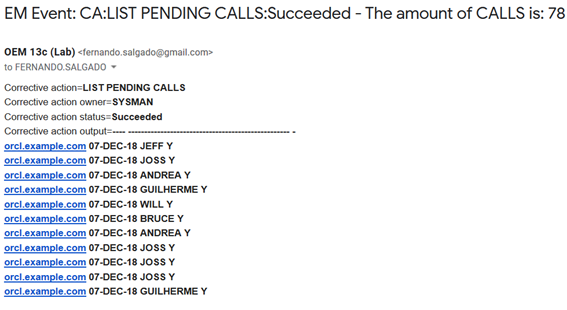
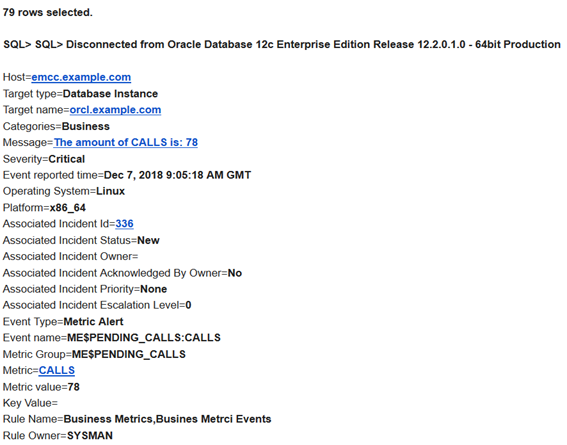
For example, an extended metric that uses a simple shell script to query a particular URL, and whenever the result of this script indicates an issue with the URL, OEM will raise an alert which will then trigger a corrective action to automatically restart the HTTP server. There is a wide range of possibilities for the combination of extended metrics and corrective actions. Using the extended metric example presented previously, I’ll create a corrective action that will automatically list all the pending calls and send it by e-mail whenever the threshold for the extended metric is reached. This is just an example to show how corrective actions and its notifications works, but as explained above, these powerful tools may be used to monitor virtually anything in the IT environment. Just be creative!
Creating and configuring the corrective action
Go to “Enterprise -> Monitoring -> Corrective Actions”

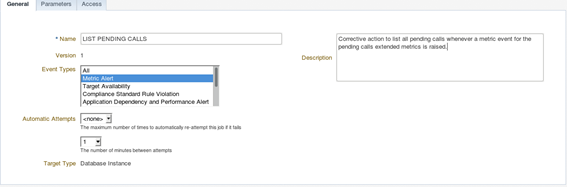 In the parameters tab, input the
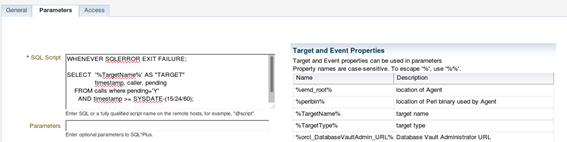 On the table to the left named
More details on the environment variables can be found at Oracle® Enterprise Manager Cloud Control Administrator’s Guide.
As mentioned before, OEM 13c offers a default corrective action to automatically add new datafile(s) to a tablespace, but in previous versions, a personalized PL/SQL code was required to do that. One example of such code is displayed below:
SET SERVEROUTPUT ON;
 WHENEVER SQLERROR EXIT SQL.SQLCODE;

 DECLARE

  v_dg VARCHAR2(100);
  v_pctfree_dg NUMBER(20);
  v_tablespace VARCHAR2(100);
  v_stmt VARCHAR2(100);

 BEGIN

  v_tablespace := '%key_value_name%' ;

  SELECT DISTINCT SUBSTR(file_name, 2,INSTR(file_name,'/',1,1)-2)
  INTO v_dg
  FROM dba_data_files;

  SELECT ((free_mb / DECODE (type,'NORMAL',2,
  'HIGH',3,
  'EXTERN',1)) /
  (total_mb / DECODE (type,'NORMAL',2,
  'HIGH',3,
  'EXTERN',1)))*100
  INTO v_pctfree_dg
  FROM v$asm_diskgroup
  WHERE name = v_dg;


  IF ( v_pctfree_dg > 5 ) THEN

  v_stmt := 'ALTER TABLESPACE ' || v_tablespace || ' ADD DATAFILE SIZE 1g AUTOEXTEND ON NEXT 512m ';
  EXECUTE IMMEDIATE v_stmt;
  dbms_output.put_line('Successfully added datafile to: ' || v_tablespace );

  ELSE

  dbms_output.put_line('Not enough free space to add datafile to: ' || v_tablespace );
  RAISE_APPLICATION_ERROR (-20200, 'Not enough free space on diskgroup ' || v_dg || ' (' || v_pctfree_dg || ' MB free),
  to add datafile to: ' || v_tablespace );
  END IF;

 END;
 /
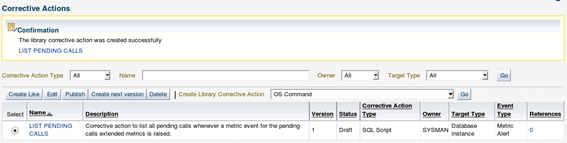
Publishing and associating actions with templates
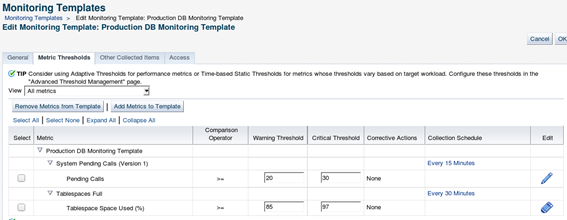
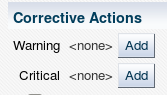
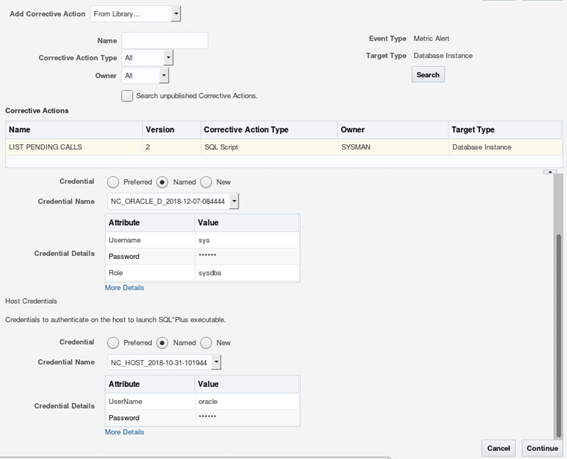
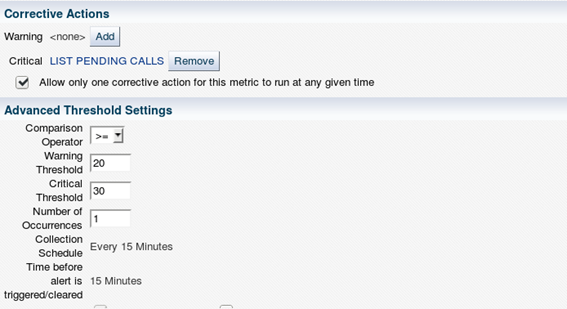
Click on the “Continue” button to save the settings and go back to the edit page of the “Monitoring Template”, then click on the “OK” button to save the “Monitoring Template”.
Setting up notifications for corrective actions
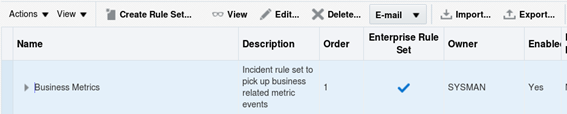
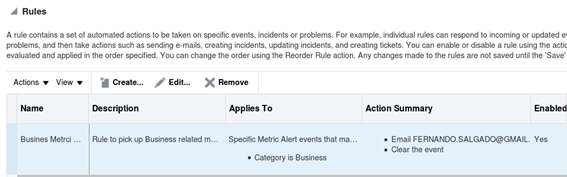
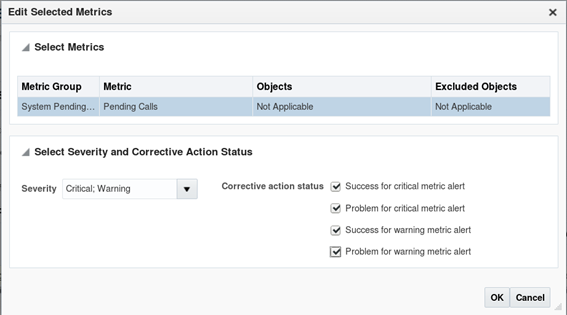
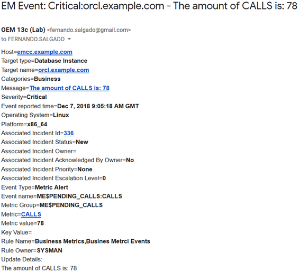
Now it’s important to include the “Corrective Actions” in the incident rules, otherwise OEM wot't send notifications when this action is executed, to enable notifications go to “Setup -> Incidents -> Incident Rules”. The corrective action notification can be added to an existing rule set. Or simply create a new one to gather only corrective actions events. Below is an example of how to add these notifications to an existing set: Select the desired “Rule Set” and click on the “Edit” button, then select the specific rule that will notify whenever the corrective action is executed and click on “Edit” again, or simply add a new rule to the existing rule set.



Oracle Database Consulting Services
Ready to optimize your Oracle Database for the future?
Share this
Share this
OEM 13c Monitoring Features - Part 5, Best Practices and Automatic Incident Creation
How To Choose Your Oracle Database ID (DBID)


.svg)
.svg)