


Tired of wrestling with proprietary, undocumented UDML for your Oracle Analytics repository? The new Semantic Modeler Markup Language (SMML) changes the game with JSON-based editing that actually makes sense. Discover how to leverage SMML and Python to revolutionize your metadata management and automate your OAC development.
OAC Semantic Modeler
There are a few reasons to like the Oracle Analytics Cloud (OAC) paired with the new Semantic Modeler:
-
It works in the cloud. I mean, it actually works!
-
It has a native, built in git integration.
-
The SMML language.
The SMML, which is short for Semantic Modeler Markup Language, is my personal favorite feature coming with the new Semantic Modeler.
The Old UDML and the New SMML
In the old days the only way to manipulate the OBIEE RPD content automatically was to export the RPD in UDML format, tweak it and then import it back. UDML was proprietary, undocumented and an utter nightmare to parse - content analysis was usually done with sophisticated regex and it did not work very well. The use of UDML was mostly "local" when you copy an RPD object into Notepad, tweak it and then copy it back into the RPD. That all changed with the XML export feature - parsing of the whole repository became feasible, almost easy. At Pythian we have parsed the entire RPD content and inserted it into a relational database to make it available for further analysis like lineage or data dictionary. The XML export capability was a game changer. However, for individual RPD object manipulation we were still stuck with UDML.
In OAC and with the new Semantic Modeler, UDML is replaced with SMML. It is documented. It is JSON-based, which I usually prefer to XML. Instead of modifying UDML at our own risk, Semantic Modeler objects are available in SMML format from the Modeler itself - the Modeler features a SMML editor.
Editing SMML in Semantic Modeler
To easiest access to Semantic Modeler objects in SMML format is from the Modeler itself. You right-click a Modeler object, choose Open in SMML Editor from the pop-up menu and a new tab will open with the script.
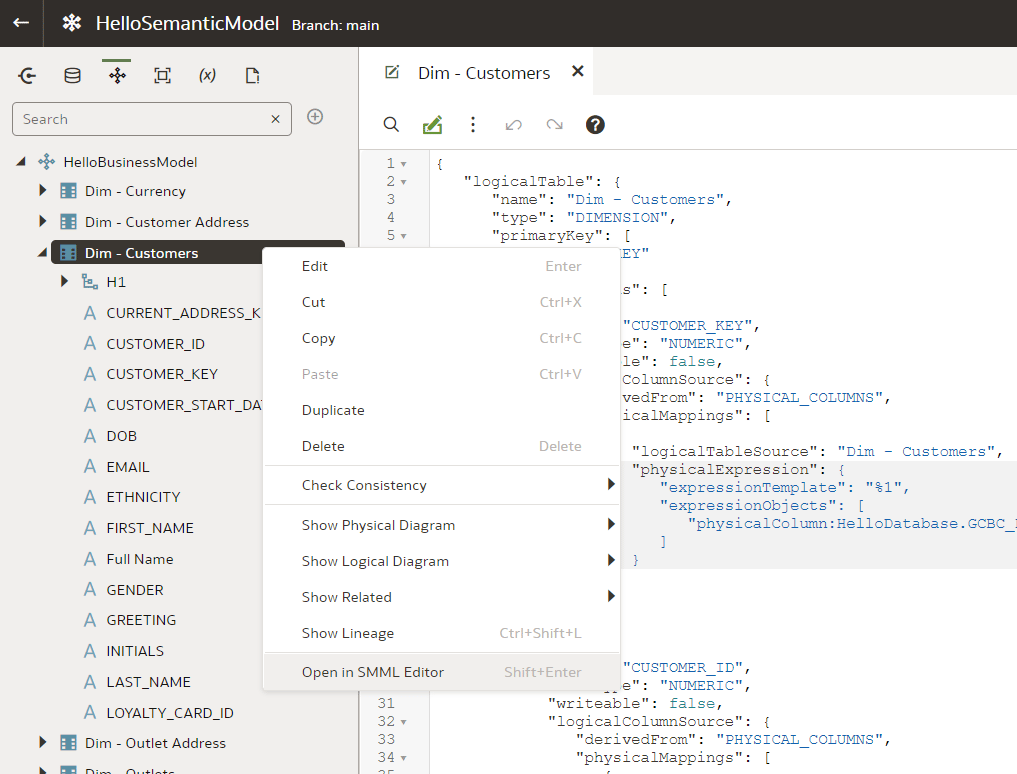
However, this way you are accessing only one object at a time. (You cannot multi-select objects to have them in a single SMML editor view.) Moreover, when opening a high-level object like a Business Model, you will not get full SMMLs of its Logical Tables - you will have to open the SMML Editor for each Logical Table separately. Also, some low-level objects like Columns do not have their own SMML - when opening SMML Editor for a particular Column, you will get the SMML code for the whole Table.
Let us give it a try. We go to the Logical Layer, double-click the "Dim - Customers" Logical Table to open it in designer.

Now, right-click the same "Dim - Customers" table and open the SMML Editor from the menu. The two tabs will sit next to each other.
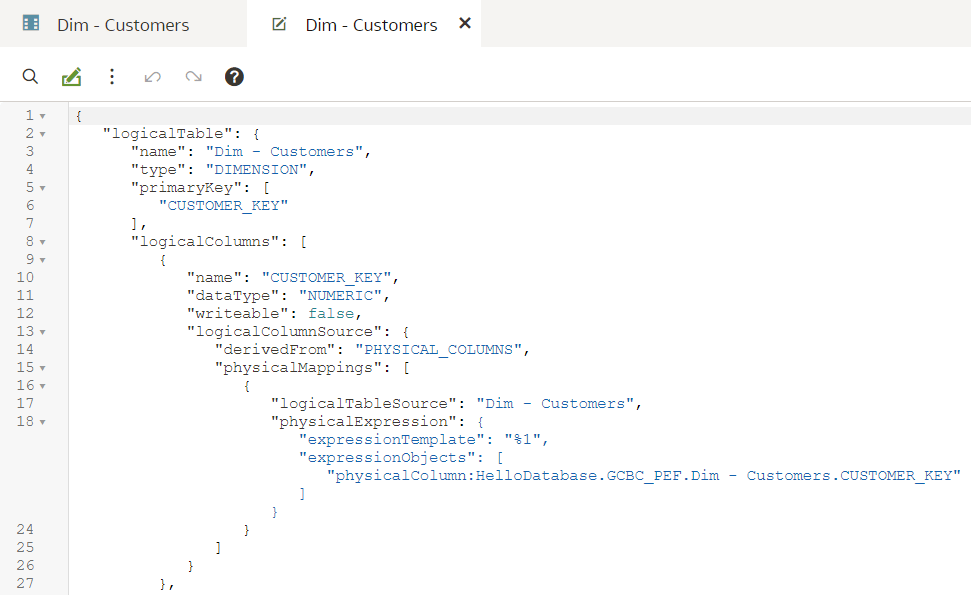
Let us change a dataType value from NUMERIC to VARCHAR:
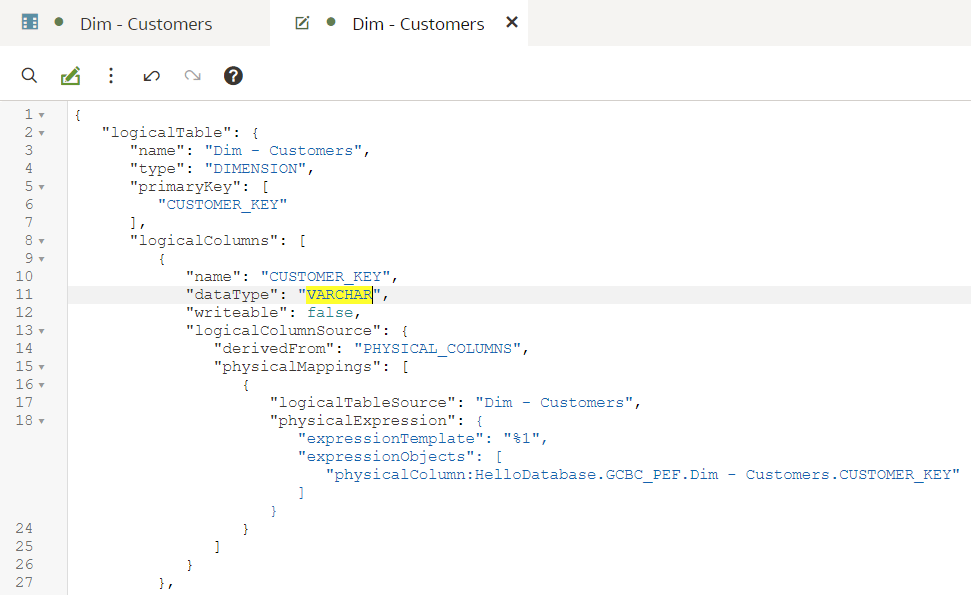
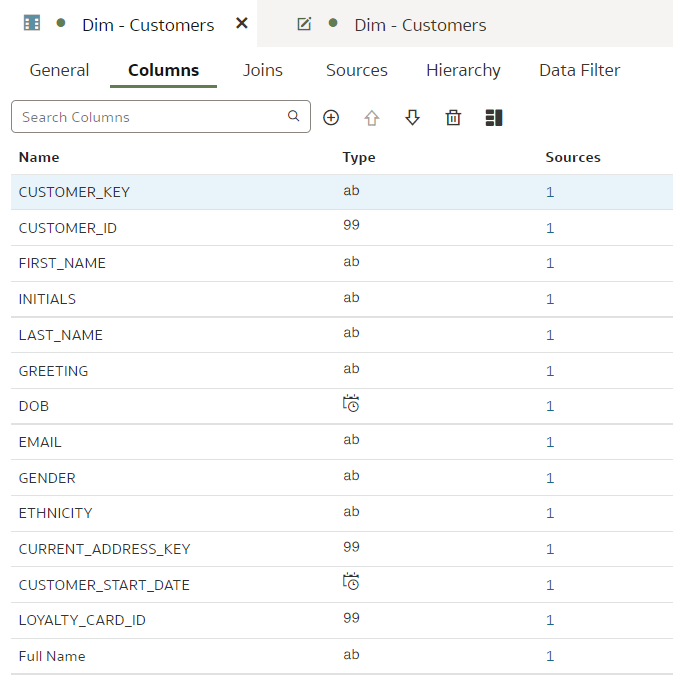
To save the changes, we either press Ctrl+S or click the save icon in the top right corner. Now let us go back to the designer tab. We see that the data type in the designer has changed from '99' to 'ab' - without refreshing the designer we can see the change there. (Note that the same change cannot be done from the designer - data types are normally derived from the Physical sources, instead of specified explicitly.)
Can repository content be broken in SMML Editor? Let us try that by renaming a JSON key:

When trying to save it, I get this error:

No explanation, no line number. In this case, the save did not take place. I can either revert the change in the SMML Editor itself or I can close the Editor tab and choose to discard changes.
However, the way errors come up is inconsistent. For some errors, I would get this message:
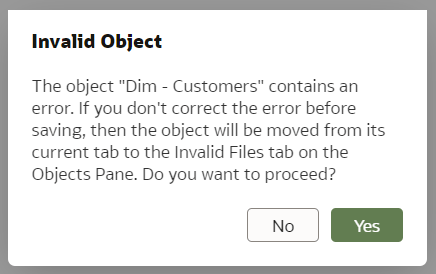
When I choose to proceed (common sense says No but I'm doing this for you!), the Dim - Customers dimension disappears from the Business Model...
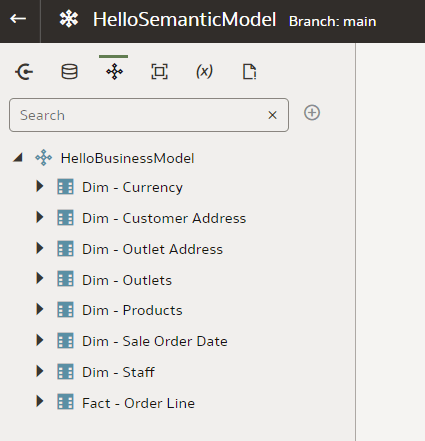
But it is not all lost. It is now found in the Invalid Files section.
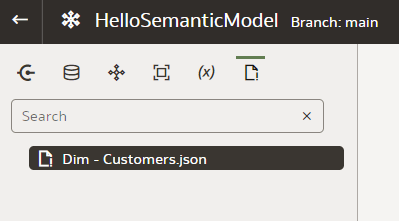
Here I can open it and this time the row with the error is actually highlighted. I remove the unneeded commas that make the JSON invalid and save it.
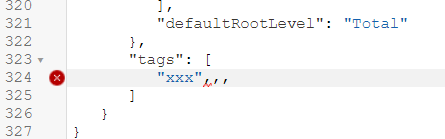
However, the file is still in the Invalid Files section and still missing from the Business Model - I don't think that is how it is supposed to work. Perhaps I am missing a simple trick here but I could not find an easy way of moving the Customer dimension back to the Business Model. The best solution for me was to use the git reset command.
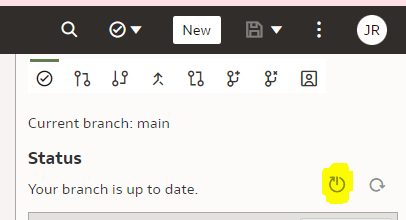
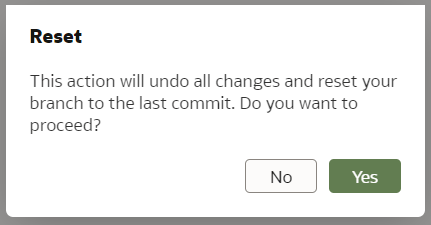
The SMML editing works well but when you get it wrong, it does not do a good job at telling what and where the issue is. However, it does tell you there is an issue and when that happens, do not save it!
We have seen that SMML editing works well for individual objects. But how about a whole repository export and import?
Whole Repository SMML Export and Import
The documentation does not go into much detail on whole repository exports and imports. I found two ways of exporting the whole repository in SMML format and one for importing it.
The easiest way to export the whole Semantic Model is to open it in Modeler and then open the triple-dot menu from the top right corner.
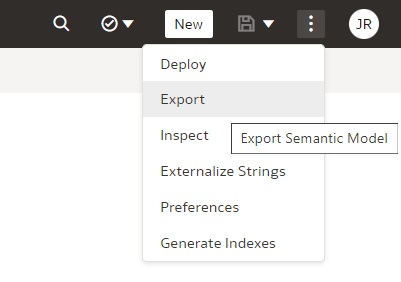
There you can choose to Export and then specify the name of the Zip file.
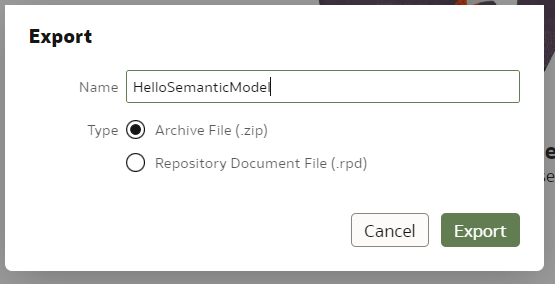
Upon pressing Export, the zip file gets generated and your browser will download it. When unpacking the archive, this is what you see - (at least) three folders...

...with lots of JSON files in them - those are SMML scripts.
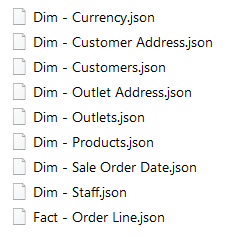
An alternative way of exporting the whole repository in SMML format is to upload it to a git repository. In git, the repository is stored in exactly the same format as the export zip file.
When the repository is in git, you can clone the repository locally and edit it with a text editor - it will be the same as with a zip export. However, when done, you can commit and push your changes back to the git repository and then pull the repository changes from Semantic Modeler - this is the only way I found to import the whole repository into Semantic Modeler.
Querying OAC Repository SMML Content with Python
Why do I love the SMML so much? Because it presents a great opportunity for repository content analysis and development acceleration.
Now that we have the entire OAC Repository exported in JSON format, we can use Python to query it or even modify its content. Python is very good at handling data in JSON format - it is much easier than XML.
Let us start with something simple - in Python we open the Customers dimension JSON to count columns in it:
import json

with open("D:\OAC-Semantic-Modeller\Repo\logical\HelloBusinessModel\Dim - Customers.json") as f:
    customerJson = json.load(f)

    print(f"Logical Table Name is {customerJson['logicalTable']['name']} and its type is {customerJson['logicalTable']['type']}.")

    logicalColumnNames = [lc['name'] for lc in customerJson['logicalTable']['logicalColumns']]
    print(f"The table has {len(logicalColumnNames)} columns:\n\t{', '.join(logicalColumnNames)}")
These are just a few lines of code and the output looks like this:

Note above that in the SMML JSON, the name attribute is a single attribute whereas logicalColumns is a list. In Python they become a single attribute and a list accordingly.
It would be easy to modify the above script to do the same for more than one table, to run the script regularly to keep track of table column changes...
However, it would be more useful to do queries across multiple repository objects. With a bit more effort, we can do that.
Let us set a task to get a list of all Logical Table Columns in the format <Logical Table name>.<Logical Column name> (<Logical Column data type>) but without opening each JSON individually like we did in the first script. Instead we want to load the whole repository in memory and then run our queries.
import json
import os
from functools import reduce

def getFileContent(filePath):
    with open(filePath) as f:
        return json.load(f)


def getFolderContent(folderPath):
    folderPaths = [{'name': f, 'path': os.path.join(folderPath, f)} for f in os.listdir(folderPath) if not os.path.isfile(os.path.join(folderPath, f))]
    filePaths   = [{'name': f, 'path': os.path.join(folderPath, f)} for f in os.listdir(folderPath) if os.path.isfile(os.path.join(folderPath, f))]

    folderContent = [{f['name']: getFolderContent(f['path'])} for f in folderPaths]
    fileContent = [{f['name']: getFileContent(f['path'])} for f in filePaths]

    return reduce(lambda a, b: {**a, **b}, folderContent + fileContent)


smmlRootPath = "D:\OAC-Semantic-Modeller\Repo"  # this is the root path to where I unzipped the SMML export
allRepositoryJson = getFolderContent(smmlRootPath)

# get all Logical Tables in the Repository
logicalTableNames = [lt['logicalTable']['name'] for lt in allRepositoryJson['logical']['HelloBusinessModel'].values()]
print(f"There are {len(logicalTableNames)} Logical Tables in the repository: {', '.join(logicalTableNames)}\n")

# get all Logical Table Columns
ltColumns = []
for ltName in logicalTableNames:
    ltColumns.extend([
        f"{ltName}.{lc['name']} ({lc['dataType']})"
         for lc in allRepositoryJson['logical']['HelloBusinessModel'][ltName + '.json']['logicalTable']['logicalColumns']
    ])

div = "\n\t * "
print(f"There are {len(ltColumns)} Columns found across {len(logicalTableNames)} Logical Tables:{div}{div.join(ltColumns)}")
The script is still quite simple and now allows us to run pretty much any query we can think of against the repository. The (top of the) output looks like this:

The new SMML language allows for a much easier repository content analysis and manipulation with Python - I expect that no big OAC project in the future will go without a Python developer. Development standards checks, change monitoring, development speed measurement, lineage tracing, repetitive repository content generation - these are just a few scripting opportunities that come to mind.
Conclusions
-
The SMML language is a major improvement over the OBIEE's UDML language;
-
It is a good way of quickly editing a repository object in a text editor;
-
Editing SMML is more dangerous than using the standard object designer. The SMML editor will give you warnings if you try to save something dodgy but you can break things;
-
Use Python to run repository-wide queries and updates. It is easier than it was with OBIEE's XML extracts;
-
If planning to use SMML editing extensively, enable git and follow best version control practices - if you do break something, make sure it is your own dev branch.
Oracle Consulting Services
Ready to get started?
Share this
Share this

Financial Reports - which tool to use?

Oracle Generative AI Services


.svg)
.svg)