


Running Oracle BI Standard Edition One or hosting your OBIEE platform on Windows? You don't need expensive third-party tools to keep a pulse on system performance. Discover how the native Windows Performance Monitor (Perfmon) can unlock deep insights into your BI infrastructure's health—for free.
An Oracle Analytics Crash Course
The vast majority of customers I come across that use OBIEE run the platform on Linux or Unix. For those that run it on Windows though, what tools do you have to monitor the performance of the platform? One of our customers is in just this situation as they are running Oracle BI Standard Edition One, which is limited to Windows as a host platform, and so a tool we'd use in this situation is "Perfmon".
Perfmon (short for Performance Monitor) is a utility that's shipped on Windows since the days of NT4.0 and is commonly used by Windows sysadmins to keep an eye on the characteristics of their system. You can use it to monitor hundreds of different metrics, such as processor usage, memory usage and disk usage, and you can connect it to the OBIEE binaries to find out more about your BI system.
I'm running Oracle BI EE on a Windows 2003 server, and to start taking a look at this feature I start Perfmon from the start menu (Start > Settings > Control Panel > Administrative Tools > Performance), or I can just type in perfmon from the Windows command line. The utility initially comes up like this:
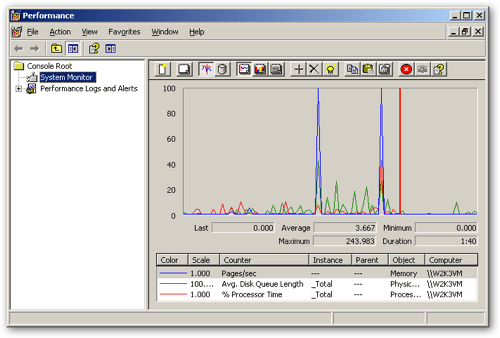
Perfmon in this initial state is monitoring Pages/Sec (an indication as to memory swapping), Avg. Disk Queue Length (an indication of disk I/O waits) and % Processor Time (an indication of the load on the CPU).
Implementation
To start with, I"m interested in some more general indicators of the load on my system. Do add more metrics, I click on the "+" button in the middle of the application toolbar to add a new counter. This brings up a dialog that lets me initially select a Performance Object, which is typically a part of an application or a general Windows area such as as System.
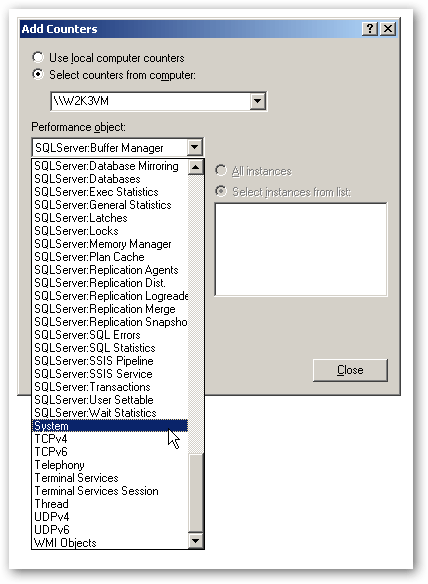
and then select the Processor Queue Length counter, which represents the number of threads queued and waiting for time on the CPU. If the number is more than 10 times the number of CPUs (or virtual CPUs if using VMWare) then your system is running under a normal load.
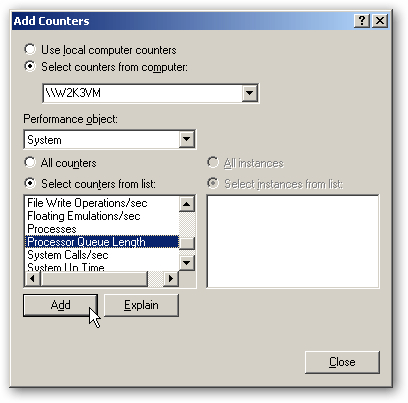
to add the counter to the Perfmon monitor, and check the output. Perfmon has scaled up the counter by ten to fit in with the others, and I can see that apart from a brief peak, this metric is looking acceptable. Other metrics I might be interested in include:
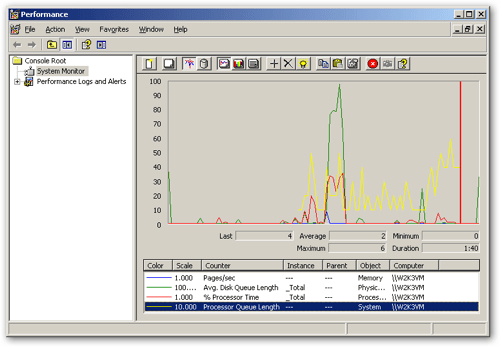
So I now have Perfmon monitoring some useful overall system metrics to let me know if the system is overloaded. But what about OBIEE specifically?
-
Memory > Pages Input/Sec (a good indicator of whether the system is memory-bound, shows the rate at which pages are read from disk to resolve hard page fault, and should generally settle at zero)
-
Physical Disk > Current Disk Queue Length > drive letter (together with the above, a good indicator of excessive disk usage. Single disks should report a figure of 2-3 or lower, divide this by the number of disks if in a RAID array. A high figure for the above metric may indicate swapping due to lack of memory, these two together typically show whether systems are RAM and I/O bound)
-
Network Interface > Output Queue Length > nic card name (shows whether the network is overloaded, look for more than 2 packets waiting for transmission to indicate the possibility of a network bottleneck)
So I now have Perfmon monitoring some useful overall system metrics to let me know if the system is overloaded. But what about OBIEE specifically?
If you go back to the point where you add new counters, you'll notice that on a system with OBIEE installed, there are a bunch of performance objects specific to the server components of OBIEE.
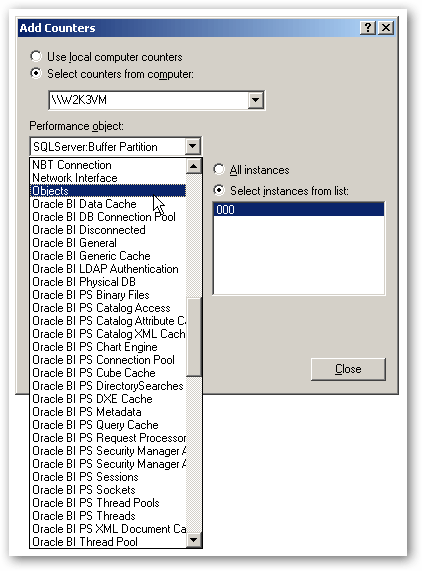
These are the counters that tools such as the BI Management Pack uses to monitor OBIEE performance, and you can also access them from a browser using the URL
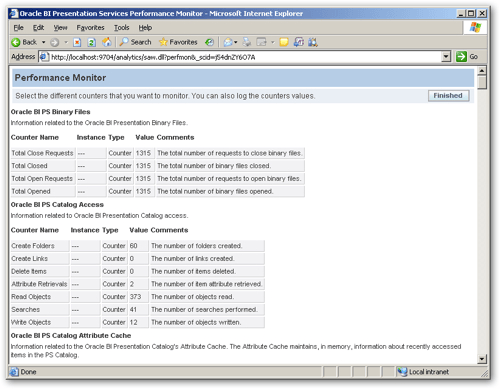
This screen gives you all the counters in one place though, so there's probably a bit too much data here to monitor on an ongoing basis. Plugging these counters into Perfmon gives you the ability to graph and monitor them individually, and you can also plug them into the underlying Windows alerting subsystem to let you know if something has gone wrong.
OBIEE metrics
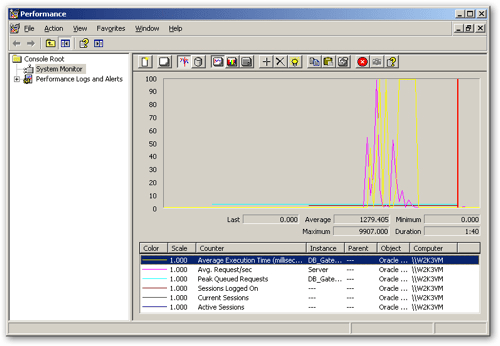
So let's take a look at some OBIEE metrics. To keep things simple, I delete the existing counters from the Perfmon window and also switch to the Histogram view, so that I can see the metrics as a vertical bar chart. I then add the following two BI Server metrics to the window:
-
Oracle BI Thread Pool > Avg. Request/Second > Server
-
Oracle BI Thread Pool > Average Execution Time (milliseconds) > per BI Server connection pool
-
Oracle BI Thread Pool > Peak Queued Requests
-
Oracle BI PS Sessions > Sessions Logged On
-
Oracle BI PS Sessions > Current Sessions
-
Oracle BI PS Sessions > Active Sessions
All of which give me an idea of the general load on the system. I could add more detailed counters on cache usage and so on, but for now my Perfmon output looks like this:
One other neat feature of Perfmon is alerts. By right-clicking on the Performance Logs and Alerts > Alerts section within the Perfmon tree view, I can define a new Windows alert against these metrics.
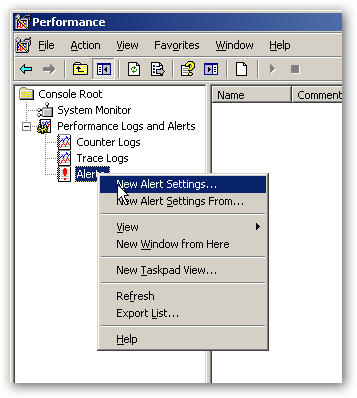
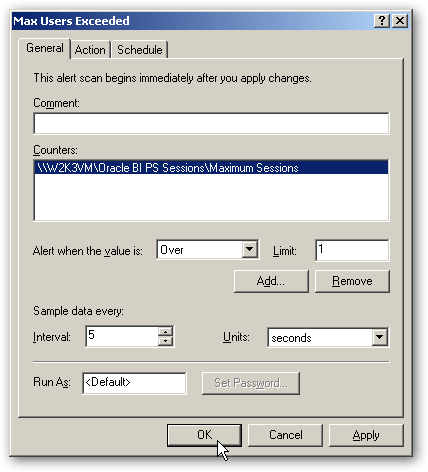
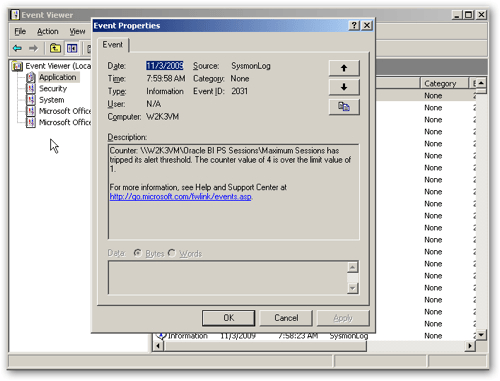
In this case, as I've set the alert threshold so low, running a couple of more browser sessions triggers the alert. You can also do something similar if you're running Essbase on Windows, or any of the other EPM components (Planning, Financial Reporting etc), though the counters aren't quite so detailed and are more generic process counters such as amount of memory used, % of processor time, virtual bytes and so on. For something "free" though, Perfmon is neat utility and Oracle/Siebel have nicely instrumented the OBIEE server processes making it relatively easy to get a handle on the performance of your BI Foundation platform.
Oracle Consulting Services
Need expert assistance tuning your Oracle BI environment for peak efficiency?
Share this
Share this

Materialized views (revised.. but only a little!)

Becky's BI Apps Corner: OBIA 11.1.1.10.2


.svg)
.svg)